

To upgrade your Transport Fever 3 headquarters, select the existing HQ on the map, choose Configure, open the Building tab and attach an available expansion at a blue connection point. An expansion must first be available through company progression. A larger bank balance alone does not establish that its rank requirement has been met.
Keep three checks separate: which town the headquarters supports, which company reward is unlocked, and which module is actually built. Placing the HQ near the intended town answers the first check. Reaching a company rank answers the second. The completed building and its effect panel answer the third.
This guide shows one completed extension and its visible growth-bonus change. It does not assign a price, population threshold or bonus to every future module.
Choose the check that matches your problem
If needed, scroll horizontally to read every column.
| What you see | Open first | What to check | Continue when |
|---|---|---|---|
| You have not built an HQ | Headquarters placement and nearby towns | The town you intend to support and the proposed location | You can identify the intended nearest town. |
| The HQ exists but expansions are unavailable | Company progression | The reward for the module you want | That particular expansion is available. |
| A reward is unlocked but no extension appears | The HQ's Configure window | Building tab, selected module and attachment points | The new module is placed on the existing HQ. |
| The building expanded but the town still stagnates | HQ effect panel, then the town window | The module's actual bonus and the town's growth breakdown | The structural upgrade and the growth bottleneck are diagnosed separately. |
Use the table before rebuilding. Changing location cannot substitute for earning a company reward, and earning a reward does not automatically demonstrate that you attached its module.
Place the headquarters for the town you want to support
The HQ promotes the nearest town to the capital and increases its growth rate. The building's information panel describes this relationship. Choose the town you want to support before committing to a site, especially when several towns are close together.
Inspect the proposed location relative to those towns. Do not assume that the largest town, your most profitable town or the town containing your busiest station automatically receives the benefit. The relationship is based on the HQ's location, rather than on the importance of a transport line in your network.
For a practical choice, compare towns you can already serve. A town with working passenger connections and a feasible cargo chain gives you a clearer way to monitor whether the added bonus is helping. That is planning advice, not a claim that one map position or town size is universally optimal.
- Identify the town you want as the capital and open its current growth information.
- Inspect the HQ site against nearby towns rather than using the nearest station as your reference.
- Read the building's available placement information before committing.
- After placement, select the HQ and check its identity and stated effect.
- Open the intended town again and keep its growth breakdown available for later comparison.
There is no verified universal placement radius in this guide. If two towns are close enough to make the recipient ambiguous, establish the relationship using the information in your save before paying for an expansion.
Check the unlock before entering construction
Company progression is population led. Developing the world's towns advances company rank, and higher ranks unlock rewards that include headquarters expansions. Company rank and the level of one individual town are different measures.
A city can grow while the next company reward remains unavailable. Likewise, a profitable line can increase cash without showing that the relevant population requirement has been reached. Start with the company progression view and the specific reward you want rather than trying to infer an unlock from earnings.
Read the current rank, the next requirement and the reward list shown in your save. Match the reward to the HQ module you intend to attach. A resource prospecting reward, landmark and HQ extension are different tools even when they appear during the same stage of progression.
The illustrated extension was available at Mechanic rank. This is a worked example for that module, not a complete rule saying every HQ expansion unlocks at Mechanic. Do not copy its availability to a different building or later reward without checking that item's own entry.
If progression remains flat, move to the town growth checklist. It covers completed passenger journeys, required cargo and the ratings that affect growth. Keep the HQ procedure here; use that page to repair the network that earns the next rank.
Attach an available expansion
Record the existing headquarters bonus
Select the headquarters itself. In the example below, the information panel shows Town Growth: +5.0% and the Configure button. Note the current effect before opening the builder, so you have an actual value to compare after construction.
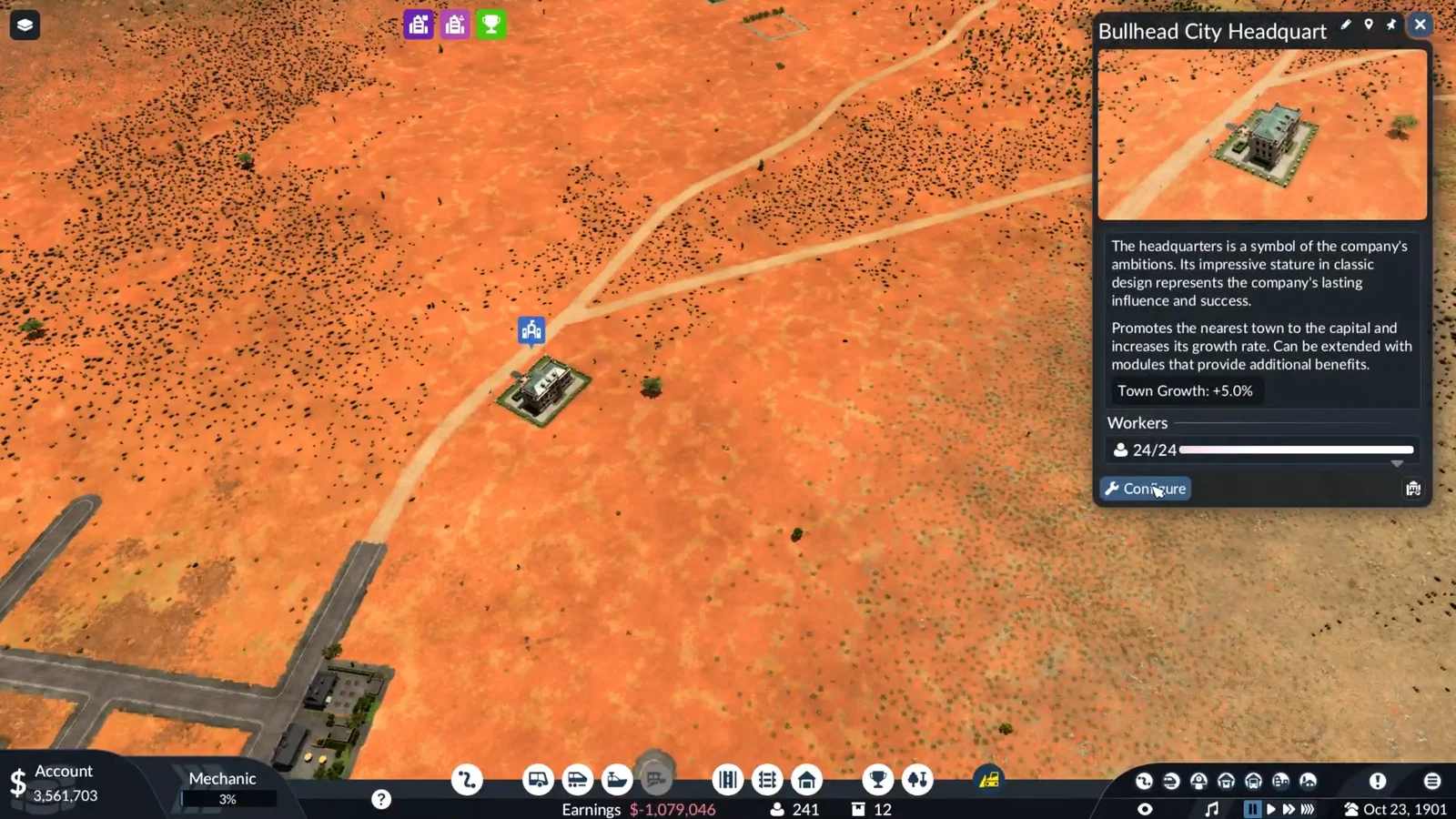
The information panel matters more than how large the building looks. A different roof or footprint does not by itself tell you which bonus changed. Also keep the town identity consistent: a before-and-after comparison is useful only when it concerns the same headquarters and intended recipient.
Open Configure and select Building
Choose Configure, then the Building tab identified by the small building icon. The example shows a row of module choices, including an available extension and dark silhouettes for other entries. Select the module that is available in your save.
If you have opened a construction menu for another building, close it and select the HQ again. You should be modifying the existing headquarters, with its available modules and attachment points visible, rather than placing an unrelated landmark elsewhere on the map.
Use a blue attachment point
Move the selected extension toward a blue connector on the headquarters. These points identify where the extension can connect. In the illustrated procedure, the preview is positioned against the existing HQ and then placed as part of that building.
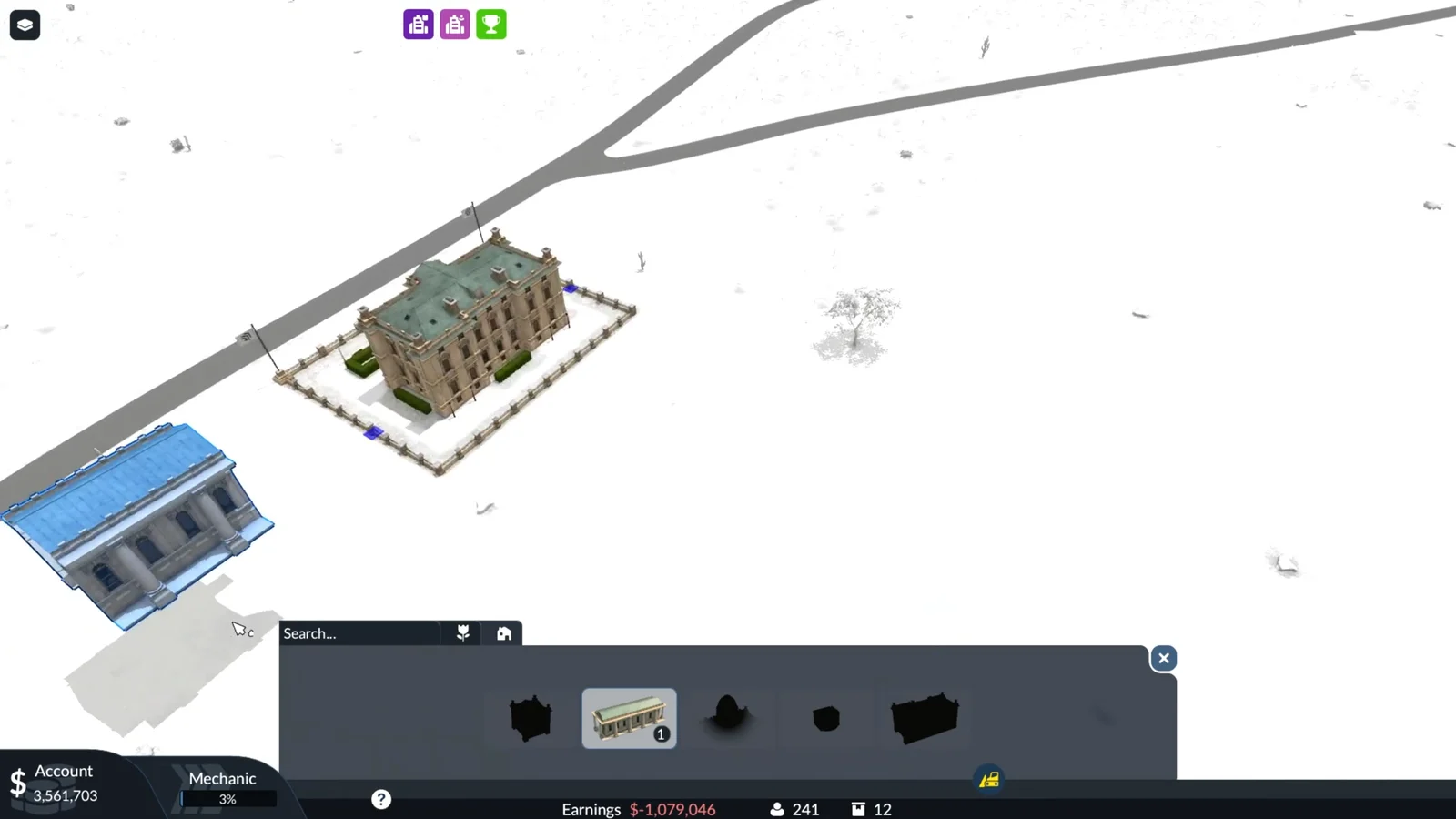
A selected module is not yet a completed upgrade. Check the placement preview, read any displayed cost or restriction, then confirm the placement. If the preview cannot be committed, follow its actual message instead of treating every placement failure as a missing company rank.
Exit the builder and inspect the result
Close the configuration view and select the HQ again. Confirm that the extension is attached and read the effect panel. In this example, the same headquarters now shows Town Growth: +6.0%, compared with +5.0% before construction.
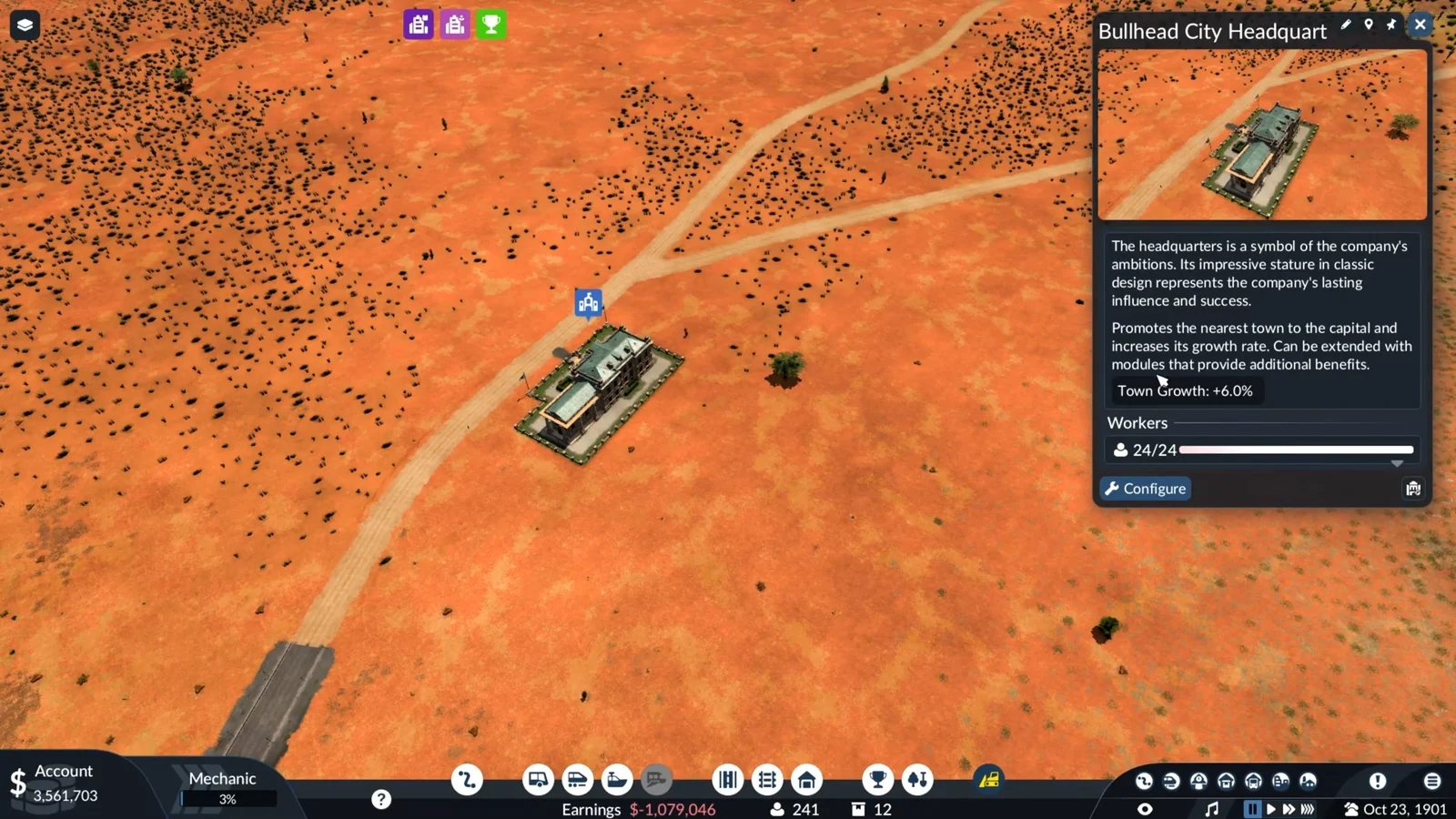
That change is one percentage point in the displayed HQ bonus. It is not evidence that the town's population immediately rose by one percent, or that every later extension adds the same amount. The HQ effect and the town's actual population development are separate observations.
Diagnose an unavailable or ineffective upgrade
If needed, scroll horizontally to read every column.
| Symptom | Check in the interface | Next action | Evidence of progress |
|---|---|---|---|
| The wanted module is unavailable | Its company reward and current rank | Work toward the displayed requirement | That module becomes selectable. |
| You gained a rank but cannot find the module | HQ Configure → Building | Match the newly available reward to its building entry | The intended module appears in the HQ builder. |
| A module is selected but remains a preview | Blue connectors and the placement message | Attach it to a valid point and resolve the stated restriction | It remains attached after leaving the builder. |
| The displayed bonus did not change | The module's described effect and the selected HQ | Check whether you built the intended module and are reading the same HQ | The relevant effect matches the completed module. |
| The HQ bonus increased but growth is weak | Town growth breakdown and weakest ratings | Repair the town's actual service bottleneck | The town's growth information improves alongside working deliveries. |
Rank is the blocker
If the reward is not unlocked, repeated attempts in the construction view do not resolve the prerequisite. Inspect the world population and the next company requirement. Support towns whose passenger journeys and cargo supplies can actually be completed, rather than adding vehicles with no working destination.
A company reward is an availability milestone. It does not replace the separate placement step. Once the desired extension is unlocked, return to the HQ and complete the Configure procedure.
Placement is the blocker
If the module is already selectable, examine its connection and preview. Avoid changing several things at once: confirm the existing HQ, choose one available extension and try an exposed blue connector. Read the restriction displayed at the intended position before changing the surrounding site.
Do not bulldoze town buildings merely because an upgrade is awkward to place. Removing buildings, clearing trees and disrupting connections can affect reputation. First determine whether the problem is the module selection or attachment point. Use the reputation guide when construction has already damaged a town's rating.
Growth is the blocker after construction
The HQ bonus supplements growth that the town earns through completed transport. It does not create cargo supply or completed passenger journeys by itself. Open the town's growth breakdown and compare Supplies with Authority rather than assuming another extension will cure every weak rating.
For cargo, inspect final delivery to the demanding district. Freight waiting at an intermediate warehouse is not the same as a completed town delivery. For passengers, inspect whether the service carries people to their destinations and whether long waits are hurting satisfaction.
Stop troubleshooting the HQ once its module is attached and the correct effect is visible. At that point, an empty cargo line or congested town needs a transport fix, not another attempt to click Configure.
Verify the upgrade in your own save
Keep a short record with the HQ identity, intended town, current company rank, selected expansion and displayed effect before construction. After placing the module, reopen the same building and compare its effect. This prevents a reward unlock, a selected preview and a completed upgrade from being mistaken for the same event.
Check the town separately over subsequent simulation activity. Record its growth direction and the weakest part of its breakdown, while keeping the relevant services running. Do not attribute every change in population to the headquarters if you also replaced vehicles, added supply lines or changed town ratings during the comparison.
If your next company reward is a resource search, follow resource prospecting. That tool selects a resource and a town; its availability and result are separate from an HQ building extension.
Source for the illustrated upgrade
The before, construction and after images come from recorded headquarters gameplay, 2:28–2:48. They show one extension changing the displayed HQ bonus from +5.0% to +6.0%; they do not establish prices or bonuses for every module. The general growth breakdown is described in the official Towns manual. This is a reviewed third-party example, not a game session performed by this site.