
If you are looking for a gaming laptop which can run Transport Fever 3, check the complete laptop configuration, not just an “RTX” badge. The current PC requirements list 8 GB RAM and 4 GB VRAM as minimum amounts, and 16 GB RAM and 8 GB VRAM in the recommended specification. They name desktop-class processors and graphics cards, so a similarly named laptop GPU is not an automatic equivalent.
Collect the exact CPU, mobile GPU, dedicated graphics memory, system RAM, operating system, storage capacity, and graphics power specification before comparing candidates. Then look for sustained performance evidence for that particular configuration. No mobile GPU label alone establishes a guaranteed frame rate on a developed Transport Fever 3 map.
Start with the current official PC requirements
Use the following requirements as the game's published reference, then evaluate how the laptop relates to them. Do not replace the listed graphics cards with an assumed mobile equivalent.
| Component | Minimum PC specification | Recommended PC specification |
|---|---|---|
| Processor | Intel Core i5-8400 or AMD Ryzen 5 2600X | Intel Core i7-13700K or AMD Ryzen 7 7800X3D |
| System memory | 8 GB RAM | 16 GB RAM |
| Graphics | NVIDIA GeForce GTX 1060, AMD Radeon RX 480, or Intel Arc A380 | NVIDIA GeForce RTX 3070, AMD Radeon RX 6800, or Intel Arc A770 |
| Graphics memory | 4 GB VRAM | 8 GB VRAM |
| Windows | Windows 10, 64-bit, or higher | Check the current platform requirement |
| Linux | Ubuntu 24.04 or higher | Check the current platform requirement |
| Storage | 90 GB disk space | Allow the game's required space on the intended drive |
The minimum specification describes the published entry requirement. It is not a promise of comfortable play at every resolution, graphics setting, map size, or simulation stage. The recommended specification is also not an FPS guarantee for a laptop whose complete configuration has not been measured.
For a purchase, start from the recommended memory amounts rather than treating the minimum as your target without considering the intended workload. This is a planning choice based on the published tiers, not a claim that an additional amount of RAM produces a fixed performance gain.
Identify the GPU as a laptop part
Ask for the exact graphics name including Laptop GPU where that is how the manufacturer identifies it. The desktop and mobile products belong to different implementation contexts. Similar numbering is insufficient evidence of equal performance.
Also record dedicated VRAM separately from system memory. A laptop advertising a large total memory number may be describing RAM rather than the graphics card's own memory. Compare the correct quantity to the game's 4 GB minimum and 8 GB recommended VRAM figures.
NVIDIA's listed RTX 40-series laptop configurations illustrate this distinction:
| Laptop GPU | Listed standard graphics memory | Listed GPU subsystem power range |
|---|---|---|
| GeForce RTX 4050 Laptop GPU | 6 GB GDDR6 | 35–115 W |
| GeForce RTX 4060 Laptop GPU | 8 GB GDDR6 | 35–115 W |
| GeForce RTX 4070 Laptop GPU | 8 GB GDDR6 | 35–115 W |
| GeForce RTX 4080 Laptop GPU | 12 GB GDDR6 | 60–150 W |
| GeForce RTX 4090 Laptop GPU | 16 GB GDDR6 | 80–150 W |
These are product specifications, not Transport Fever 3 benchmarks. The table can help you compare memory and power information in listings, but it does not certify that any row equals the game's recommended desktop RTX 3070 or runs a particular save at a stated frame rate.
Do not rank two laptops solely by GPU numbering. Continue to the complete system configuration and measured behavior before deciding that the more expensive listing is the useful purchase.
Inspect graphics power and the laptop design
A laptop GPU can be implemented across a power range. NVIDIA explains that power, cooling, physical design, CPU and memory choices, performance modes, and OEM software all affect the resulting laptop's performance.
For example, the published RTX 4070 Laptop GPU range runs from 35 to 115 W. Two laptops listing that GPU name can therefore have different power implementations and cooling designs. The name is a starting point for comparison, not the final result.
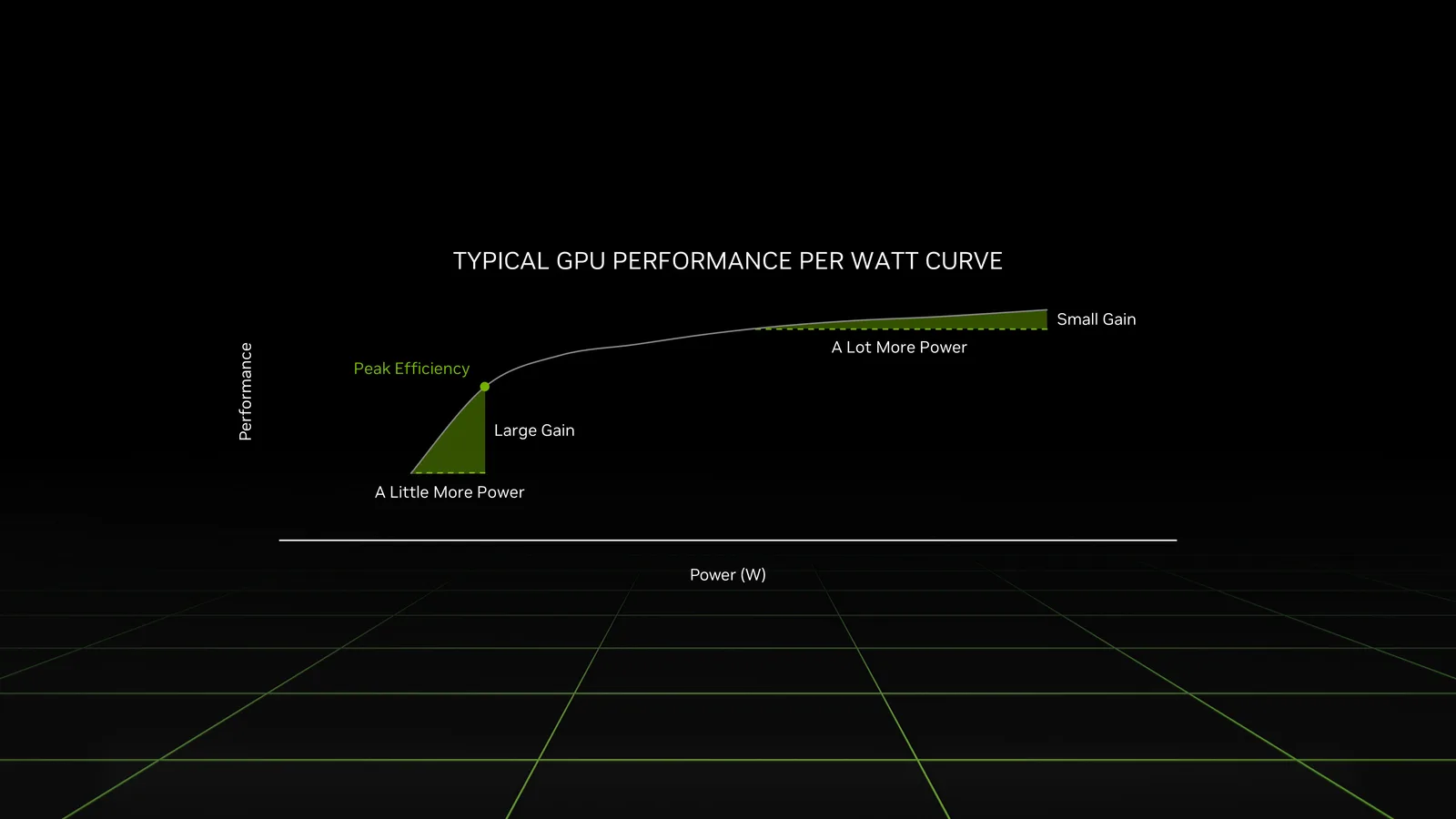
This is a GPU power and efficiency illustration, not a Transport Fever 3 benchmark.
Ask the laptop manufacturer for the specific configuration's graphics power information. NVIDIA also identifies the System Information window in its control panel as a place where the laptop reports graphics power. Use the actual specification for the machine being considered rather than a power value copied from another model with a similar name.
Higher listed power is not an automatic guarantee of a better overall laptop for this game. Cooling, the CPU, memory, and the operating mode remain relevant. A thin design optimized for portability answers a different purchasing preference from a machine intended for sustained high-load sessions.
Compare evidence gathered under a documented power mode. A result without that condition can be difficult to apply to the way you will use the laptop. Record whether the test represents sustained operation rather than only a short opening scene.
Check CPU and system memory together
Transport Fever 3 is a transport and citizen simulation as well as a graphics workload. Its map editor documentation specifically warns that more towns, streets, vehicles, and reachable destinations increase pathfinding work. A developed map can therefore ask a different question of the machine than a fresh sparse landscape.
Record the complete CPU model rather than only “Core i7” or “Ryzen 7.” The published recommended CPUs are specific desktop models. A broad family label on a mobile machine is not enough to compare its actual processor or sustained operating conditions.
Record system RAM and whether the advertised configuration is the one you will buy. A product page can list several configurations under one model name. The cheapest price and the highlighted review configuration may refer to different RAM, CPU, or GPU options.
Compare 16 GB system RAM and 8 GB dedicated VRAM as separate recommended quantities. Do not add them together into a single memory total. System RAM does not turn a 6 GB graphics card into an 8 GB graphics card.
If the laptop offers a memory upgrade, verify the manufacturer's information for that exact model before planning around it. Do not assume that every gaming laptop has accessible modules or that a future upgrade fixes the graphics memory specification.
Match the expected map and session
Define the workload you actually want to run. A modest regional map with a few lines, a very large map with many towns, and a heavily developed network are different tests. The game's published minimum is not a measurement of all those conditions.
List your intended map size, likely town count, transport density, mods, display resolution, and graphics preferences. These details help you evaluate relevant reviews or ask an owner a useful question about the laptop.
For a performance report, seek the game version, exact laptop configuration, selected power mode, graphics settings, map conditions, and observed result. A video that only shows the title screen or an empty map does not answer how the machine handles the mature save you intend to play.
Do not translate a benchmark from an unrelated game directly into Transport Fever 3 frame rates. It may describe a component's general behavior, but it is not a controlled measurement of this simulation. Keep comparable evidence separate from assumptions.
A useful trial includes a representative save and enough operation to reveal sustained behavior. If your priority is late-game simulation, pay attention to that workload instead of purchasing around the appearance of a short cinematic scene.
Check storage and operating system before purchase
The current game page specifies 90 GB of disk space. Confirm the free space available on the drive you intend to use after the laptop's operating system and other software are installed. The drive's advertised total capacity and its usable free space are different numbers.
Confirm a supported 64-bit Windows environment or the stated Ubuntu 24.04-or-higher Linux requirement, as appropriate. A listing that merely says “Linux compatible” is not the same as confirming the game's platform requirement for the operating system you plan to install.
For a Mac laptop, the published requirements are separate: the minimum lists Apple M2 Pro, 16 GB memory, and macOS Sequoia 15.7 or higher; recommended lists Apple M4 Pro and 24 GB memory. Intel Mac CPUs are not supported in the current game specification.
Do not apply the PC's separate RAM and dedicated-VRAM table directly to the Mac chip specification. Use the platform-specific requirement, then investigate the actual laptop and intended workload. The separate Mac guide covers the game's Mac route in more detail.
Compare complete listings with a short record
Before deciding between two candidates, write their actual configurations side by side. Leave a field unresolved when the seller has not supplied it rather than substituting the best specification found elsewhere for the same model family.
| Information to collect | Candidate A | Candidate B |
|---|---|---|
| Exact CPU model | Record the full model | Record the full model |
| Exact mobile GPU | Include the mobile designation | Include the mobile designation |
| Dedicated VRAM | Record the actual configuration | Record the actual configuration |
| System RAM | Record installed memory | Record installed memory |
| Graphics power | Manufacturer's configuration value | Manufacturer's configuration value |
| Operating system | Version and architecture | Version and architecture |
| Free storage for the game | Space on the intended drive | Space on the intended drive |
| Comparable game test | Save, settings, version, power mode, result | Save, settings, version, power mode, result |
This record prevents a common comparison error: combining the price of one configuration, the GPU of another, and the performance of a third. Keep each claim attached to the specific machine whose behavior it describes.
If a seller cannot identify the GPU or memory accurately, resolve that before relying on the listing for a compatibility decision. Unclear specifications are an information gap, not evidence that the machine meets the recommended tier.
Make a decision without inventing an FPS promise
A laptop is ready for a meaningful comparison when you know its actual hardware, operating environment, graphics implementation, and relevant sustained behavior. Matching published memory quantities is useful, but those quantities alone do not certify the entire system.
Choose according to both the game workload and your portability needs. A more portable design can be a valid choice when its measured performance fits the intended map. A larger sustained-load machine can be a valid choice when that workload takes priority. Neither decision requires pretending that every machine with the same GPU name performs identically.
Use the game's current requirements to screen specifications, comparable measurements to evaluate the workload, and the exact product configuration to evaluate the purchase. Keep unknowns visible until those checks have been resolved.
Related guides
Use Performance for the game-side diagnosis after installation, Mac for Apple's platform requirements, and Map Size when choosing the simulation scale the laptop will need to support.