
For Transport Fever 3 ModWerkstatt content, start in the site's Transport Fever 3 categories, open the individual package, and check whether it offers a public Download button or a mod.io entry. A preview tile alone does not establish that the package is available to install. For console play, inspect the platform files on the corresponding Mod Hub entry.
ModWerkstatt also maintains Transport Fever 2 content. Match the game edition before choosing a familiar train name, and read the requirements for the exact package. The Vectron basic package, Cargo Load, and Frachtarten - Basisset provide concrete examples of different package roles; they are not a universal list of everything you need.
Find the Transport Fever 3 Section
Open ModWerkstatt and choose the Transport Fever 3 menu. The website presents separate navigation for Transport Fever 3 and Transport Fever 2. Both contain familiar German vehicle categories, so the category name by itself is not enough. Expand the Transport Fever 3 menu first, then select the kind of content you want.
For locomotives, the menu distinguishes steam, diesel, and electric categories. Multiple units and ICE trains have their own entries. Passenger coaches and freight wagons are separate from powered vehicles. This matters when planning a train: a coach listing should not be read as a locomotive package simply because its pictures show a complete consist.
The road-vehicle section contains buses, trucks, and trams. Aircraft, helicopters, and ships appear in the air-and-water section. Assets, stations, signals, miscellaneous content, and additional liveries are also listed. Choose by the object you need rather than browsing every package with the same railway operator's colors.
| Website label | Content to look for |
|---|---|
| Dampfloks | Steam locomotives |
| Dieselloks | Diesel locomotives |
| E-Loks | Electric locomotives |
| Triebwagen | Multiple units |
| Personenwagen | Passenger coaches |
| Güterwagen | Freight wagons |
| LKW | Trucks |
| Bahnhöfe | Stations |
| Signale | Signals |
| Zusätzliche Lackierungen | Additional liveries |
After opening an entry, check the game designation again. A vehicle family may have editions for more than one game, and an older article can remain discoverable through search. Finding the right name is only the first step; finding its TF3 release establishes which package to investigate.
Separate Downloads From Preview Tiles
Vorschau means preview. A homepage preview can show a model, a planned variant, or work that is being presented before the general download. Look for the controls on the actual package page before treating the item as ready for your world.
A public release page can provide a Download button, a mirror choice, a mod.io link, revision information, download size, and a publication date. These details are more useful than a preview image when deciding how to obtain the package. If those controls are absent from the page you can access, public availability has not been established there.
ModWerkstatt also offers advance downloads to supporters through Patreon and Steady. That is a separate access route from the public download buttons. Do not infer that every preview requires support, that every supporter item has already entered the public catalog, or that joining provides a particular package unless its own access information says so.
Use the access state shown by the entry:
- A public Download button identifies a file you can obtain from that release page.
- A mod.io link identifies a corresponding hub entry to inspect.
- A preview without download controls identifies content being shown, with installation access still unresolved.
- Supporter information describes advance access separately from the public release.
You do not need to troubleshoot your game folder to explain a missing website button. First establish that the chosen release is actually available through the route you intend to use.
Choose the Package by Its Actual Role
A matching screenshot does not establish the function of a package. Read its description before deciding whether it adds a drivable vehicle, supplies shared cargo assets, or provides an additional appearance. Two freight-related downloads can serve different purposes even when both are categorized as miscellaneous content.
Cargo Load contains goods that can serve as loads for different wagons. The inspected public entry lists revision 1, one variant, and a 51 MB download. Its direct archive is named mw_cargo_load.zip. The page offers the main server, a mirror, and a mod.io route.
Frachtarten - Basisset supplies the base set for cargo formats, including the matching freight or containers. Its inspected entry lists revision 1, one variant, and a 56 MB download. The archive is mcmw_cont_asset.zip, with the same choice of website download or hub entry.
| Package | Described role | Inspected public file |
|---|---|---|
| Cargo Load | Goods used as wagon loads | mw_cargo_load.zip |
| Frachtarten - Basisset | Base assets for cargo formats | mcmw_cont_asset.zip |
| Siemens Vectron basic package | Locomotive family with eleven versions | Platform-specific mod.io files |
Both cargo entries show a publication date of 29 September 2026. Treat the revision displayed by a current release page as the value to compare with your installed copy; a file name alone does not prove that the copy is the newest revision.
These descriptions do not establish that both cargo packages are required for every ModWerkstatt vehicle. Open the particular vehicle's dependency information and install the requirements it names. Adding every shared package preemptively makes the selection harder to understand without proving compatibility.
Check the Vectron Release Before Buying a Vehicle
The Siemens Vectron basic package includes BR 193 MS, BR 193 AC, BR 170/191 DC, BR 247 DE, BR 248 DM, and BR 249 DML locomotives, with eleven versions in total. The listing describes availability from 2014. In a world set earlier than that, an absent purchase option does not by itself establish that the download has failed.
The family spans listed maximum speeds of 120 to 200 km/h, power from 950 to 6400 kW, and towing force from 300 to 320 kN. Those are ranges across the package. Do not read the upper value in each range as the specification of every individual variant.
Check the vehicle you intend to use against its own displayed specifications. Choose the variant for the route rather than treating all the included locomotives as interchangeable. A basic family package is also distinct from an additional livery package; their names and requirements should be checked independently.
The inspected mod.io entry declares no dependencies for this basic package. That is useful for this installation, but it does not establish the dependency state of a repaint, another locomotive, or a later release. Keep each package's requirements attached to that package.
Pick the Distribution Route for Your Platform
The Vectron entry lists separate version 1.0 files: one for Windows, Mac, and Linux, and one for Xbox Series X/S and PlayStation 5. The desktop file is listed at 173.24 MB, while the console file is 81.26 MB. Those files belong to the inspected release; they are not a prediction of every future upload's size.
For console use, inspect the exact Mod Hub entry and its listed console file. A desktop ZIP on the author website does not establish a console installation procedure. Similarly, the existence of one console-compatible locomotive does not prove that every package on the author website has a console release.
For desktop use, choose between a managed hub subscription and the available manual package. The hub handles subscribed downloads and updates. A manual archive follows the package's own installation instructions and remains separate from that managed subscription.
The website's mirror is an alternative source for the release shown beside it. It is not a different edition of the game or a replacement for dependency checks. If the main download is unavailable, use the mirror attached to the same package and still compare its release information with the page.
For the complete subscription and account procedure, use the dedicated mod.io guide. Here, the decision is which exact author release and distribution route you want; avoid changing accounts or folders before making that choice.
Activate the Selected Package for Your World
Obtaining a file and choosing it for a world are separate actions. For a new Free Game, use the Add Mods tab and press Activate beside the required installed entries. Review their parameters where provided before starting the world.
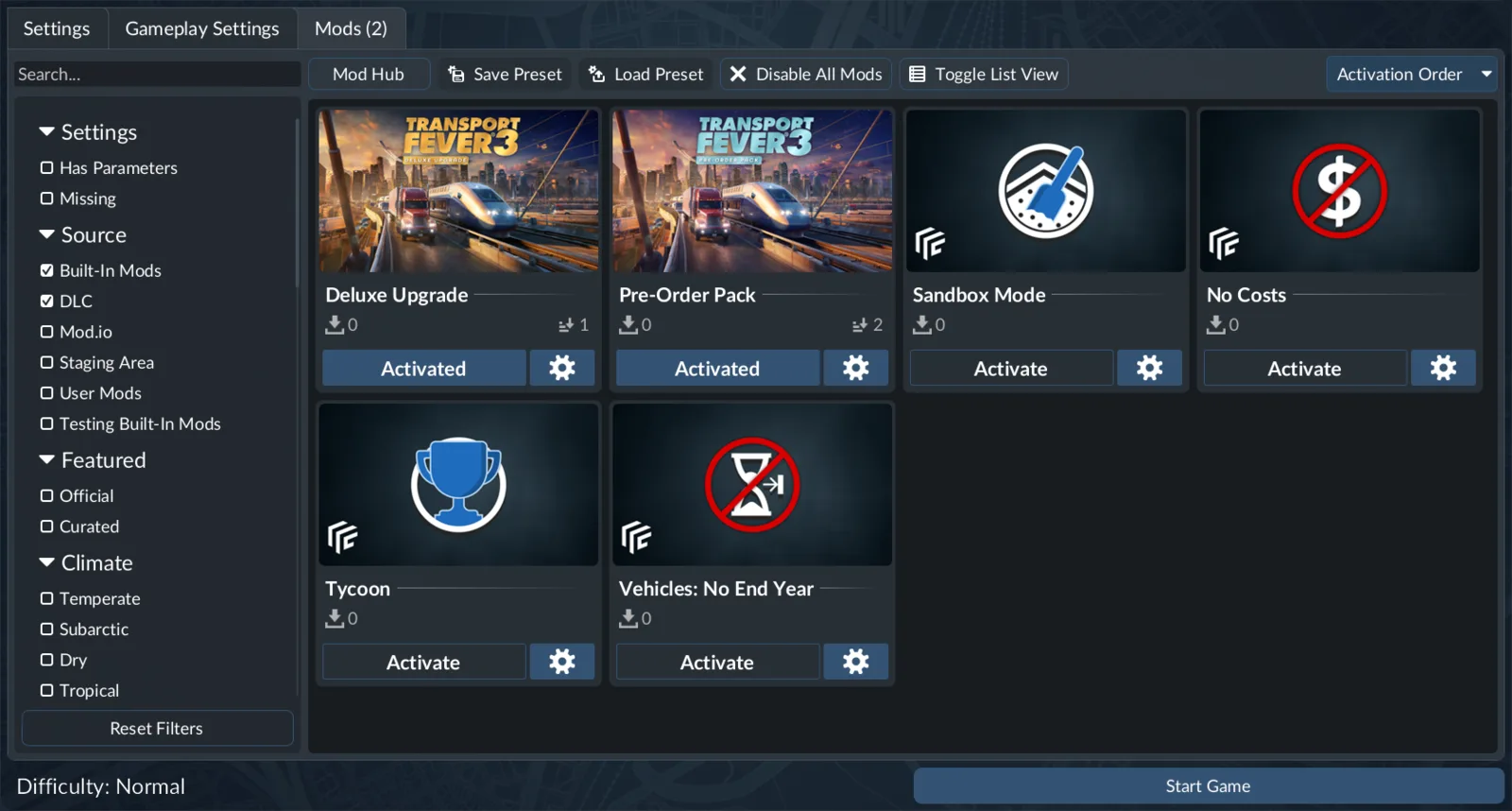
Installing a package and activating it for a world are separate steps.
For an existing save, select its card in Load Game and inspect its settings control. If editing is permitted, review the mod-list tab there. A required package that is missing can prevent the game from loading, so inspect that world's requirements before replacing the installed selection.
Manual mods belong in the mods folder inside the game's userdata directory. The installation directory and the managed Mod Hub directory have different purposes. Follow the manual package's own instructions rather than assuming that an example path from another player's computer is the correct path on yours.
The staging_area directory is used for development and upload. It should not become the default answer for every ModWerkstatt download. For managed content, let the game manage the downloaded files; adding unrelated folders there does not establish that the entry has been recognized.
Once the world is configured, verify the result appropriate to the package. For the Vectron family, compare the world date with the listed availability and inspect the individual vehicle entries. For shared cargo assets, verify the requirement through the dependent package instead of expecting a new locomotive to appear.
Diagnose the Specific Missing Result
If a package seems absent, identify which stage has failed before changing the whole mod selection. These failures have different causes and require different checks.
| Observed problem | First check |
|---|---|
| A model appears only in a preview | Whether that entry offers a public release or separate access route |
| Search finds a familiar TF2 train | Whether a TF3 edition is actually listed |
| A console cannot use a desktop archive | The exact hub entry's console platform file |
| A downloaded entry is absent from the world | The world's active mod selection |
| Vectron is absent in an earlier era | The listed availability from 2014 |
| A dependent package reports missing assets | Its own named dependency list |
| A save cannot load | That save's required mod entries |
If the exact TF3 release has no confirmed public download, the remaining issue is availability. If the correct release is downloaded but not selected, the remaining issue is activation. If the world recognizes the package but the vehicle's conditions are unmet, changing the archive is not the first step.
Keep the selected vehicle package, any declared shared requirements, and the world configuration identifiable. That gives you a useful comparison when a later revision changes the available files or an established save needs its original requirements restored.