

Get Transport Fever 3 mods through the in-game Mod Hub, the Transport Fever 3 mod.io catalog, an author's TF3 release page, or the manual-download directory on this page. For a normal manual installation, place the extracted author mod folder inside mods in your userdata directory, then activate it for the new game or save that needs it. The default paths are listed below by store and operating system.
Mod Hub manages subscribed downloads and updates separately. Do not put manual files in its managed download folder. staging_area is the development and upload workspace; it is not the default destination for ordinary downloaded mods. Console players should use the integrated Mod Hub and the platform files listed for the exact entry.
For account, subscription and missing-save steps, use the mod.io and Mod Hub guide. For author releases and preview availability, use the ModWerkstatt download guide.
Pick a resource for the job
The directory now separates 13 resources, including stations, vehicles and line management. Six fixed-revision PC ZIPs remain hosted here; the other seven open their authors’ releases. Use Category or search a resource name before choosing an install route.
If needed, scroll horizontally to read every column.
| Your task | Resource to inspect | Condition to check first |
|---|---|---|
| Keep an older station style after its era ends | All Stations, by tearded | Its default keeps past eras. Exposing future eras is an optional setting; the author limits coverage to base stations and mod stations under stations/. |
| Make selected lines and their vehicles easier to identify | Line Codes – Auto Namer & Colors, by PepsJo | Select the lines, use Auto-Rename (A) → Line Codes. Freely named lines are not adopted automatically; console text entry has only a PC test claim. |
| Add passenger or cargo van variants | Volkswagen T3 Base pack, by dview | This is a TF3 release based on an earlier pack, not permission to install the TF2 files. The author prohibits third-party redistribution, so no ZIP is hosted here. |
Release pages and platform file labels were checked 24 October 2026. All Stations lists 1.0; Line Codes lists 3.1 even though its description calls the update “v3”. Volkswagen’s file label is 1.0, while its description says 5-2.0. Keep both labels when reporting a problem; do not assume they refer to equivalent releases. No new resource was run in the game by this site.
Check the release before changing a save
The author descriptions were rechecked 26 October 2026. The directory keeps the distinction between a hosted source snapshot, a public release label and a claimed game build. The seven external entries still lead to their authors; no new ZIP is mirrored here.
If needed, scroll horizontally to read every column.
| Resource | Newly checked author evidence | Action before enabling it |
|---|---|---|
| Flatter Maps | Author now reports an in-game test on build 40425, replacing the older 40420 statement | Choose the climate's (Flatter) generator when making a new world; an existing map is not flattened |
| Line Manager Plus | Changelog reaches revision 15, 22 October 2026; includes waiting-passenger information on line dots | Disable Line Editor Undo when switching: the author says its functionality is already included |
| DB Class 450 / GT8-100C/2S | Author describes dual-system tram and train operation | Check the actual vehicle and route before using a tram-to-rail service |
| DB Class 670 | Author team explicitly says the railcar is not classified as light rail | Use it as a railway vehicle; a compact railcar appearance does not confer tram-track capability |
Build 40425 is the Flatter Maps author's compatibility claim, not a statement that every mod here supports that build. Revision 15 is a Line Manager Plus changelog revision, not a replacement for its separately recorded file label. Platform file labels and version-label conflicts retained from the earlier checks are dated in each record; a fresh readable description is not a new console test.
For an installed package, compare the exact release and required dependencies before replacing it. Unknown game builds remain unknown. A source page being available is not proof that the mod runs successfully, and a missing dependency should not be removed from a save as a trial repair.
Choose a Way to Get the Mod
If needed, scroll horizontally to read every column.
| Route | What you obtain | Next action |
|---|---|---|
| Built-in mod | One of the game's optional included rules | Activate it in the world setup |
| Mod Hub or mod.io subscription | Content downloaded and updated by the game | Wait for the download, then select it for the world |
| Author's TF3 release page | The specific public package or its hub entry | Check the game edition, requirements and platform files |
| Manual-download directory above | One of six fixed-revision ZIP packages | Read its included notes, copy the named mod folder, then activate it |
For the subscription route, open Mod Hub from the main menu, find the exact Transport Fever 3 entry, read its requirements, and subscribe. A package in your subscribed library is not automatically active in every world. Use the same mod.io identity in the game and browser if you manage subscriptions on both interfaces.
For an author download, start from the author's actual release controls rather than a preview tile. ModWerkstatt has separate TF2 and TF3 categories; a familiar locomotive name does not establish which edition you found. Check the corresponding mod.io entry for a console file rather than treating a desktop ZIP as a console installation method.
Steam Workshop is not included in Transport Fever 3. Use the TF3 Mod Hub/catalog or a confirmed manual package instead of following a Transport Fever 2 Workshop tutorial.
Choose a mod resource for your next save
Use the function you need to narrow the directory before comparing downloads. The six downloadable packages on this site are fixed source snapshots; the author links below lead to separately maintained releases. Their version numbers and platform support should be read on the linked entry rather than inferred from a similarly named local ZIP.
If needed, scroll horizontally to read every column.
| Goal | Resource | Useful details before choosing |
|---|---|---|
| Add a compact double-deck railcar | ModWerkstatt BR 670 | Author revision 1, published 6 October 2026; six variants, available from 1996, 100 km/h and capacity 28. The page links both a desktop ZIP and its mod.io entry. |
| Add the Karlsruhe dual-system light-rail vehicle | ModWerkstatt BR 450 | Author revision 1, published 29 September 2026; three variants, available from 1991 and capacity 25. Listed under both TF3 trams and railcars. Read its platform files before subscribing. |
| Generate a coastline, islands or a river delta | Mapzilla author project | A Temperate terrain generator with layout controls. It generates a new world; it is not a finished map or a seed that works with every generator. |
| Try NVIDIA frame generation on a supported PC | WhiteTortoise's DLSS Frame Generation project | An unofficial Windows/Steam renderer mod for RTX 40/50 GPUs. It uses a separate installer and specific graphics settings, rather than the normal userdata/mods workflow. Read the DLSS compatibility guide first. |
BR 670 and BR 450 have different availability years and capacities; neither should be treated as an automatically better replacement for every passenger line. Open the author's release or compare vanilla vehicles against the task your route needs to perform. A page linking a ZIP and a hub entry does not establish console support for every file.
For Mapzilla's current author release, choose Temperate, then Mapzilla - Mountains to delta in the Generator list. The author documents seven layouts: Single shore, Island, Inland sea, Isthmus, Strait, Peninsula and Bay. Coastline, Islands, Orientation and Rivers controls change the terrain further. Keep those parameters with the seed when sharing a generated world. Use the maps guide for generators and downloadable worlds, or the seed library for reproducible starting settings. These current author features are not a promise that an older fixed-revision ZIP contains every later change.
How to activate mods in a new Free Game
Free Game setup provides an Add Mods tab for optional built-in mods and available external content.
- Start configuring a new Free Game.
- Continue through the setup until you reach the third tab, Add Mods.
- Review the available mods and any content from the Deluxe Edition or Pre-Order Pack.
- Press Activate for each entry you want in this particular game.
- Recheck the active selection before continuing. Gameplay-changing mods should be chosen deliberately because the selected list becomes part of the game you are about to create.
- Press Start Game in the bottom-right corner when the setup is complete.
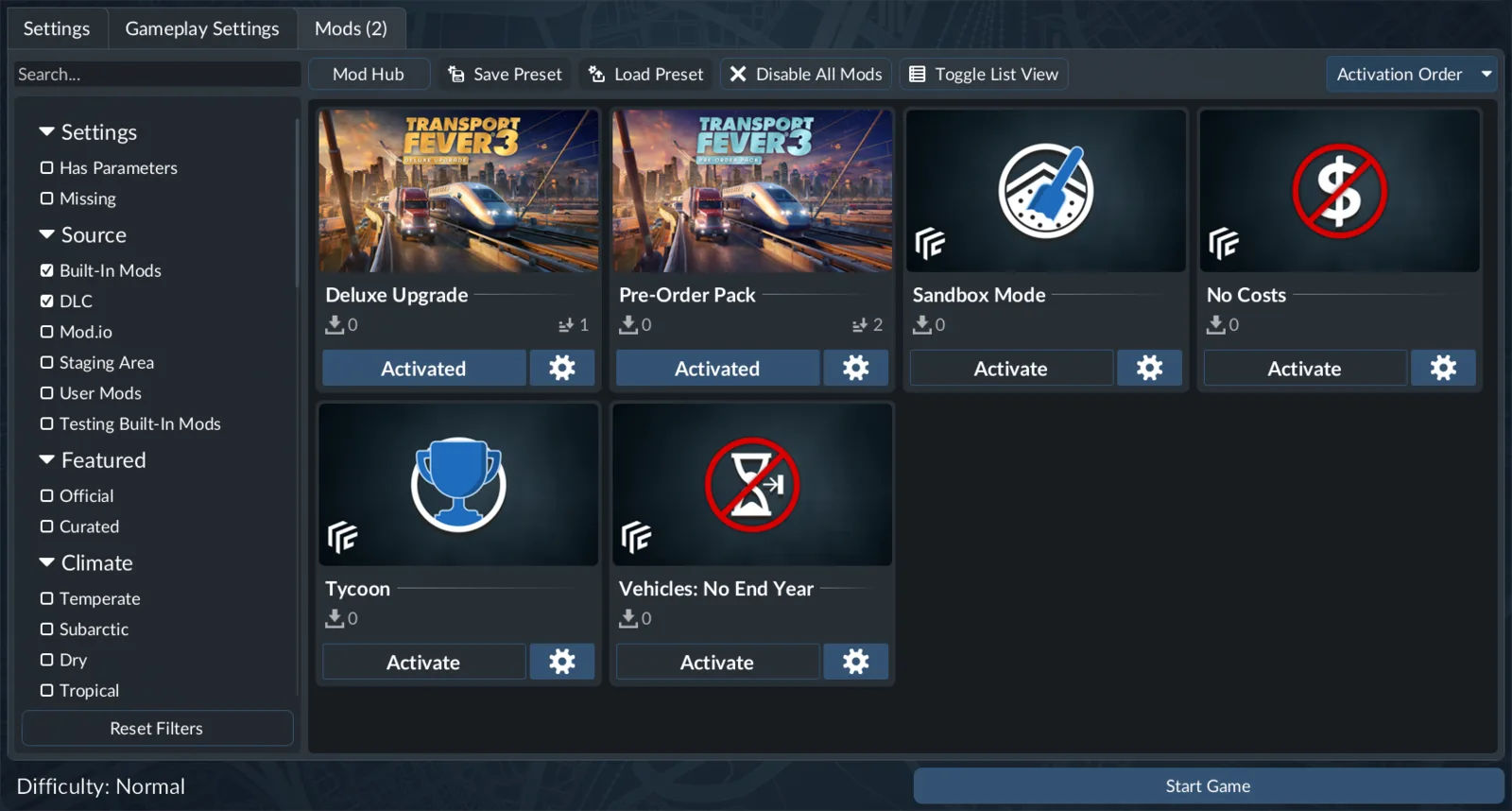
The mod list shows activation controls for the selected game setup.
Map creation can take longer when a larger map, more towns, or more industries have been selected during the preceding setup steps. A longer creation step therefore does not, by itself, prove that an activated mod has failed.
Treat the active list as a loadout for that save rather than as a general recommendation to activate everything. A utility mod, a money-changing script, and a wider-station-range script solve different problems and can alter different parts of the experience. Start with the smallest set that produces the result you actually want. That makes the save easier to understand and gives you fewer entries to inspect if loading later fails.
Built-in mods and what each one changes
Transport Fever 3 ships with four optional mods. These are activated from the same Add Mods tab, but their purposes are distinct.
If needed, scroll horizontally to read every column.
| Built-in mod | Exact effect | Choose it when |
|---|---|---|
| Sandbox Mode | Lets you modify the bank balance, set the in-game calendar to a specific date, construct new towns or industries, adjust cargo demands and generated-town sizes, and demolish towns. | You want direct control over the world and economy while building or testing a scenario. |
| No Costs | Disables money completely. Everything becomes free, and the bank balance is displayed as infinite. | You want unrestricted construction without managing expenses. |
| Tycoon | Sets the company rank to the highest level and unlocks every perk while leaving other aspects unchanged. This permits all landmarks, resource prospecting, marketing campaigns, and the greenify industry tool. | You want access to rank- and perk-gated company tools without replacing the entire economy with No Costs. |
| Vehicles: No End Year | Removes the end year from vehicles available to the player. Once a vehicle becomes available, it remains available indefinitely. | You want to retain older vehicles after their normal purchasing period. |
Choose mods by the problem you want to solve
The available third-party examples fall into three useful groups: interface and network management, setup or economy changes, and simulation convenience. The listed effects below belong to the named scripts only. They should not be treated as hidden vanilla features or as promises about similarly named mods from other creators.
Network-management mods
Line Groups organizes the Manage Lines window into named, collapsible groups. Its value is organizational: it gives a large line list a user-defined structure without claiming to change vehicle behavior or network capacity.
Auto Signal Paths begins with one path signal and signals the remaining stretch of track at spacing selected by the player. It is aimed at repeated signal placement. Its role is to extend signaling along the track from the placed path signal. Do not assume it designs the entire junction, resolves every deadlock or chooses an ideal spacing automatically.
Quality of Life adds a Manage Lines button, shows vehicle loadouts on the map, and provides one-click replacement for every vehicle of a type. Choose it when those three interface and fleet-management shortcuts address recurring work in your save. The GameWatcher listing also describes duplicate-line and reverse-duplicate actions in its 1.1.1 release. Check the release page before choosing a download.
GameWatcher's Line Groups 1.1.0 listing also describes a group's combined rate and mass-edit controls. Changes are shared only across lines whose pickup stops match; group deletion returns its lines to the ungrouped list. Its Auto Signal Paths 1.1.0 listing offers 50, 100, 200 and 500 metre spacing, stops at junctions, stations or track ends, and preserves the original signal's direction and One-Way setting. Automatic placement does not assess every junction's capacity.
For a different management workflow, Line Manager Plus adds hover information, fleet-rate matching and undo/redo for line-stop edits. The release comparison above records its replacement relationship with Line Editor Undo and the latest checked changelog revision.
Terrain changes for new worlds
Flatter Maps adds a Flatter generator choice for each of the four climates. Its author describes Land Height and Base Land Height controls that reduce high terrain while retaining water depth. It applies to newly generated maps, so it is not a tool for flattening an established save. Choose it for a gentler starting landscape; choose Mapzilla when you want its coastline and layout options. A seed should always be kept with the exact generator and settings used.
Economy and setup-changing scripts
Several scripts change starting conditions or give the player direct economic controls:
If needed, scroll horizontally to read every column.
| Script | Behavior | Decision point |
|---|---|---|
| Transport Fever 3 Cheats | Adds money buttons to the bottom bar plus controls for town size and industry production. | Use it when you want those specific direct controls during play. |
| Startup Fortune | Starts the company with $100 million in the bank. | Use it when the desired change is a large starting balance rather than free construction. |
| Buy Industries | Allows industries to be built anywhere on the map for $50 million each. | Use it when purchasing and placing industries is central to the intended save. |
| Extra Large City on Start | Adds one extra large city to a new map and offers two sizes. | Use it when the map should begin with a major city ready for initial lines. |
The monetary values in this table apply to these scripts. They are not statements about the unmodified game. Startup Fortune is also different from No Costs: one supplies a stated starting bank balance, while the other disables money and displays an infinite balance. Buy Industries is different again because it introduces industry construction at a specified per-industry price.
Extra Large City on Start is intended for a new map. Its description does not say that it enlarges an existing city in an established save, so choose it while planning the new-game loadout rather than assuming it can retrofit the same starting condition later.
Simulation speed and station coverage
Faster Game Speed adds 8x and 20x buttons to the game-speed control. Select it when additional speed choices are the required outcome. Those values belong to this script; they should not be described as standard speed buttons in an unmodified game.
Bigger Station Range widens the area from which every station and stop collects passengers and cargo. Its practical purpose is to let one stop cover a larger portion of a town. No exact radius or multiplier is given for this script, so avoid planning around an assumed numeric increase.
Because Bigger Station Range changes collection coverage, use it as a deliberate rule change rather than as an invisible interface convenience. Faster Game Speed changes available simulation-speed controls instead. These changes do not establish a performance fix, route redesign or profit guarantee.
Find the Manual Mods Folder
The manual destination is userdata/mods, not the game's installation directory. The game-file locations reference distinguishes these folders and documents the following default locations. Replace the user placeholders with your own user folder or Steam user number.
If needed, scroll horizontally to read every column.
| Store and operating system | Default manual mods directory |
|---|---|
| Steam on Windows | C:\Program Files (x86)\Steam\userdata\<user-number>\3493540\local\mods |
| Steam on Linux | ~/.local/share/Steam/userdata/<user-number>/3493540/local/mods |
| Steam on Linux, alternate Steam location | ~/.steam/steam/userdata/<user-number>/3493540/local/mods |
| Steam on macOS | /Users/<username>/Library/Application Support/Steam/userdata/<user-number>/3493540/local/mods |
| GOG or Epic Games Store on Windows | C:\Users\<username>\AppData\Roaming\Transport Fever 3\mods |
| GOG on Linux | ~/.local/share/Transport Fever 3/mods |
| GOG or Epic Games Store on macOS | /Users/<username>/Library/Application Support/Transport Fever 3/mods |
These are defaults, so a changed Steam directory or user-data location can change the absolute path. 3493540 is the Steam game directory number in this userdata path; the user-number component identifies your Steam user directory. Do not substitute the folder of another Transport Fever game.
The table does not provide an Epic-on-Linux path or a console file-copy procedure. Use the documented route for your actual installation rather than filling an unlisted platform with a guessed directory.
Install a Manual ZIP Package
- Download the selected TF3 package and extract the ZIP to a temporary location you can inspect.
- Open its installation notes. For this page's six packages, read INSTALL.txt and AUTHOR-README.md.
- Identify the author mod folder named by those notes.
- Copy that complete folder into the manual mods directory from the table above. Preserve the files and subfolders inside it.
- Start Transport Fever 3 and inspect the available mod entries.
- In a new Free Game, activate the entry in Add Mods. For an existing save, inspect its editable mod-list settings where available.
- Check the exact package's dependencies, parameters and expected controls before continuing the world.
The six ZIP packages supplied in the directory use these author folder names:
If needed, scroll horizontally to read every column.
| Download entry | Folder to copy from the extracted package |
|---|---|
| Tunnel Portal Fix | tunnel_portal_fix |
| Town Clustering | town_clustering_1 |
| Vehicle 3D Preview Toggle | kampfmoehre_preview_toggle_1 |
| Mapzilla | mapzilla_1 |
| Who's in my way? TF3 | whoblocksme_1 |
| Window Placement | kampfmoehre_window_placement_1 |
For example, the Town Clustering package contains town_clustering_1. After copying, that directory sits immediately inside mods, with its mod.json and content kept inside the author folder. An extra extraction wrapper between mods and the author folder is a different directory layout; compare yours with the included instructions before diagnosing a missing entry.
This folder example applies to the packages listed here. Other authors may supply different folder structures or requirements. Read their exact package notes before renaming or moving files. A downloaded ZIP, a recognized entry, and an activated entry are separate checkpoints.
Keep Subscription and Development Folders Separate
Mod Hub uses a managed content location. It downloads and updates that content itself, and the documented guidance is to avoid manually adding, editing or removing files there.
If needed, scroll horizontally to read every column.
| Operating system | Documented managed Mod Hub location |
|---|---|
| Windows | C:\Users\Public\mod.io\10640\mods |
| Linux | ~/mod.io/common/10640/mods/ |
| macOS | /Users/<username>/Library/Application Support/mod.io/common/ |
These locations identify managed content; they are not alternative manual-install targets. Use userdata/mods for a normal manual package, and let the hub maintain subscribed releases.
The installation directory contains the game's static files and embedded content. Manual edits there can be reset by game updates. staging_area has a different purpose again: creating, testing and uploading mod content. An older instruction mentioning that workspace should not replace the documented manual destination for every release.
If a mod fails to appear, compare the exact game edition, extracted author folder, destination directory, dependencies and active world list. Avoid changing every location at once: that makes it harder to tell whether the problem is file placement, package recognition or world activation.
Find mods through Mod Hub and mod.io
Transport Fever 3 launched with a Curated Mods Program intended to provide a selection of high-quality mods with a smooth and reliable day-one experience. Participation is limited to approved modders with a proven track record, and submitted mods must meet stated quality and eligibility criteria. Participating creators received early access, dedicated developer support, and a financial grant.
The game was also developed with moddability and cross-platform support in mind across more than vehicle additions. That design goal should not be stretched into a guarantee that every third-party file is available or compatible on every platform. A mod being visible somewhere on the web does not prove that it is part of the curated program, eligible for a particular console, or compatible with a future game update.
For browsing, collections and reusable selections, use the mod.io workflow guide. Review the world's final active list even after loading a preset; a grouped library does not establish that every requirement is downloaded or selected for that save.
Change the mod list for an existing save
Existing games are selected through Load Game from the main menu or from the pause menu while in a game. A save card can be started directly, but its settings control provides the path for inspecting more than the latest save state.
- Open the Load Game view.
- Locate the relevant save card.
- Use the settings control on that card. With a controller, pressing the left stick is the corresponding action.
- Use the available tabs to inspect autosaves, gameplay settings, or the list of active mods.
- Edit the mod list only if that save permits its settings or mod list to be changed.
- Press Load Game in the bottom-right corner when the required setup is available.
The phrase “if the save allows editing” is important. Not every save is established to expose editable settings and mods. Do not assume that the absence of an editable tab is proof of a broken installation.
If the Load Game button is disabled, a missing mod is a likely cause. Return to the save’s mod list and check the required entries before treating the save itself as lost. Avoid removing or substituting more mods at random, because that makes it harder to identify which required entry is absent.
Using older Transport Fever mods
The official Curated Mods FAQ states that Transport Fever 2 mods are not directly compatible with Transport Fever 3. Authors can adapt their work, but a port is a separate release. Look for a Transport Fever 3 version in Mod Hub or the TF3 mod.io catalog. The existence of a previous-series version is not enough to claim that its old files will work directly.
Download a Manual-Install Package on This Page
The directory above provides real ZIP files from this site's download paths. Select a function category or search a mod name, then click its Download button. The browser receives the file directly, without opening another website or requiring a subscription. The recorded version and package size identify that particular download.
These are manual-install packages prepared from the authors' fixed source revisions, with their license and installation notes included. They are not advertised as mod.io-certified releases or as packages independently tested in a running game by this site. Open the included INSTALL.txt and AUTHOR-README.md for the downloaded package. INSTALL.txt identifies the author’s mod folder and the source revision used for this ZIP. Follow that package’s local-install instructions and use the documented userdata/mods destination above. The development staging_area is not a universal substitute for the manual mods directory.
Keep different versions separate when comparing an update. A successful file download proves that you obtained the ZIP, not that a mod has loaded correctly in your save. Check the enabled mod list, the tool's expected location and the author's dependencies after installation.
More Mod Guides
- Move It controls and limits explain how to reshape roads and tracks.
- Cheats and money options distinguish No Costs, Sandbox Mode and Tycoon.
- Hungarian translation covers Magyar Nyelv revision information and text checks.
- Multiplayer support distinguishes the official game from the experimental TPF3-MP project.
Hosted snapshots and dated platform checks
The directory separates the file offered here from the author’s current release. The six hosted ZIPs keep their existing immutable URLs and bytes. A source check is not a game test, and a repository commit is not necessarily a new mod release.
If needed, scroll horizontally to read every column.
| Hosted package | Hosted source date (UTC) | Author default-branch status on 22 October |
|---|---|---|
| Town Clustering | 1 October 2026 | Still matches ab73f89d |
| Mapzilla | 4 October 2026 | Still matches de300d29 |
| Tunnel Portal Fix | 3 October 2026 | Still matches a20e0da9 |
| Window Placement | 3 October 2026 | Newer source 129abd81, 17 October; hosted snapshot remains 5ade2974 |
| Vehicle 3D Preview Toggle | 6 October 2026 | Newer source bd7f696b, 16 October; hosted snapshot remains 0fc3361a |
| Who’s in my way? TF3 | 4 October 2026 | Still matches 7e81fb18 |
Follow a card’s immutable source link for the exact hosted files. For a later revision, compare the author’s repository or release notes first. Do not silently overwrite a working package in an established save just because a newer commit exists. Preserve the save and installed mod list, then test the intended version separately.
Author releases and platform files
The four external entries’ mod.io pages were checked on 22 October 2026. BR 670, BR 450, Flatter Maps and Line Manager Plus each list Windows/Mac/Linux files and Xbox Series X/S/PlayStation 5 files, and show “No dependencies found for this mod.” This records what the listing declares at that date; it is not an independent test, a guarantee about future files, or a way to install a desktop ZIP on a console. Use the integrated Mod Hub for your platform.
The retained Flatter Maps and Line Manager Plus file labels are 1.0, checked on 22 October. Their current author statements are recorded in the release comparison above: build 40425 and changelog revision 15 respectively. Neither label is an independent game test.
- BR 670 and BR 450: the ModWerkstatt pages list revision 1, while the linked mod.io files use label 1.0. Preserve the source’s own version label when comparing files. Neither inspected listing supplies a tested TF3 build number.
The original BR 670, BR 450, Flatter Maps and Line Manager Plus listings let you recheck files, dependencies and revisions before subscribing. A filename, successful download or platform badge cannot establish that a particular combination works in your save.
Mod Hub Still Not Working After an Update
The official 8 October stability announcement says that Mod Hub improvements remain under investigation. It does not establish that the first stability update fixes every sign-in, download or subscription problem.
Separate the stage that fails before changing files:
If needed, scroll horizontally to read every column.
| Symptom | Check first | What that check establishes |
|---|---|---|
| No email code arrives or a code is rejected | Use the mod.io sign-in guide and the account you actually subscribed with | Account access, rather than whether the mod works in a save |
| The entry is subscribed but not active in the world | Finish the download, then inspect the save's selected mod list | Downloaded content and active content are separate states |
| A package is available on PC but absent on a console | Check that exact entry's platform files and requirements | A desktop source ZIP does not provide console installation |
| One modded save fails after patching | Keep the original save, record its required mods and test a separate clean world | Helps distinguish a content-dependent save from a general installation issue |
| Every download fails on one device or connection | Record platform, store, branch, displayed build and the exact error for official support | Does not justify deleting the userdata folder or required mods |
Keep these records when contacting support. A working clean world cannot prove that it is safe to remove a dependency from an established save, and a successful sign-in cannot prove that every subscribed package is compatible.
Check dated compatibility notes before replacing a mod
Read the latest entry in a support notice, not just its original headline. The official known-issues page originally linked frequent crashes to Park & Ride, then marked the crash issue fixed in its 9 October 2026 update after a new mod release. It still notes that minor errors may occur. That notice is a reason to check the installed version against the author's current release, rather than automatically removing the mod because an older post says it crashes.
The same support page separately lists PC savegames uploaded to Mod Hub as unavailable for console download, with compatibility planned after launch. Cross-platform mod browsing does not override that savegame limitation. Before choosing a world or collection, distinguish the platform file of each mod from the availability of the saved world itself.
Continue with the relevant setup
Use the Light Rail guide for vehicle eligibility and tram-to-rail connections, the Mod Hub account and subscription checks for downloads that never arrive, the vehicle reference for base-game specifications, or the warehouse transfer diagnostic when a resource change affects a freight hub.