

Download Transport Fever 3 from the store or platform account that owns your copy. The game is available for Windows, macOS, Linux, PlayStation 5, and Xbox Series X/S. The announced PC storefronts are Steam, the Epic Games Store, and GOG. Before installing, confirm the actual operating-system build offered by the selected store and the edition or content associated with your purchase.
If you already own the game, start in that store's library rather than purchasing another copy to solve an installation problem. For GOG, an offline installer is an available option and GOG Galaxy is optional. Console installation uses the appropriate PlayStation or Xbox account and game library; a PC installer is a different platform's download.
Decide the destination before choosing a download
Use the official purchase page to find the supported store and platform links, then install from the account that owns your copy.
The useful starting question is which machine you intend to play on and which account owns the game. “Download” can describe the base game installer, a store client, an update, bonus content, or a mod. Those are separate files or services.
| Intended destination | Start with | Check before installation |
|---|---|---|
| Windows PC | The PC store account owning the game | Windows support, library ownership, disk space, actual edition |
| Linux PC | A storefront offering the game's Linux build | Current Linux requirements and that store's available download |
| Mac | A storefront offering the game's Mac build | Supported Apple chip and macOS version |
| PlayStation 5 | The PlayStation account and library owning the game | The correct PS5 game and content |
| Xbox Series X/S | The Xbox account and library owning the game | The correct console version and content |
| GOG without Galaxy | The owned game's offline installer | All required installer files and the intended operating system |
An account containing a store client is not necessarily an account containing the game. Installing Steam, Epic's launcher, or GOG Galaxy is a preparatory step when that client is used; it is not the same result as downloading the owned Transport Fever 3 copy.
The game released on September 29, 2026. You do not need to solve the current installation by following old preload or preorder instructions. Those instructions can describe a period before the released game's ordinary library download became the relevant route.
Find the copy you already own
Open the account associated with the purchase and locate Transport Fever 3 in its game library. Check the exact title, because another Transport Fever entry or an additional content pack is not the base game you intend to install.
Review the purchase or library entry if the game is missing. Confirm which storefront received the purchase and whether you are using that account. A receipt from one store is not evidence that a different store's library contains the same copy.
Keep platform and storefront separate. A supported operating system describes where the game can run; the storefront determines the route by which that particular copy is obtained. If you are changing machines, verify the selected account's available build for the new operating system.
If you bought a key, identify the activation destination stated by the seller and confirm that it matches the account you intend to use. A product name containing “key” does not by itself identify Steam, another PC storefront, or a console entitlement.
When troubleshooting a missing library entry, use the relevant store's purchase and account information. Downloading an unrelated installer or starting a second purchase is not evidence that the first entitlement has been recovered.
Check Windows and Linux requirements
The current PC minimum lists Intel Core i5-8400 or AMD Ryzen 5 2600X, 8 GB RAM, and NVIDIA GeForce GTX 1060, AMD Radeon RX 480, or Intel Arc A380 with 4 GB VRAM. Disk space is 90 GB.
The Windows requirement is Windows 10, 64-bit, or higher. The Linux requirement is Ubuntu 24.04 or higher. Confirm the actual operating environment instead of treating a generic “PC” label as a complete compatibility check.
The recommended PC specification lists Intel Core i7-13700K or AMD Ryzen 7 7800X3D, 16 GB RAM, and NVIDIA GeForce RTX 3070, AMD Radeon RX 6800, or Intel Arc A770 with 8 GB VRAM.
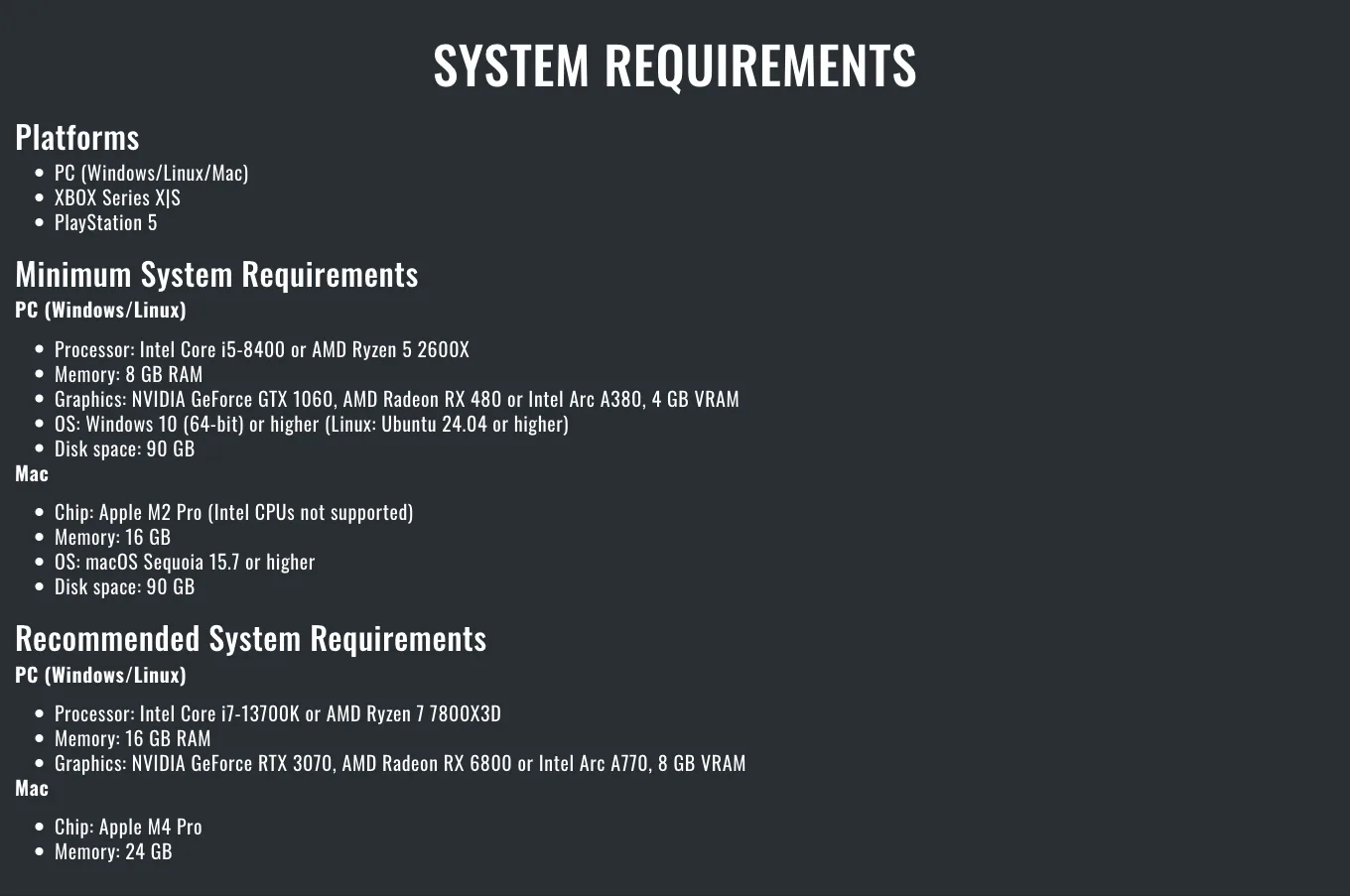
The official game page lists different PC and Apple Silicon requirements. Check the operating system as well as the hardware.
These specifications help you choose the right installation target. They do not turn a completed download into a guarantee of performance on every map. If you are choosing a laptop rather than installing on a known PC, use the laptop guide to evaluate its exact mobile components.
Confirm free space on the intended drive. The advertised capacity of a computer's drive is different from the space remaining after its operating system and other games. Keep the store's current installation information visible when selecting a destination.
Use the Mac build with the Mac requirements
The Mac minimum is Apple M2 Pro, 16 GB memory, macOS Sequoia 15.7 or higher, and 90 GB disk space. The recommended Mac specification is Apple M4 Pro with 24 GB memory. The current specification says Intel Mac CPUs are not supported.
Select the Mac build offered by the storefront that owns your copy. A Windows installer is not the documented native Mac download route. Likewise, identifying the game as available on Mac does not demonstrate that an older Intel laptop meets the current requirements.
Check the actual operating-system version before downloading a large installer. A Mac with sufficient storage but an unsupported system version has not completed the compatibility check. Keep the chip and memory configuration together when comparing it with the requirement.
Use the Mac guide for the platform-specific path. This download page routes you to the correct copy and operating system; it does not replace the separate compatibility details needed for a particular Mac.
Choose the PC store's installation route
For Steam, begin with the owned game in the Steam library and use that copy's installation route. Keep the selected account and installation destination clear. The dedicated Steam guide covers the store-specific game entry and associated decisions.
For the Epic Games Store, begin in the owning account's library and confirm the build offered for the intended operating system. The game's announcement lists Epic as a PC storefront, but a generic release announcement should not replace checking the selected store's current operating-system files.
For GOG, choose between the available offline installer and the optional Galaxy route. GOG states that Galaxy is not required to play the game. That makes the offline installer a separate useful option, rather than an incomplete installation because the client is absent.
A GOG offline download may include more than one required file. Follow the actual owned game's download entry and keep its associated installer files together. Do not treat a bonus soundtrack or one unrelated download item as the complete base-game installer.
GOG also describes its copy as DRM-free, with no activation or online connection required to play. That claim belongs to the GOG product. It does not establish the protection or offline behavior of every other storefront version.
Install the correct console version
For PlayStation 5, use the game associated with the appropriate PlayStation account and console library. Check that the selected item is the PS5 game rather than a PC product or only additional content.
For Xbox Series X/S, use the relevant Xbox account and console version. “Available on Xbox Series X/S” identifies the supported console platforms; it does not automatically establish a subscription entitlement or availability on every older Xbox model.
If the game is owned but not shown on the intended console, review the account and purchase information for that platform. A console download issue is a platform library question before it is a problem with a Windows installer or a PC store client.
Console mod access is a separate in-game function. You do not need a PC mod archive as the base-game installation. Obtain the base game first, then use the platform's supported mod route when you want additional community content.
Keep the base game, editions, and bonus content distinct
Check the edition and additional content attached to the purchase. The base game installer and an extra content item can appear as separate entries or downloads. Confirm what is included before deciding that something is missing from the installation.
If you own an edition with bonus material, inspect that material's actual delivery information. Bonus files are not necessarily installed by the same action that places the base game on the drive. Conversely, finding a bonus download does not prove that the game itself has finished installing.
Use the Deluxe Edition guide to compare edition content. Keep that purchase decision separate from the current task of obtaining the copy already owned. Reinstalling the same base game does not necessarily change the content entitlement on the account.
Do not infer that a preorder pack is newly included with every later purchase because an older announcement described a preorder promotion. Confirm the actual content in the selected store entry or account before expecting it in the game.
Distinguish a download problem from a launch problem
| Observed state | Next inspection | Different problem it does not yet prove |
|---|---|---|
| Game absent from library | Owning store, account, and purchase entry | That the installed game is crashing |
| Download has not completed | The store's visible download or installation state | That the simulation cannot run the save |
| Offline installer files are incomplete | The owned game's required download set | That Galaxy is mandatory |
| Download completed but launch fails | Correct OS build, requirements, visible launch error | That another store copy is needed |
| Game launches but a save has a problem | Save, active mods, and the exact failed action | That the base-game download is necessarily incomplete |
| Game launches but runs poorly | Actual hardware, settings, and representative workload | That the wrong edition was installed |
Use the specific state to choose the next action. An unfinished store download and a train unable to reach a station occur at entirely different stages. Re-downloading the game is not a general answer to every problem encountered after installation.
For a launch failure, preserve the visible error and the selected operating-system build. For a store library problem, preserve the purchase and account information. This keeps support focused on the stage that needs attention.
Obtain mods after the game is installed
Transport Fever 3 uses an integrated mod browser built around mod.io across its supported platforms. Mods extend a game you have installed; they are not a substitute for the base-game download.
Use the Mod.io guide for the shared mod route and the Mods guide for content choices. A downloaded mod can also require activation in a particular save, which is a separate step from owning and installing the base game.
Finish with the result you actually wanted: the correct platform build installed from the owning account and the game able to start. After that, treat edition content, mods, save compatibility, and performance as their own questions.
Related guides
Continue with Steam for that storefront, GOG for its offline-installer choice, and Gaming Laptop if the installation target's hardware still needs evaluation.