

For Transport Fever 3 on Steam, begin with the game in your Steam Library, finish its installation and updates, and launch it once while online. Use the client's Downloads view to manage the queue, Properties → Installed Files to verify or move the installation, and Properties → DLC to inspect additional content already owned by your account.
These steps concern the Steam client. They do not guarantee that Transport Fever 3 will run on every computer, repair every crash, or work offline in an untested configuration. Complete the online launch and check the actual result before depending on an offline session. Price comparisons, Steam keys, graphics settings and in-game mod installation have separate guides.
Start with the right game and library entry
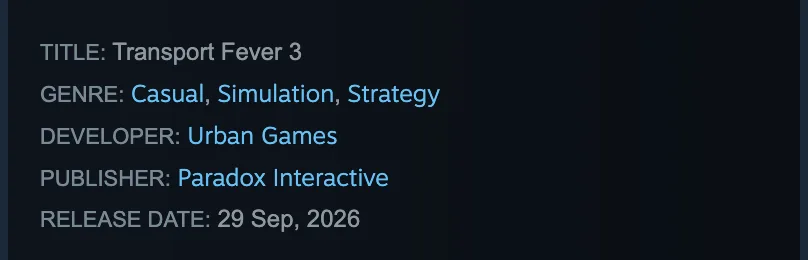
The Steam product is Transport Fever 3, with the store address identifying App ID 3493540. Match the title before following an installation guide, especially if you also have Transport Fever 2. A search result about the earlier game is not evidence for this game's installation or additional content.
The public store listing and your account's Library answer different questions. The listing describes the product; the Library gives you the controls for a game your account can install and manage. The procedures below begin at that Library entry. They do not establish that a purchase, gift or external key has successfully added the game to your account.
If Transport Fever 3 is absent from the Library, resolve access to the game before trying file verification. There is no installed-file check to perform on a missing entry. Likewise, seeing an add-on in the public store does not establish that your account owns it. Check owned content through the Library controls when you reach the DLC step.
Finish the download before investigating game settings
Steam's Download Manager shows installation and update progress, lets you reorder queued downloads, and records completed updates. Open it using Downloads at the bottom of the client, or through View → Downloads. You can also reach Downloads from the Library menu.
Find the Transport Fever 3 entry and read its current status before changing anything. A game waiting in the update queue needs a different action from an installation that displays an error. If another game is ahead of it, adjust the queue when you want this download to run first. Check the completed-updates view to distinguish a finished operation from one still scheduled.
When downloading a new game, Steam lets you choose among your existing Library folders. Select the intended location at that stage rather than assuming that every Steam game goes onto the same drive. This guide does not prescribe a universal TF3 install path, a current download size or a fixed amount of temporary update space. Use the client's actual installation information for the version being delivered.
After the download and required updates finish, launch the game while still online. That step matters for offline preparation as well as for checking whether installation has finished. If startup fails, retain the displayed message. A client installation error and a game that opens but runs slowly are separate problems; the latter belongs to performance diagnosis.
Check scheduling and bandwidth controls
Open Steam → Settings → Downloads to inspect download-wide settings. A slow or delayed transfer may reflect the queue or a configured limit rather than a Transport Fever 3-specific problem. Read these controls before assuming that the game files are damaged.
Steam can restrict automatic updates to a chosen time window. For example, an automatic-update window from midnight to 8 AM uses your local time. A queued update outside that window can wait until the scheduled period. You can override the schedule through the Download Manager when you want the update immediately; launching the game also forces a required update.
A bandwidth limit is another independent control. Its displayed units depend on whether Steam is set to show transfer rates in bytes per second or bits per second. Check the unit alongside the number before comparing the limit with another speed measurement. The configured limit appears in the Download Manager and in the update dialog when attempting to launch a game.
These settings affect downloads, not the simulation's frame rate. Increasing the bandwidth allowance cannot establish that a large transport network will run faster after installation. Finish the transfer first, then evaluate the game separately if a performance problem remains.
Choose the update policy for this game
From the Transport Fever 3 Library page, open the management controls, choose Properties, and select Updates. The automatic-update policy is per game, so inspect this entry even if you previously changed the policy for another title.
| Update setting | Practical effect |
|---|---|
| Always keep this game updated | Keeps the game under Steam's normal automatic-update behavior |
| Only update this game when I launch it | Defers automatic updating until you launch the game |
| High Priority — Always auto-update this game before others | Gives this game priority over other automatic game updates |
The launch-only option does not promise that you can start an outdated installation online without updating. It changes when the update is requested. If your goal is to play at a particular time, check the queue beforehand rather than discovering a required download at launch.
There is also a per-game control for whether other updates may download while you are playing. Set it according to the bandwidth you want Steam to use during that session. This guide does not attribute stutter or simulation slowdown to background downloads without evidence from the affected computer.
Verify the installed game files
File verification is appropriate when installed content appears missing or when you want Steam to check the installation after a crash. It checks the files Steam manages; it is not a universal fix for hardware limits, simulation behavior or every reported game issue.
- Restart the computer and open Steam.
- Locate Transport Fever 3 in the Library.
- Right-click its entry, or use the gear icon on its Library page, and select Properties.
- Open Installed Files and choose Verify integrity of game files.
- Wait for verification to finish before launching the game again.
The operation can take several minutes. Avoid running verification for several games simultaneously or alongside intensive disk activity such as a full drive scan. Read the completed result instead of closing the client while the check is still underway.
A message that one or more files failed verification is not automatically proof of a broken installation. Steam notes that, for many games, local configuration files are deliberately excluded from replacement. That explanation does not mean every repeated verification failure should be dismissed. If the same installation error persists, record its wording and proceed through the relevant client troubleshooting steps.
Inspect additional content already owned
Use the Steam Library DLC controls to distinguish DLC your account owns from DLC merely offered in the store. Right-click Transport Fever 3 and open Properties → DLC, or use the gear icon on its Library page to reach the same menu. The Library page may also provide a DLC section with a Manage My DLC control.
This management view shows the game's DLC associated with your account and its installation state. Read both fields when checking missing additional content. A store advertisement, an edition name or a page about another user's installation does not replace that account-specific check.
Do not infer a complete entitlement list from this guide. It does not establish that a particular purchase includes every add-on or that a package shown in a third-party database belongs to your account. Compare your owned DLC with the edition you actually purchased; use the Deluxe guide for the edition's documented contents.
The purpose here is to find the management screen and inspect the existing installation state. There is no need to reinstall the entire Steam client simply because an add-on appears in the store but is absent from your owned-content list. Resolve the ownership or edition question first.
Move the installation through Steam's controls
Steam supports multiple Library folders across drives. If you have an alternate Library folder, you can move an existing game there without requiring a new download. Use that client workflow when changing the installation's location.
- Open the game's Library entry and choose Properties.
- Select Installed Files.
- Choose Move Install Folder.
- Select the new Library location and let the operation finish.
To add another Library location, use Steam → Settings → Storage and the add control. The new location then becomes available for supported installation and move operations. If an installation problem might be tied to a particular drive, an alternate Library provides a way to test that location rather than repeatedly installing into the same folder.
Moving the installation is not a verified save-migration procedure. This page does not identify TF3's save directory, promise that every user file moves with the installation, or confirm cross-store save compatibility. Keep questions about saved games separate from the location of the files Steam installs.
Prepare an offline session while still online
Steam Offline Mode relies on stored login information and an installation that has already completed its online requirements. Set it up before losing network access. The documented client preparation is useful here, but successful offline TF3 gameplay still needs confirmation on your actual setup.
- Start Steam online and retain the login information through the Remember me option.
- Complete the game-file updates.
- Launch Transport Fever 3 online and confirm that no further installation or update step prevents it from starting.
- Close the game and return to Steam.
- In Steam → Settings → Security, ensure that Don't save account credentials on this computer is not selected.
- Use the Steam menu's Go Offline command, then check the game again.
Choose to retain credentials only on a computer where that is appropriate. If Steam is already asking for a login while disconnected, there is no documented way to bypass that requirement offline; reconnect to sign in. Preparing earlier is the relevant solution, rather than repeatedly trying to launch from an unauthenticated client.
Features that need the Steam Network are unavailable in Offline Mode. Games with an active-connection requirement or an external launcher can also fail to work offline. A single-player label by itself does not settle those dependencies, so this guide does not turn Steam's general feature into an unconditional TF3 guarantee.
Close Steam normally before shutting down the computer to help preserve its stored information. Reconnect when you need Steam or game updates; neither receives those updates while offline. If the client reports that the game cannot start offline despite showing a ready status, update the client and game files online before trying again.
Match installation errors to a client repair
If Steam reports an installation or update error while installing or updating Transport Fever 3, copy the specific reason in parentheses at the end of the message. That detail is more useful than treating every failure as the same problem. Start with a Steam and computer restart, then select the next step according to what remains.
| Client repair | Location | What it addresses |
|---|---|---|
| Clear download cache | Steam → Settings → Downloads → Clear Cache | Refreshes locally cached client configuration from Steam's servers |
| Repair a Library folder | Steam → Settings → Storage → folder menu → Repair Folder | Refreshes the Library folder's access permissions |
| Verify installed files | Game Properties → Installed Files | Checks the installation's managed files |
| Change download region | Steam → Settings → Downloads → Download Region | Uses another region's content servers when the current route has problems |
| Try an alternate Library drive | Steam → Settings → Storage | Tests installation away from the original drive |
These are client troubleshooting options, not promises that a specific error will disappear. Make one relevant change and check the result, keeping the original error message available. If the basic steps fail, storage, memory, network or other software may need investigation beyond the game entry.
Reinstalling Steam and uninstalling Steam are different actions. Installing the client again into its existing location can preserve installed games, while uninstalling Steam deletes game content. Avoid treating removal of the whole client as the first routine repair. If the installation completes but a running save has low FPS or slow simulation, continue with the performance guide instead of repeating download repairs.
For public app, package and build records, use the SteamDB guide. For buying and activation choices, use price and Steam keys.