

Use Mod Hub from the Transport Fever 3 main menu to find and subscribe to mods. The game handles subscribed downloads and updates; you then select the downloaded mods for the world you want to play. For a new Free Game, open Add Mods, press Activate beside the required entries, and review the selection before starting.
The browser catalog and the in-game hub are two ways to manage your mod.io subscriptions. Use the same mod.io identity in both. A subscription, an installed package, and an active entry in a particular save are different states. If a saved game cannot load, inspect its missing-mod list before changing files or removing requirements.
Open the Correct Game Catalog
Start with the Transport Fever 3 mod.io catalog, rather than a general search across every game on mod.io. Transport Fever 2 also has a catalog, and a familiar vehicle or mod name does not establish that you have opened the third game's edition. Check the game name attached to the entry before subscribing.
In-game, select Mod Hub on the main menu. You can browse the available content, search for an exact title, and open an entry to read its description. On the website, choose Transport Fever 3 first, then use its mod or collection listings. Keep the game's catalog selected when narrowing your search.
Match the entry to the task you want to solve. A vehicle package adds a particular set of vehicles; a map gives you a world or generator; a script can change interface behavior or a simulation rule. The category alone is insufficient to tell you what a package does. Read the author's description and requirements before choosing it.
A collection is useful for discovering a group of related entries, but it is not proof that every member is currently available. The ModWerkstatt collection, for example, contains both available entries and an unavailable item in the inspected listing. Open the individual entries you need rather than treating the collection heading as a complete installation result.
Keep the Browser and Game Account Aligned
If a browser subscription does not appear in your game, first check which identity each interface is using. The relevant comparison is the mod.io profile, not simply the store from which you bought the game. Subscribing under one profile while playing under another creates two different subscription lists.
Follow the sign-in choices actually offered by your version of the hub. Do not assume that every first-time login presents an identical sequence or that every storefront offers the same account button. The useful end state is a matching profile in the game and browser, with the expected subscriptions visible.
Use a small account check before subscribing to a large collection:
- Open the Transport Fever 3 catalog in the browser.
- Inspect the profile that is currently signed in.
- Open the in-game Mod Hub and inspect its account state.
- Confirm that both interfaces refer to the identity you intend to use.
- Subscribe to the required entry and let the game finish its download.
- Look for that entry in the selection for your new game or existing save.
If the profiles differ, correct the account selection before deleting downloaded content. Missing synchronization and a missing package are different problems. Changing a folder cannot make a subscription owned by another account appear in the current account's library.
Subscribe, Download, Then Activate
Subscription tells the hub which content you want in your library. The game downloads and updates subscribed content automatically. Activation determines which of those entries belongs to a particular world. Complete all three stages before judging whether a mod is working.
Open an individual entry and inspect its description, dependencies, and platform files. Subscribe through the hub or your matching browser account, then wait until the download is complete. Move into game setup only when the content you need is available.
For a new Free Game:
- Select the world and configure its map settings.
- Continue to the Add Mods tab.
- Find each downloaded entry that this world needs.
- Press Activate for those entries.
- Check any parameters exposed by the selected mod.
- Review the complete active list before pressing Start Game.
A mod being visible in your library does not mean it has been selected for every new world. Equally, subscribing to more content while an established world exists does not establish that its saved mod list has changed. Use the world's own selection rather than guessing from your total library.
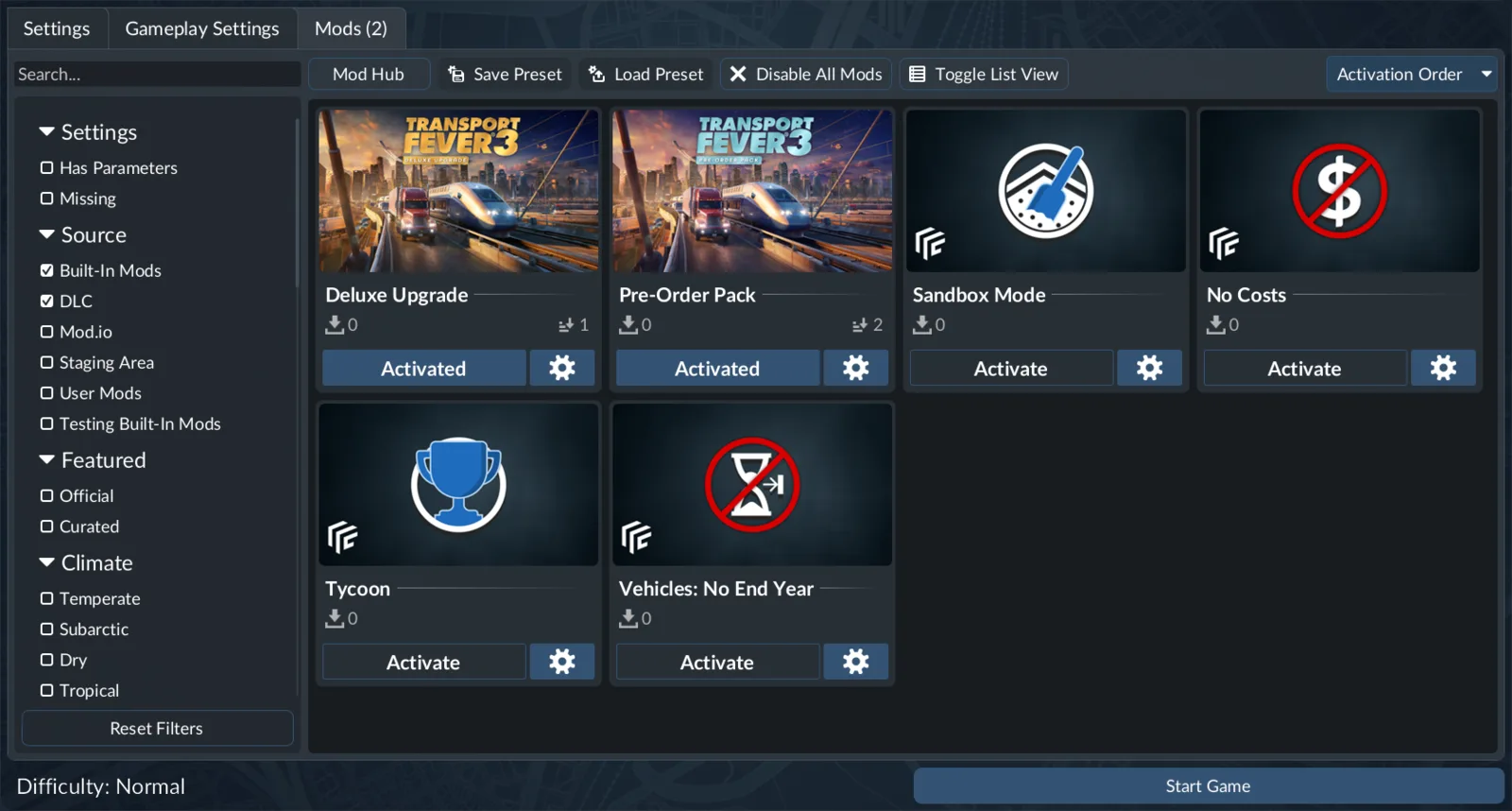
Choose installed content for the world before starting.
For an existing save, open Load Game, select the save card, and open its settings control. Where the save permits editing, the settings and mod-list tabs are available. Review its active list there. A save that does not expose editable settings should not be treated as though copying files will create that option.
Inspect Dependencies and Platform Files
Transport Fever 3 identifies mods with fixed, unique mod IDs. Missing dependencies can be detected and listed during download. When an entry requires another package, resolve the named requirement rather than choosing a similarly named file from a different game.
Open the dependency section on the exact mod page. A shared asset package, a vehicle base package, and a repaint serve different purposes. Check the entry you are installing; do not infer that every release from the same author has identical requirements.
The Siemens Vectron basic package described in the ModWerkstatt guide illustrates why the files matter. Its inspected release lists version 1.0 in separate desktop and console files. The listed desktop platforms are Windows, Mac, and Linux; the other file covers Xbox Series X/S and PlayStation 5. This does not establish that a desktop ZIP can be copied onto a console.
The inspected Vectron entry also states that it has no dependencies. That statement applies to this entry, not to every ModWerkstatt package or every mod.io upload. For a different locomotive, repaint, or asset pack, read its own current dependency list.
Use these checks together:
| Check | What it establishes |
|---|---|
| Exact game catalog | The entry is presented for Transport Fever 3 |
| Author and mod identity | You have found the intended package |
| Platform file | The listed release targets your platform |
| Dependency list | The additional entries this package declares |
| Active save list | The world is configured to use the selected entry |
A popularity rating is useful context when browsing, but it does not replace these checks. It cannot establish that the selected release fits your save or that all its required packages are present.
Recover a Save With Missing Mods
If Load Game is disabled, a required mod is likely missing. Open the affected save's details and inspect its mod list. Where the Missing filter is available, use it to identify the exact entry rather than unsubscribing from the whole library.
The recovery target is the original requirement. If you previously unsubscribed from that package, subscribe again through the correct Transport Fever 3 entry, let the game download it, and recheck the save. If the package is unavailable, a different package with a similar name is not an established replacement.
Check the stages in order:
- The required entry still exists in the correct game catalog.
- You are using the profile that owns the subscription.
- The package and its dependencies have finished downloading.
- The save's mod list recognizes the required entry.
- The load control becomes available for that save.
Some missing-content warnings can be confusing while updates are downloading. Inspect the actual missing list and download state before concluding that the files have disappeared. A warning on one save should be investigated against that save, rather than against an unrelated world that uses a smaller mod selection.
Do not remove a required entry merely to clear the warning. A mod can supply persistent objects that the world still needs. For example, the Real Track Cant author warns against removing the package from a game where its canted tracks have been built. That warning is specific to that mod, but it demonstrates why removal instructions must come from the package you use.
Separate Presets From Collections
A preset records a mod selection you want to reuse in game setup. Save a preset after choosing the entries and parameters you need; when creating another world, load the appropriate preset and review the resulting selection.
A collection is a browser-managed grouping that can be shared or followed. It is useful for presenting a themed library or the packages associated with a playthrough. It does not take the place of checking the active mod list for the save you are about to load.
Use presets for your repeated setup choices and collections for discovery or sharing. After using either, inspect the resulting entries. An unavailable collection member remains unavailable, and a downloaded mod still needs the appropriate selection for the world.
If an entry cannot be added to a collection, do not assume its download has failed. Collection management and package availability are separate operations. Check the entry and any message shown by the interface before changing your subscribed library.
Keep Managed Downloads Separate From Manual Mods
Mod Hub content is managed by the game. Avoid manually adding, removing, or editing files inside its downloaded-content folder. If you choose a manual package instead, use the mods directory inside the game's userdata location and follow that package's own instructions.
The installation folder, userdata folder, and managed mod.io folder are different locations. The installation folder contains static game files. Userdata contains saves, settings, and manually installed mods. The staging_area is used for mod development and upload, so it should not be presented as the universal destination for every downloaded package.
For Steam on Windows, the default userdata path contains your Steam user number, the game ID 3493540, and the local folder. GOG and Epic on Windows use the Transport Fever 3 folder in your user's roaming application data. These are default locations; a changed installation drive does not make every directory interchangeable.
A manual ZIP is a separate distribution route. It does not become a managed subscription simply because the same author also publishes on mod.io. Choose the route deliberately, keep the exact package instructions, and use the matching save selection after installation.
Confirm the Intended Result Before Continuing
For a vehicle package, confirm that the expected vehicles are available under the conditions described by its entry. For a script, confirm that the named control or behavior is present. For a saved game, the immediate result is a loadable world with its required entries recognized.
Keep your diagnosis specific. If the package is downloaded but absent from the world, check activation. If a browser subscription is missing from the game library, check account identity and downloads. If a save cannot load, inspect its missing requirements. These checks let you correct the relevant stage without rebuilding an otherwise working mod library.