
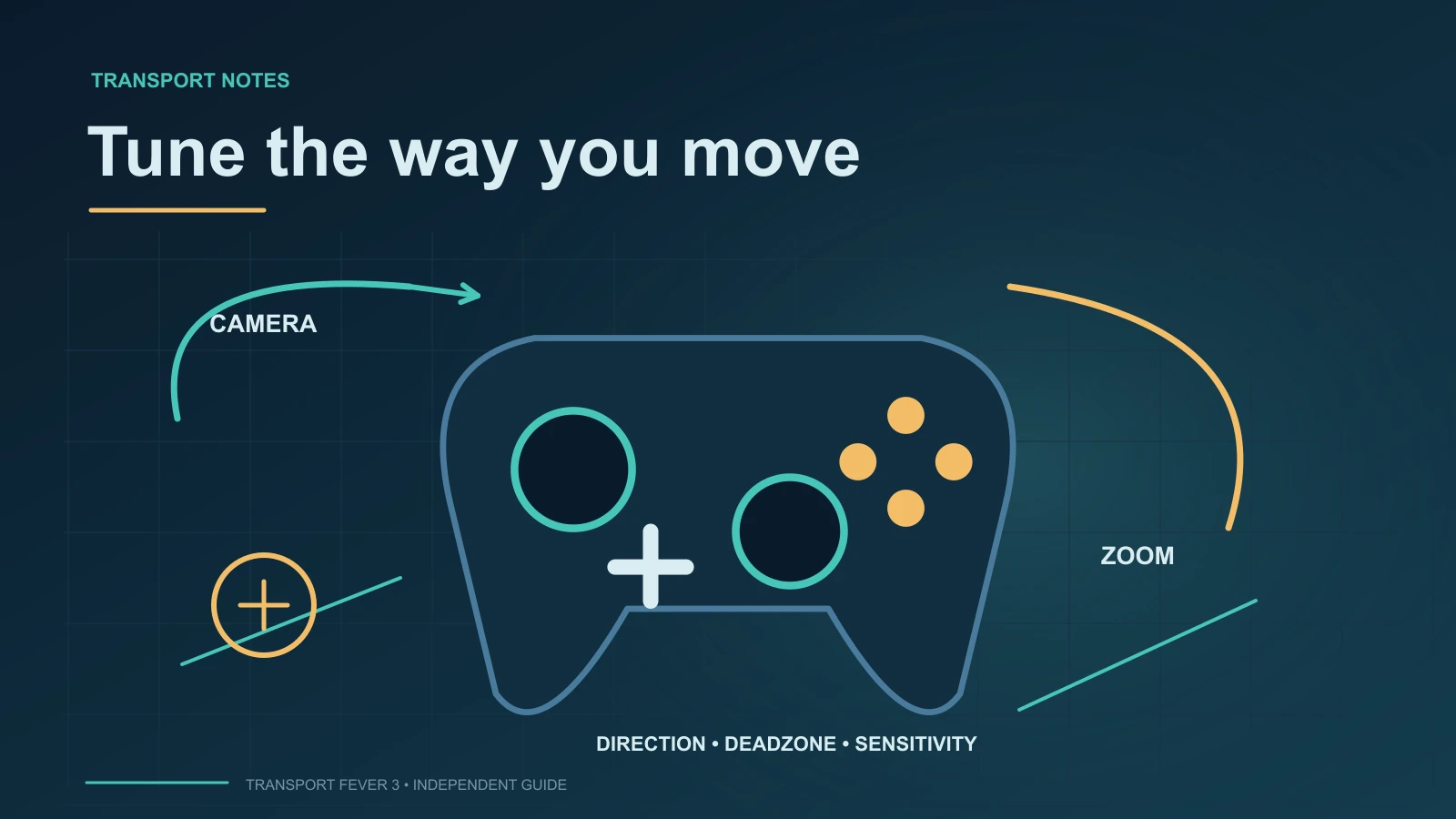
Transport Fever 3 uses the left stick to pan the game camera, the right stick to rotate and tilt it, and the left and right triggers to zoom. Press the right stick to toggle between paused and unpaused simulation; hold it to cycle through the available speed levels. If the camera moves without deliberate input, increase the controller deadzone. For the documented softlock after opening an empty construction menu on console, save the game and load that save again.
This guide covers the camera, menu navigation, simulation speed, and the in-game settings used to correct direction, drift, and sensitivity problems. It is not a complete construction-button map or a compatibility list for every gamepad model.
Controller Controls at a Glance
The documented layout divides camera movement between the two sticks. One stick moves the camera across the landscape, while the other changes its viewing direction and angle. Zoom is assigned to the triggers, leaving the right-stick press available for simulation speed control.
| Controller input | Documented function | What the input changes |
|---|---|---|
| Left stick | Pan the camera | Moves the view toward the upper, left, lower, or right edge of the screen |
| Right stick, horizontal axis | Rotate the camera | Turns the view clockwise or counterclockwise |
| Right stick, vertical axis | Tilt the camera | Makes the viewing angle steeper or shallower |
| Left and right triggers | Zoom | Moves the camera view in or out |
| Right-stick press | Pause or resume | Toggles between paused and unpaused simulation |
| Hold right-stick press | Cycle game speed | Moves through the available simulation-speed levels |
The game also has a free-camera mode that can move through the world without the normal camera restrictions. Its movement sensitivity can be configured separately from the normal game camera, so a comfortable setting in ordinary play does not have to determine how quickly the free camera moves.
Move and Aim the Camera
For normal play, treat camera control as four separate actions: panning, rotation, tilt, and zoom. Testing them separately makes it easier to identify whether an unexpected response comes from an inversion option, a swapped-stick option, sensitivity, or unwanted stick input.
Pan with the left stick
Move the left stick to shift the camera across the game world. The four directions correspond to movement toward the upper, left, lower, and right edges of the screen. This is movement across the viewed landscape; it is different from turning the direction in which the camera faces.
If panning happens on the right stick instead, check Swap Sticks (Game Camera). When that setting is active, the right stick handles panning and the left stick handles rotation and tilt. Disabling it restores panning to the left stick.
Rotate and tilt with the right stick
Move the right stick horizontally to rotate the view clockwise or counterclockwise. Move it vertically to tilt the camera angle up or down. Rotation changes the direction of the view, while tilt changes how steeply the camera looks toward the landscape.
Two settings alter how those actions feel:
Invert Rotationchanges the rotational model. When active, the behavior is as if the landscape rotates around the center of the screen. When inactive, it behaves as if the camera moves around that central point.Invert Tiltchanges the vertical relationship between stick movement and camera angle. When active, moving the right stick downward makes the camera angle steeper, looking down more from above. When inactive, the tilt moves opposite to that stick direction.
Because these settings affect different axes, adjust one at a time. If horizontal movement feels backward but vertical movement is comfortable, change Invert Rotation without also changing Invert Tilt. If the horizontal response is correct but looking up or down feels reversed, change only Invert Tilt.
Zoom with the triggers
The left and right triggers control zoom. The exact direction depends on Invert Zoom:
- With
Invert Zoomactive, the left trigger zooms in and the right trigger zooms out. - With
Invert Zoominactive, that behavior is reversed.
If both triggers respond but move the camera in the opposite direction from what you expect, this is an orientation setting rather than evidence that the controller has failed. Change Invert Zoom, then test both directions again.
Configure Controller Settings
Controller input settings are available through the settings menu. That menu can be reached from the main menu or from the in-game menu. The controller section contains the direction, stick assignment, deadzone, and sensitivity options relevant to this guide.
Adjust settings by the kind of problem you observe. Stick swapping changes which hand performs an action. Inversion changes direction or the movement model. Deadzone changes when input starts registering, while sensitivity changes how quickly a recognized input moves the camera. Choosing the right category prevents one adjustment from disguising a different problem.
Start with stick assignment, then settle the orientation of rotation, tilt, and zoom. Check the camera at rest before adjusting its movement speed. This order gives each later change a stable reference: there is little value in carefully tuning pan speed while the wrong stick still pans, or selecting a comfortable zoom direction while unwanted resting input continues to move the view.
Set deadzone without losing deliberate input
The Deadzone slider determines how far a stick must move before the game recognizes an input. Increasing it is the documented response to controller drift. A larger deadzone ignores more movement near the stick’s resting position.
Begin by releasing the sticks and watching for camera movement that continues without deliberate input. If that happens, raise the deadzone and check again. The objective is to suppress unintended input while retaining the intentional movement you need for panning, rotation, and tilt. There is no universal percentage to recommend. Tune it to the controller’s actual resting behavior instead of assuming that another player’s number fits your device.
Deadzone and sensitivity solve different problems. Deadzone controls the threshold at which movement starts registering. Sensitivity controls the speed of the camera after the input has registered. If the camera remains still when untouched but moves too rapidly when you use a stick, change sensitivity rather than deadzone.
Balance the sensitivity sliders
Higher sensitivity produces faster movement. The settings cover rotation, panning, and zoom, allowing those camera actions to be tuned according to their different roles. A fast pan may help cross a large view, while a more restrained rotation or zoom response may be easier to position precisely. That is a configuration choice rather than a documented universal optimum.
Normal-camera and free-camera sensitivity can be set independently. If the ordinary game view feels correct but free-camera movement feels too slow or too fast, change the free-camera values only. Conversely, do not alter free-camera sensitivity when the issue occurs exclusively in the normal game camera.
Control Simulation Speed
Press the right stick to toggle the simulation between paused and unpaused. Hold the right-stick press to cycle through the speed levels. The toolbar at the bottom right shows the selected speed control.
There are four documented speed states:
| Toolbar state | Simulation behavior |
|---|---|
| Pause | Stops the simulation |
| Play | Runs at normal speed |
| Double play | Runs at doubled speed |
| Triple play | Selects 4× speed |
A short press and a hold serve different purposes. Use a press when the immediate goal is to pause or resume. Use a hold when you need to move through the available speed levels. If the game changes between paused and unpaused when you intended to select a faster speed, repeat the input as a hold rather than treating it as an undocumented alternate button.
The selected speed is not a guarantee that the simulation can continuously maintain that rate. When the game cannot keep up because of the complexity of the game world, the simulation speed is reduced even if a higher speed remains selected. Therefore, a visibly selected fast-forward state and the actual rate achieved by the simulation can differ. Changing controller sensitivity or deadzone will not correct that condition because those settings affect controller input, not the simulation’s ability to keep up.
Navigate Menus with a Controller
Swap Sticks (Menu Navigation) determines which stick navigates menus. When it is inactive, menu navigation uses the left stick. When it is active, menu navigation uses the right stick. This setting is independent of Swap Sticks (Game Camera).
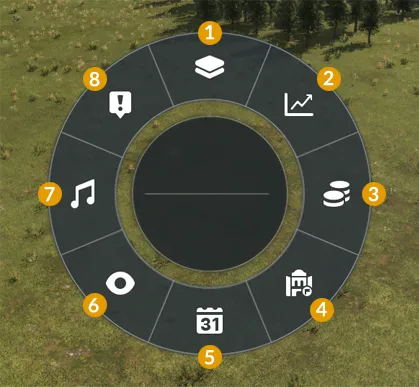
The radial menu organizes controller-oriented navigation options.
That separation allows four possible relationships between gameplay and menu input. You can keep the standard left-stick pan and also navigate menus with the left stick; swap only gameplay so the right stick pans; swap only menu navigation so the right stick selects menu directions; or activate both stick-swap settings. If the camera uses the expected stick but menus use the other one, change only Swap Sticks (Menu Navigation).
The independence of these options is important during troubleshooting. A menu-navigation preference does not prove that the gameplay sticks are misconfigured, and a swapped game camera does not require menu navigation to be swapped. Check the setting associated with the context in which the problem appears.
Match a symptom to the right setting
| Symptom | Relevant control | Check before changing it |
|---|---|---|
| Movement continues with both sticks released | Deadzone | Distinguish unwanted resting input from a camera that is only too fast while deliberately moved |
| Deliberate camera movement is too fast or slow | Sensitivity | Identify the affected pan, rotation, or zoom action and whether it occurs in the normal or free camera |
| Horizontal rotation feels reversed | Invert Rotation | Check rotation without simultaneously changing tilt |
| Vertical camera angle feels reversed | Invert Tilt | Check the vertical axis rather than swapping the entire stick assignment |
| The trigger used for zoom goes in the wrong direction | Invert Zoom | Both triggers respond; the issue is their direction |
| The unexpected stick pans | Swap Sticks (Game Camera) | Determine whether the mismatch occurs in the world view or only in menus |
| Only menu navigation uses the unexpected stick | Swap Sticks (Menu Navigation) | Keep the camera assignment if it already feels correct |
| Fast-forward remains slow in a complex world | Simulation workload | A speed-selection input and the actual rate achieved by the simulation are separate |
A useful correction changes the control associated with the symptom. If menu navigation feels wrong while the camera is comfortable, preserve that camera configuration. If the camera is still when untouched but moves too quickly during deliberate input, focus on sensitivity. This lets you recover from a setting mismatch without rebuilding an otherwise usable layout.
A construction menu softlocks on console
A documented controller softlock affects PlayStation and Xbox when certain empty construction menus are opened. The known examples are the plane menu before 1920 and several industry menus in sandbox mode. The documented workaround is:
- Save the game.
- Load that save again.
The official known-issues entry records this problem, but its status in later builds has not been confirmed. It should not be described as fixed or as guaranteed to affect every current session.
This specific recovery applies to the documented empty-construction-menu softlock on the named console platforms. The available evidence does not establish it as a universal explanation for every frozen menu, every controller model, or PC controller behavior.
If the controller is not recognized
The controls above describe behavior once the game is receiving controller input. They do not establish a model-by-model compatibility list, button-remapping procedure, or universal Steam Input configuration. A device that is not recognized at all is therefore a different problem from a detected stick with the wrong direction, role, or movement speed.
Before seeking device-specific help, distinguish those states clearly. Note whether either stick or trigger produces an in-game response, whether the failure occurs only in menus or also in the world view, and which controller you are using. These observations describe the problem without claiming an unverified fix. Avoid treating a deadzone adjustment as a cure for an entirely undetected device: its documented role is to change the movement threshold for input that the game can already read.
If you are choosing the console version, compare the PS5 features and save limits. If you need handheld-specific performance evidence, read the Steam Deck observations.