
To find a Transport Fever 3 autosave, open Load Game, locate the saved world's card, and use the settings/gear icon on that card. This opens the saved world's details, including its autosaves. Simply starting the card or using Continue loads a save without taking you through that history.
To change automatic saving, open Settings → Advanced. Autosave Interval controls how often automatic saves are made; Autosaves To Keep controls how many are retained. The game rotates through those retained saves and overwrites older entries. Increasing the number now cannot bring back a file that has already been overwritten.
Find and load an earlier autosave
- Open Load Game from the main menu. You can also reach Load Game through the pause menu while playing.
- Locate the card for the world you want to recover. Choose the correct world before looking for an earlier state.
- Open that card's settings icon instead of immediately starting the card. The autosaves belong to that saved world.
- Inspect the available autosaves and select the state you want to load. Use the displayed information to distinguish it from the latest state.
- Select Load Game in the lower-right corner.
- Once the world opens, check that it represents the point you intended to recover before continuing construction or replacing a manual save.
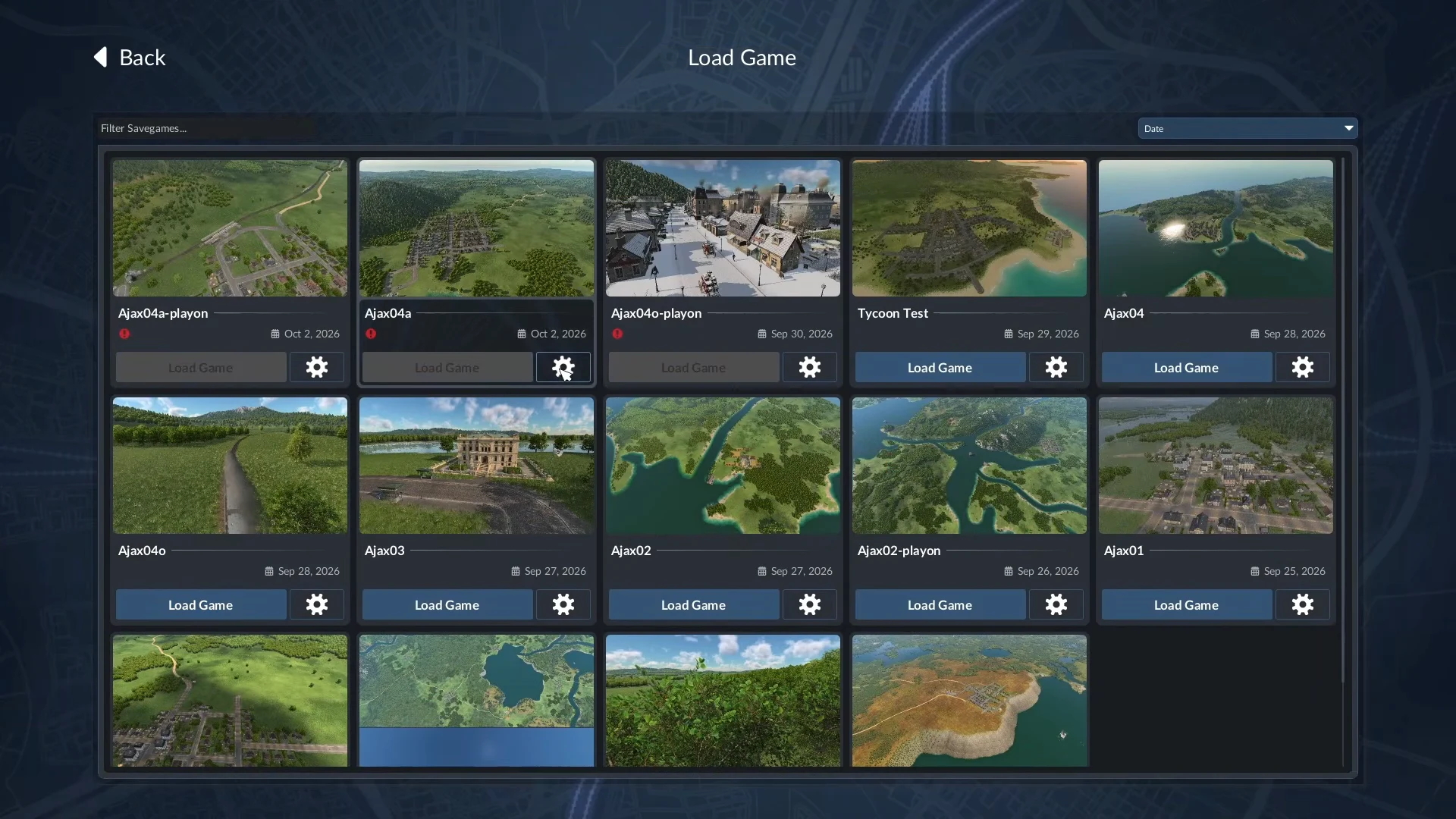
Open the gear on the relevant save card to inspect that world’s saved states.
With a controller, select the save card and press the left stick to open its details. The official controller instructions show the X button for the final Load Game action. Follow the button labels displayed by your current input device rather than assuming the mouse interface and controller prompts look identical.
The main-menu Continue option resumes the last played save. Use the Load Game card's settings when you deliberately want to inspect earlier autosaves. An apparently short grid of saved worlds does not establish that no automatic saves exist: check inside the relevant world's card first.
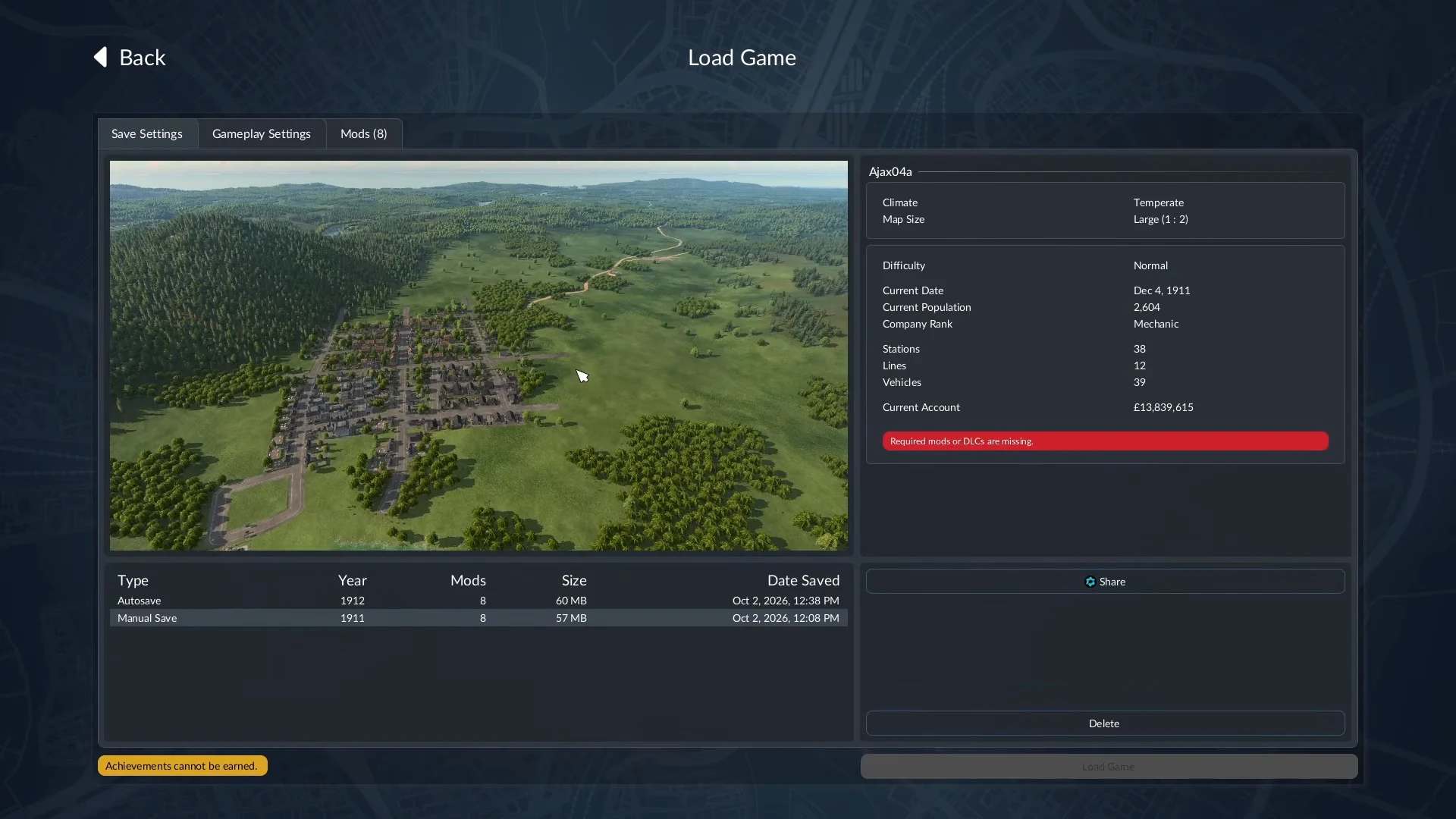
The lower-left list distinguishes Autosave from Manual Save. This example also has missing mods or DLCs; it demonstrates the list, not a successful load.
Set the autosave interval and retained history
Open the general Settings menu from the main menu or the in-game pause menu, then select Advanced. The two autosave controls solve different problems:
If needed, scroll horizontally to read every column.
| Control | What it changes | What it does not do |
|---|---|---|
| Autosave Interval | The interval between automatic saves | It does not select which older save to load |
| Autosaves To Keep | The number retained at the same time | It does not turn the rotating history into a permanent archive |
Choose from the values actually offered in your game. This guide does not prescribe an unverified default interval or maximum count. The official manual also notes that not all Advanced settings are available on consoles; a missing control there is not a reason to follow PC configuration-file instructions.
A shorter interval reduces the gap between scheduled saves, while retaining more entries gives you more earlier states to inspect. These are separate choices: keeping many entries with a long interval is different from saving frequently but retaining very few entries. Neither setting guarantees that the precise moment before a mistake or crash was saved.
Understand why older autosaves disappear
The retained history uses a rotating set of files. Once the configured number is reached, later autosaves overwrite entries in that rotation. Automatic saving is therefore useful for recent recovery, but it should not be treated as a permanent record of every stage of a large network.
If you find a useful earlier state, preserve it separately before continuing a long session. On desktop, Settings → Advanced → Open User Data Folder opens the active user-data location. Use the save-game location and backup guide to identify and copy the actual saved-world files with the game closed. The application installation folder is a different location.
Changing the retained count after a loss affects subsequent saving. It does not reconstruct overwritten progress. Likewise, loading an older autosave deliberately returns to that older state; changes made after it are not automatically merged into the loaded world.
Check the right problem when an autosave will not load
Finding an autosave and successfully loading it are two separate checkpoints. The save-card details also provide access to gameplay settings and the active-mod list where that save permits editing. The official manual identifies a missing mod as a likely cause of a disabled Load Game button.
If needed, scroll horizontally to read every column.
| Symptom | Next step |
|---|---|
| Only the main world card is visible | Open its settings icon to inspect the associated autosaves |
| The expected older state is absent | Check the correct world and retained history; it may already have been overwritten |
| Load Game is disabled | Inspect the saved world's required mods and restore missing requirements |
| Loading begins but crashes | Preserve the original and follow the separate save-loading diagnosis |
| A desktop file backup is missing from the menu | Confirm the active user-data folder and actual save files |
For missing subscribed content, use the mod.io and Mod Hub guide. Avoid deleting a save's requirements simply to make a warning disappear: removing content can change the world, and it does not recover an overwritten autosave.
If the game starts loading and then fails, use save-game not loading. That guide covers preservation and diagnosis; the gear-icon route on this page solves the earlier problem of finding the autosave list.
Distinguish autosaves from crash saves
The Advanced autosave controls govern scheduled saving. The PC configuration also has separate experimental settings for crash saves: crashSaveEnabled controls their creation, while crashSaveSingleFile controls whether a later crash can replace the previous crash save.
Those controls are not the same as Autosaves To Keep. You do not need to edit them to open the ordinary autosave history. The official settings reference says configuration-file edits must be made with the game closed and are unavailable on console. Leave this separate mechanism alone when your only problem is locating an existing autosave.
The steps here follow the official Free Game loading instructions and Advanced settings reference. They establish the menu route and retention behavior, not guaranteed recovery of a missing or damaged file.