
To add Transport Fever 3 waypoints on PC, select one line in the Line Manager, select the stop or waypoint before the new entry, then hold Shift while clicking a valid location in the 3D world. The new waypoint is inserted after the selected entry. Inspect the line's 3D preview to confirm the resulting path and check for connection warnings before leaving the editor.
A waypoint requires the vehicle to pass through its location without stopping. It controls the route between actual stops; it is not a loading station, a timetable or a priority setting. Use it when the ordinary shortest route is not the path you want, while keeping the infrastructure reachable for the relevant vehicle type.
Decide which segment needs routing control
Trains, road vehicles and ships normally use the shortest route between stops. A waypoint changes that path by requiring a visit to a specified location before the next entry in the line. This can help steer traffic along a preferred corridor, manage where noise is produced or make use of maintenance infrastructure.
Start with a concrete pair of stops. Identify where the vehicle leaves the first stop, where it should travel and where it must reach the next one. If the route already follows the intended corridor, another waypoint adds complexity without a clear purpose.
Do not use a waypoint to solve a physical disconnection. The vehicle must still be able to reach the chosen location and continue to the following stop. A missing road, unsuitable rail direction or unreachable terminal needs a network repair before a routing constraint can work.
| Line element | What it does | What it does not do |
|---|---|---|
| Station stop | Provides a stopping destination in the line | Automatically force every intermediate road or track |
| Waypoint | Requires passage through a valid location | Load cargo or make vehicles wait there |
| Terminal choice | Selects a station platform or terminal | Define every part of the approach corridor |
| Line priority | Changes operational priority for relevant lines | Substitute for a physical route connection |
Keep the distinction visible when editing. A line needs meaningful stops for transport, while waypoints customize the paths between those stops. Filling a list with pass-through locations is not a replacement for specifying the destinations where the service actually handles passengers or cargo.
Select one line in the Line Manager
Open the Line Manager from the toolbar and select the intended line. The upper area lists lines and depots, the middle area shows vehicles from the selected entries, and the lower area shows the selected line's stops and waypoints. Work with a single line so the sequence and preview remain easy to read.
You can use the carrier filters and search field to find the line. If a filter hides it, clear or adjust the filter instead of assuming the service has disappeared. The visible list is affected by the active filters as well as the text search.
Selecting a line shows its route in 3D. When several lines are selected, the combined display can make it harder to tell which path belongs to the service being changed. Reduce the selection to the one line before comparing its old and proposed corridor.
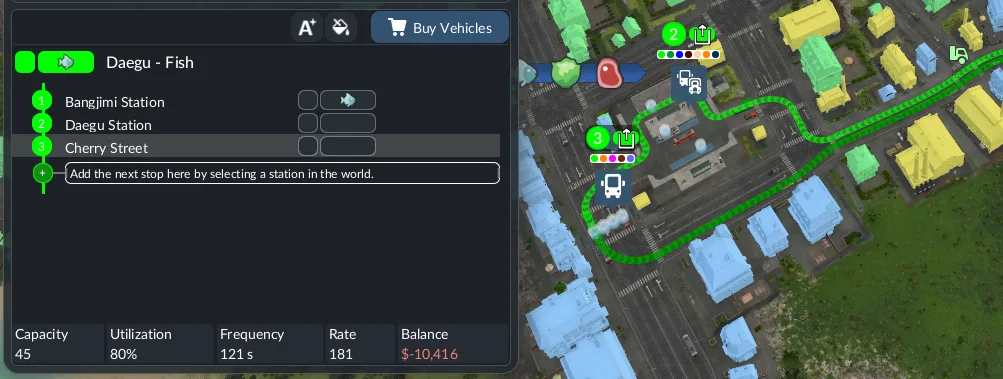
Read the stops in order before inserting anything. A line travels through its entries and returns from the final stop to the first. The outward and return portions can therefore need different constraints. Identify which selected row corresponds to the journey you want to change.
Insert the waypoint after the correct row
The highlighted row in the lower list identifies the selected line segment. A new stop or waypoint is inserted directly after that selected entry. Clicking an existing stop or waypoint selects the segment that follows it, which also blinks in the 3D view.
- Select the line you want to change.
- Find the entry immediately before the intended waypoint.
- Select that entry and inspect its following segment.
- Hold Shift while clicking a valid location in the world.
- Confirm that the new entry appears at the intended position in the list.
- Inspect the revised path toward the next stop.
- Check the return portion and any warning icons.
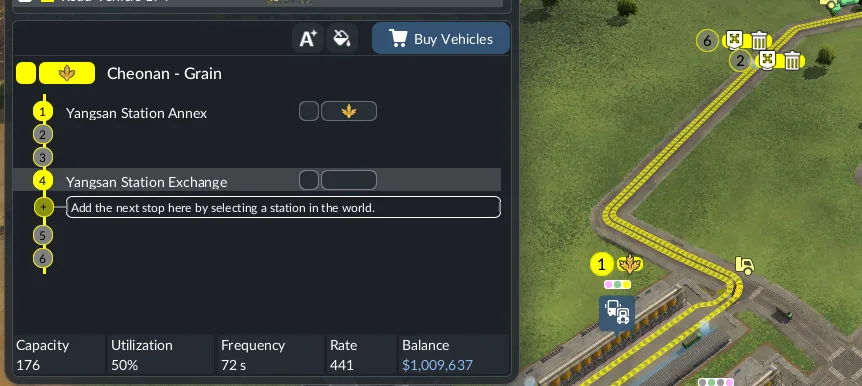
The insertion position matters as much as the location. A waypoint placed on the right road but inserted after the wrong station can create a detour on a different part of the journey. Fix the list order before deciding that the location itself is unusable.
Use the line preview as confirmation. The key press is only the input; the changed entry and visible path are the evidence that the correct line segment now has the intended constraint. If nothing useful changes, recheck the active line, selected row and validity of the clicked location.
Choose a location compatible with the carrier
A valid waypoint location belongs to the network the vehicle can use. For a tram route, click the tram track rather than merely the roadside beside it. A road position that looks close to the rails can still be the wrong target for a tram, so inspect the carrier's actual path after inserting the entry.
For a railway line, choose a reachable track position that forces the desired corridor. Consider how the train reaches that point and how it continues toward the next stop. A routing constraint on a different track is useful only if the necessary connections and permitted directions exist.
For a ship route, use a valid location that the route can reach and pass through. The waypoint remains a pass-through requirement, not another harbor stop. Keep its purpose tied to the corridor rather than expecting it to provide a loading operation on open water.
Carrier compatibility is not established by the map's visual proximity alone. Zoom and inspect the actual target before placing the point, then read the preview afterward. This avoids a common situation where the intended road, rail or tram corridor was visible but the click applied to another nearby surface.
Reorder, move and remove entries deliberately
The stop and waypoint rows can be rearranged by dragging their handle icons. Use this when an entry was inserted into the wrong part of the sequence. Review the next segment after moving it because its routing effect follows the new list order.
Hovering a row exposes additional controls, including moving or deleting the entry. To remove an unwanted waypoint, use the trash button at the end of its row. Delete only the constraint you no longer need, then inspect the resulting path before adding a replacement.
A useful edit has a defined before-and-after result. For example, one segment should now follow the chosen side of the network while the next station remains the same. If several entries move at once, it becomes harder to tell which constraint produced an unexpected detour.
Use meaningful line and stop names when they make the route easier to identify. Naming does not change connectivity, but it helps you select the correct service and sequence on a busy network. Keep the editing goal narrow enough that the resulting path can be read directly.
Check the return journey separately
A line follows its stop list and loops from the final entry back to the first. A waypoint on the outward journey does not automatically specify every part of the return. Read the list as a complete cycle and check both directions in the 3D preview.
If you require different roads or tracks on the two legs, insert the corresponding constraints in the correct portions of the sequence. Do not assume the same waypoint belongs in both positions. The relevant path is from the previous entry, through the waypoint and onward to the next stop.
Look for unnecessary loops after each edit. A service can appear to use the chosen corridor but still take an awkward detour because a point was placed or ordered incorrectly. Compare the whole segment instead of inspecting only the short stretch beside the waypoint.
When the preview becomes complicated, simplify the sequence and restore the last understandable arrangement. Remove the unnecessary point, confirm the route and then add the smallest constraint needed. This produces a path you can verify without constructing an elaborate chain of points around every junction.
Read connection warnings before running the line
A connection problem appears when a terminal cannot be reached from the previous entry or the following stop is unreachable. The selected line's problem segments carry a red exclamation mark in the lower area, and hovering the warning gives more information about the failure.
The Line Manager also displays a problem notification beside an affected line. A red count can indicate how many lines have problems, and the general warning window lists line issues as well. Use those indicators after changing waypoints or infrastructure instead of waiting for a vehicle to reveal the problem later.
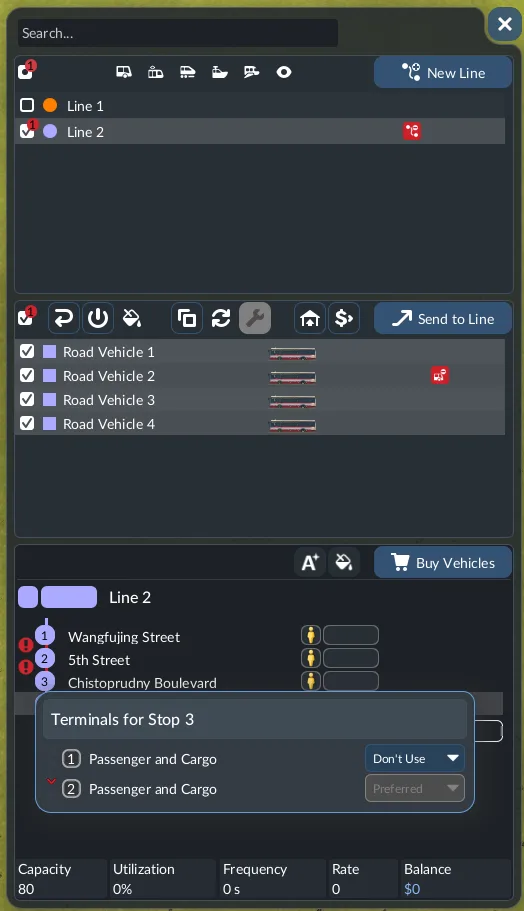
Some warnings concern the stop list rather than the physical route. Adding the same station twice consecutively or selecting a station for another carrier can produce a problem. Check the actual warning text before trying to fix every error by moving the waypoint.
If a warning appears immediately after an edit, compare the new entry with the preceding and following destinations. Remove or reposition it if the constraint cannot be reached. If the warning remains after reverting the change, inspect the network and terminals because the underlying problem may be elsewhere.
Keep terminal assignment separate from the corridor
Terminal assignment selects where the vehicle stops inside a station. It is automatic by default based on reachability and utilization, but can be adjusted. A waypoint constrains the approach route; it does not automatically select the platform that best matches your intended layout.
Alternative terminals can be used when the primary terminal is occupied. For trains, they must be reachable from the last signal before the station, which is the decision point marked in the line view. A waypoint that sends a train toward a corridor does not make an otherwise unreachable alternative terminal usable.
When a route looks right until the station approach, inspect terminal selection before adding more pass-through points. The problem might be the preferred platform or an unavailable alternative rather than the route through the wider network. Read the terminal warnings and the transparent alternative paths where present.
Keep signaling and priority checks in their own workflow. A valid waypoint route can still encounter operational congestion, and changing priority does not remove a wrong entry from the stop list. Solve the routing sequence first, then examine how trains share the completed network.
Verify the result with the preview and a vehicle
After editing, confirm the list order, carrier-compatible location, outward and return paths, and the absence of relevant connection warnings. The 3D preview shows the route vehicles on the line are expected to take. Use it as the first check before observing the service in operation.
Then inspect a vehicle assigned to the line as it travels through the affected segment. It should pass through the waypoint and continue to the next stop without treating the point as a station. This observation checks the specific route change; it does not establish that the service is profitable or has enough capacity.
If the vehicle follows the chosen corridor but the broader service still has problems, keep the waypoint result separate from those issues. Passenger demand, cargo loading, station capacity and train congestion require other checks. A successful waypoint edit answers one concrete question: whether this line now takes the reachable path you intended between its actual stops.