
For a Transport Fever 3 black screen after a graphics change, press Alt+Enter to switch between fullscreen and windowed mode. If the picture returns, select a display mode and resolution that your monitor supports. If the game icon is visible but the window is missing, Windows users can move the selected window between displays with Win+Shift+Left Arrow or Win+Shift+Right Arrow. A freeze on a black screen during startup needs a driver and selected-GPU check instead.
Start by separating an invisible window, a visible black window and a game that immediately closes. Those symptoms share a missing picture but point to different tests. Recovering a misplaced window does not require deleting a save, while a startup freeze may persist even after the window is on the correct monitor.
Match the symptom before changing files
Identify whether you can see the game in the taskbar, whether audio continues, and whether the problem began after a display-setting change. Write down the last setting you changed, including the display mode or resolution when known. Keep the description concrete: “black after changing fullscreen resolution” gives a useful starting point that “graphics are broken” does not.
If the application exits, follow startup-crash troubleshooting. If it remains running with a black window, begin with the display-mode switch. If no window is visible despite a running taskbar icon, recover its position first. A successful recovery can let you reach the settings menu without any file reset.
| What you observe | First action | What the result tells you |
|---|---|---|
| Black after changing graphics | Switch display mode with Alt+Enter | Whether another window mode restores visibility |
| Taskbar icon but no visible window | Move the selected window between displays | Whether its location caused the missing view |
| Black and frozen during startup | Update drivers and inspect selected GPU | Whether the renderer or device choice needs attention |
| Menu returns but one save fails | Test the saved world separately | Whether the issue belongs to save loading |
| Visible image with low frame rate | Investigate performance | The display is working, even if rendering is slow |
Do not use a low frame rate as proof of a black-screen fault. Similarly, an off-screen window is not evidence that the graphics driver failed. These distinctions keep the first test small enough that its result has a clear meaning.
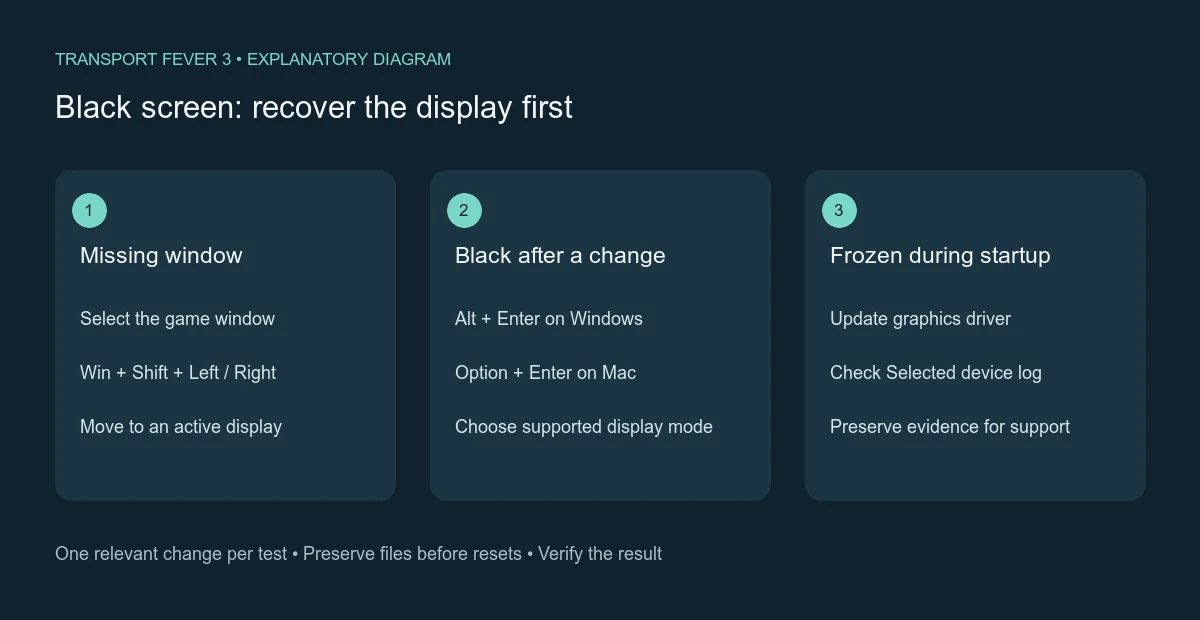
Diagnostic diagram: distinguish window position, display mode and startup rendering.
Switch out of the failing display mode
Press Alt+Enter on Windows to switch the game between fullscreen and windowed mode. The Mac shortcut is Option+Enter. When the image becomes visible, open Settings and inspect the Graphics tab rather than immediately restoring the same configuration that produced the black screen.
The PC display modes include Windowed, Borderless and Fullscreen. Choose a supported mode and resolution for your monitor. Fullscreen resolution is set from the main menu, so return there before looking for a control that is unavailable while playing an existing world.
- Switch the current display mode using the keyboard shortcut.
- Check whether the game becomes visible and responsive.
- Open Settings from the menu you can access.
- Select a supported display mode and resolution.
- Apply the change and verify that the picture remains visible.
- Restart and check whether the recovered configuration still works.
Change only the relevant display settings during the recovery test. Texture quality, shadows and resolution scale serve other purposes and need not all be changed merely because a fullscreen switch failed. Once the window is stable, you can tune graphical detail as a separate task.
If the picture returns in windowed mode but disappears after returning to the previous fullscreen configuration, preserve that comparison. The specific transition is useful evidence for support. Keep a working display mode in place while gathering the report instead of repeatedly returning to an unusable view.
Recover a window on another monitor
A game can open on another connected display or outside the visible desktop area. On Windows, select the game window and press Win+Shift+Left Arrow or Win+Shift+Right Arrow to move it between displays. Repeat in the appropriate direction until you can see it on an active screen.
The window must be selected for the shortcut to apply to it. Use its taskbar entry to select it, then perform the move. A shortcut directed at another application does not test the game's window location, even if the game icon remains visible.
When the window reappears, switch to a suitable display mode and confirm that the resolution fits the monitor now in use. This is especially relevant after changing the connected displays or moving between a laptop screen and an external monitor. Do not conclude that the world failed to load simply because its window opened elsewhere.
Recheck the next launch as well as the current recovered session. The practical result is a window that you can find and use reliably. If the position issue recurs, record the connected display arrangement and the exact steps needed to recover it for the support report.
Reset graphics settings when the menu stays inaccessible
If switching modes does not restore the picture, restart the game and reset the graphics configuration. User-specific settings are stored in settings.lua inside the user-data folder. Close the game, make a copy of that file and remove the active copy to reset the settings.
Locate the correct user-data folder for your store and operating system. It is separate from the installed game folder. Removing a similarly named file from the installation directory is not the intended reset, and reinstalling the game does not necessarily remove the problematic user settings.
Use a targeted reset. Keep saved worlds, campaign profile data and key mappings intact. The file you need is settings.lua; the keybinding file is settings_keys_v3.lua, and the profile file is profile.lua. Those are distinct roles even though they are stored near one another.
After restarting, inspect whether the default configuration restores the picture. If it does, set the display options first and test again before rebuilding every preference. Keep the backup available, but do not immediately restore the entire old configuration if it contains the condition that caused the failure.
If the default configuration remains black, the reset did not establish a settings-only cause. Continue with the startup renderer checks and preserve the result. There is little value in repeatedly deleting the same regenerated file without changing the evidence or the test conditions.
Investigate a black-screen freeze during startup
A startup freeze is a different branch from a black screen after applying a graphics option. Update the graphics driver for the device that should render the game. Some driver problems require a clean reinstallation, but begin with the ordinary vendor-supported update and record the version used for the next test.
On a computer with both integrated and dedicated graphics, check which device Transport Fever 3 selected. Open stdout.txt in crash_dump, find “Selected device” and compare its number with the device list above that entry. The result can show that the game chose a different device from the one you expected.
On Windows, the game's GPU preference is configurable in Settings, System, Display, Graphics. NVIDIA and AMD software may also offer preferred-device settings. After choosing the intended GPU, launch again and inspect the new device entry rather than assuming the preference was applied correctly.
Preserve the old startup log before relaunching. stdout.txt is reset at each game start, so a successful or different later attempt can replace the evidence from the black-screen freeze. When a crash occurs, a timestamped copy may also be available; keep the relevant files together.
Check installation and software interference
If the window and GPU checks do not resolve startup, verify game files through the store client. Steam provides a verification option in the game's Properties. Epic Games offers Verify from the library entry's options, and GOG Galaxy provides Manage Installation, Verify / Repair.
Let the check complete, then repeat the same startup test. A file verification investigates the installed data; it does not prove that a saved world's mods are available, and it does not replace the user-settings reset. Keep those tests separate so you can describe which action changed the result.
Close third-party overlays, monitoring and recording programs for a controlled comparison. Software such as OBS Studio or RivaTuner may interfere. Record which application you closed rather than permanently removing several tools in one step, and restore the ordinary setup when a test makes no difference.
Check the machine's compatibility as well. Windows and Linux PCs need a supported 64-bit system and a CPU with AVX2 support. The Mac version requires Apple Silicon rather than an Intel Mac. A display shortcut cannot overcome an unsupported system. If the application closes rather than staying black, use the crash workflow and the exact error to continue.
Keep shader-cache tests separate from save deletion
Broken rendering and startup crashes can sometimes be investigated by clearing shader_cache in the user-data directory. Close the game first and target that cache specifically. The cache contains rendering data, while the saved world is stored in a different directory.
Make this a deliberate test after preserving the useful logs and settings backup. Relaunch under the same display and device conditions and record whether rendering now reaches the menu. A successful cache rebuild narrows the investigation; it does not establish that every future black screen has the same cause.
If the menu is visible but loading one world becomes black or crashes, preserve the save and compare with a new game. A problem that appears only after loading a particular file belongs to the save-loading branch. Do not erase the saved world simply because the final screen looks similar to a startup failure.
Confirm recovery and prepare remaining evidence
A recovered picture should remain visible through the operation that previously failed. Check opening the menu, applying the selected display configuration, and restarting. If the failure was tied to a saved world, check that specific loading operation separately after the main window is stable.
For unresolved failures, collect hardware details, the selected GPU, display arrangement, mode and resolution, the last change before the failure and the tests performed. Include settings.lua, the relevant startup log and the latest available crash files when a crash occurred.
Avoid reporting a suspected cause as confirmed. State the observed sequence, such as a fullscreen change producing black output while windowed mode works, or startup freezing with a particular selected device. Those comparisons give support a reproducible problem to investigate and preserve the working configuration while the remaining issue is resolved.