

The fastest way to find the Transport Fever 3 save game location on desktop is Settings, Advanced, Open User Data Folder. That opens the active user-data directory for the running installation. Look for the save directory there and confirm it contains your existing .sav files before copying anything. Steam uses its account-specific userdata tree; GOG and Epic use a per-user Transport Fever 3 folder instead.
The installed game directory is not the same as the saved-world directory. Copying the application or using a store's game-file backup does not automatically protect your saves, campaign profile or settings. Locate the dynamic user data first, close the game and make a separate backup of the files you want to preserve.
Open the active user-data folder from the game
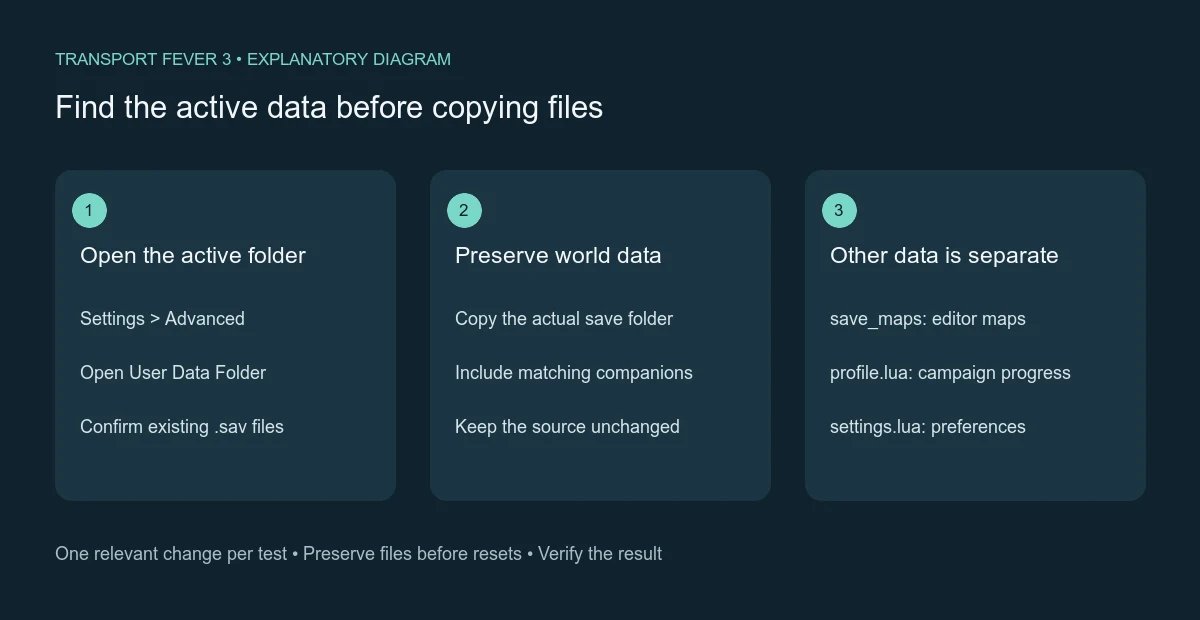
Start with the built-in button when the game can reach its main menu. Open Settings, switch to Advanced and select Open User Data Folder. This avoids guessing a drive letter, operating-system username or Steam account number and is especially useful when several accounts or installations exist on the same machine.
The directory contains more than saved worlds. It also holds configuration files, crash reports, manually installed mods and map-editor data. Identify the folder that contains the save files rather than assuming every directory opened by the button is itself a playable save.
Use the actual contents to confirm your destination. The directory overview uses the name save; if your installation instead presents a directory named saves, verify the .sav contents before choosing it. Do not create a new empty folder just to make a remembered path look correct. The usable result is the directory containing the saved worlds from your active installation.
- Open the user-data directory from Advanced settings.
- Locate the save directory and inspect its existing files.
- Match a saved world with the name and time of a recent save you recognize.
- Close the game before copying its data.
- Copy the required files into a separate backup location.
- Keep the original directory intact until the backup has been checked.
If the game cannot launch, use the store-specific paths below to locate user data manually. Those are typical default locations, so a changed Steam installation path or another operating-system account can alter the beginning of the path.
Folder diagram: installed game data and user-created world data are separate.
Steam saves on Windows, Linux and Mac
Steam user data is associated with a numeric account folder and the game app ID 3493540. The final local folder is the user-data root; the saves sit beneath it. The separate steamapps/common/Transport Fever 3 directory contains installed game data and is not the place to search for the active saved world.
| Operating system | Typical Steam user-data root |
|---|---|
| Windows | C:\Program Files (x86)\Steam\userdata\<user-number>\3493540\local |
| Linux | ~/.local/share/Steam/userdata/<user-number>/3493540/local |
| Linux alternative | ~/.steam/steam/userdata/<user-number>/3493540/local |
| macOS | /Users/<username>/Library/Application Support/Steam/userdata/<user-number>/3493540/local |
Replace the placeholders with your actual account directory or operating-system username. They are not literal folder names to type unchanged. If Steam is installed somewhere else on Windows, navigate to that installation's userdata tree rather than creating the default path on the system drive.
When several numeric user folders exist, the active in-game button is the easiest way to identify the right one. If you are finding it manually, inspect the Transport Fever 3 directory and the saved files you recognize. A folder for another Steam account may be valid but still contain none of the worlds from the account you currently use.
Avoid substituting an app ID from another Transport Fever title. A similarly structured folder can belong to a different game. The combination of the correct account, 3493540, the local root and recognizable save files is what confirms the location.
GOG and Epic use a different user-data tree
GOG and Epic do not use the Steam account-number path. On Windows, both use the per-user roaming-data Transport Fever 3 directory. On Mac, both use the Transport Fever 3 directory inside Application Support. GOG also has a documented Linux user-data location.
| Store and system | Typical user-data root |
|---|---|
| GOG on Windows | C:\Users\<username>\AppData\Roaming\Transport Fever 3 |
| Epic on Windows | C:\Users\<username>\AppData\Roaming\Transport Fever 3 |
| GOG on Linux | ~/.local/share/Transport Fever 3 |
| GOG on macOS | /Users/<username>/Library/Application Support/Transport Fever 3 |
| Epic on macOS | /Users/<username>/Library/Application Support/Transport Fever 3 |
Use the folder belonging to the operating-system account that runs the game. Another account's Roaming or Application Support directory is not automatically your active save location. The game button provides a useful confirmation when the directory you found manually does not contain the expected files.
A GOG installation folder may have been selected during setup. GOG Galaxy can show it through Manage Installation, Show folder, but that reveals the installed application. It does not replace the user-data location above. Epic likewise has an installation folder separate from its dynamic per-user data.
There is no Epic Linux user-data path in this table. Do not construct one by copying the GOG entry and assuming the store layout is identical. Use the active installation's own directory information when a platform or installation arrangement is not covered by the documented defaults.
Identify the files that belong in your backup
A .sav file contains the saved world. A .jpg with the matching name is its thumbnail, showing the camera view when the world was saved. Preserve every accompanying file with the same save name instead of copying only the visible preview or guessing that a fixed number of files is always present.
A thumbnail alone is not a saved world. If you see a recognizable image but no corresponding .sav, inspect the directory again before treating that image as a usable backup. Conversely, do not rename a preview image to .sav to make it appear in a save list; the filename extension does not turn an image into game data.
Map-editor files are kept in save_maps, which is separate from ordinary saved worlds. Include that directory if you want to preserve maps you created. Copying only the ordinary save directory can protect a running world while omitting the editable maps you prepared separately.
| User-data item | Purpose | Backup decision |
|---|---|---|
| Save directory | Saved worlds | Include for world recovery |
save_maps | Maps created in the Map Editor | Include if you create maps |
profile.lua | Campaign progress and last saved game | Include for profile continuity |
settings.lua | Game configuration | Include to preserve preferences |
settings_keys_v3.lua | Key mappings | Include for custom controls |
mods | Manually installed content | Include when those dependencies matter |
mod_presets | Saved mod configurations | Include if you use presets |
A full user-data copy is the simplest way to preserve these related items together. If you make a smaller backup, choose its scope deliberately. A saved world can depend on manually installed content, so a .sav backup alone is not a promise that every dependency will be available on another computer.
Back up without changing the active installation
Close Transport Fever 3 before copying its user data. Use a separate destination with a clear name and date so the copy cannot be confused with the active directory. Keep the directory structure recognizable; that makes later restoration less error-prone than scattering individual files across several locations.
After copying, compare the files you intended to preserve with the backup. Check the names, sizes and presence of the .sav data rather than judging success from the folder's appearance alone. If the backup was meant to include campaign progress or manually installed mods, check those items explicitly as well.
Do not treat Steam's static game backup as a saved-world backup. The same limitation applies to copying the GOG or Epic installation directory. Installed data can be redownloaded or repaired through the store, while the dynamic data you created needs its own copy.
Keep a backup separate from active cleanup or troubleshooting. A shader-cache reset should target shader_cache, a settings reset should target settings.lua, and a save backup should preserve the world. Copying the entire user-data root first gives you a clear recovery boundary without making those different maintenance operations interchangeable.
Restore into the destination installation's active folder
On the destination machine, identify its own active user-data folder rather than assuming it shares the source computer's username, drive or Steam account number. Make a backup of the destination data before replacing files. Then copy the saved-world files into the actual save directory for that installation.
Keep the accompanying files together and preserve the source names. A store change does not justify inventing a new filename format. The critical checks are that the data belongs to Transport Fever 3, sits in the active save directory and has the content dependencies needed by the saved world.
Open the game and inspect the load list. If the save appears, attempt a load and verify the world before deleting the source backup. Appearing in the menu proves that the game can find the entry; successful loading is a separate check. A save that is visible but fails needs the save-loading troubleshooting workflow rather than another random directory move.
If the entry does not appear, revisit the directory root, account and file contents first. Check for an extra nested folder introduced by copying a whole directory inside another directory. Do not repeatedly reinstall the application before confirming that the saved data is in the location the running installation actually uses.
Keep campaign progress, caches and camera output distinct
Campaign profile data is stored in profile.lua. A backup of that file protects a different kind of progress from a saved world. If missions are locked after a profile change but the world files remain available, do not conclude that the save directory was erased.
crash_dump stores troubleshooting logs, while shader_cache holds rendering cache data. Camera output uses screenshots, recordings and keyframes. Those folders can be useful, but none replaces the saved-world data. Identify the result you want to protect before selecting which directories to copy.
For a support report, preserve the relevant crash files before restarting because stdout.txt is reset at each game start. For a save transfer, preserve the source world until the destination loads it. For ordinary backup, keep the copy separate from the active data and repeat the process after meaningful progress. Each action protects a different outcome, and the folder structure makes those boundaries visible.