

For Transport Fever 3 temperate map seeds, try skyestorme1 with Large, 1:1, Medium lakes, Dense rivers, and Medium mountains. Match the remaining settings in the table below before comparing the terrain. This is a community setup example with visually checked settings, not an independently reproduced map on the current game release.
Two active mod entries appear in the example, but their identities are unresolved, and the exact game build is unknown. Those gaps prevent a guaranteed match. If you want a particular coastal shape instead of that example, Mapzilla provides temperate layouts; Ultimate Terrain Generator offers a separate map-editor workflow. Their settings are not interchangeable with the default generator.
Try the skyestorme1 Setup Example
Enter skyestorme1 exactly in the Seed field after selecting Temperate. The spelling includes the final letter e in storme, followed by the digit 1. Copying an approximate spoken spelling can lead you to a different map.
The example combines rivers running through lakes with mountainous terrain. It is a candidate for a water-rich landscape, rather than a verified flat beginner map. The mountains remain set to Medium, so the recipe should not be described as a maximum-mountain preset merely because the resulting landscape contains substantial relief.
| Setting | Value shown or established for the example |
|---|---|
| Climate | Temperate |
| Map Size | Large |
| Map Format | 1:1 |
| Seed | skyestorme1 |
| Lakes | Medium |
| Rivers | Dense |
| Mountains | Medium |
| Names | European |
| Town Density | Medium |
| Industry Density | Medium |
| Start Year | 1900 |
| Weather | Dynamic |
| Time of Day | Dynamic |
| Tutorial | On |
| Difficulty | Normal |
| Active mod count | 2; identities unresolved |
| Exact game build | Unconfirmed |
View the skyestorme1 setup at 1:27 to compare the visible controls. Use the table as a settings example with the stated limits. The active mod count does not establish which entries were selected or whether they affected generation. Leaving your mod list empty is therefore not a demonstrated recreation of the original setup.
Do not promise the same town names, industrial positions, or transport opportunities from the seed string alone. Check your generated preview before committing to the world. If the geography differs, compare the generator and every visible setting before assuming that the seed itself is invalid.
Enter the Settings in Free Game
Open New Game and select Temperate for a generated map. Continue to the settings tab, where the World section contains the map size, format, and seed controls. Enter the example's values there, then set its terrain and civilization options.
- Choose Large as the map size.
- Set Map Format to 1:1.
- Enter skyestorme1 in the Seed field.
- Set Lakes and Mountains to Medium.
- Increase Rivers to Dense.
- Choose European names, Medium town density, and Medium industry density.
- Set the start year to 1900.
- Match the environment and tutorial options if you want the same visible setup.
- Review Normal difficulty and your active mod selection.
- Inspect the generated result before starting the world.
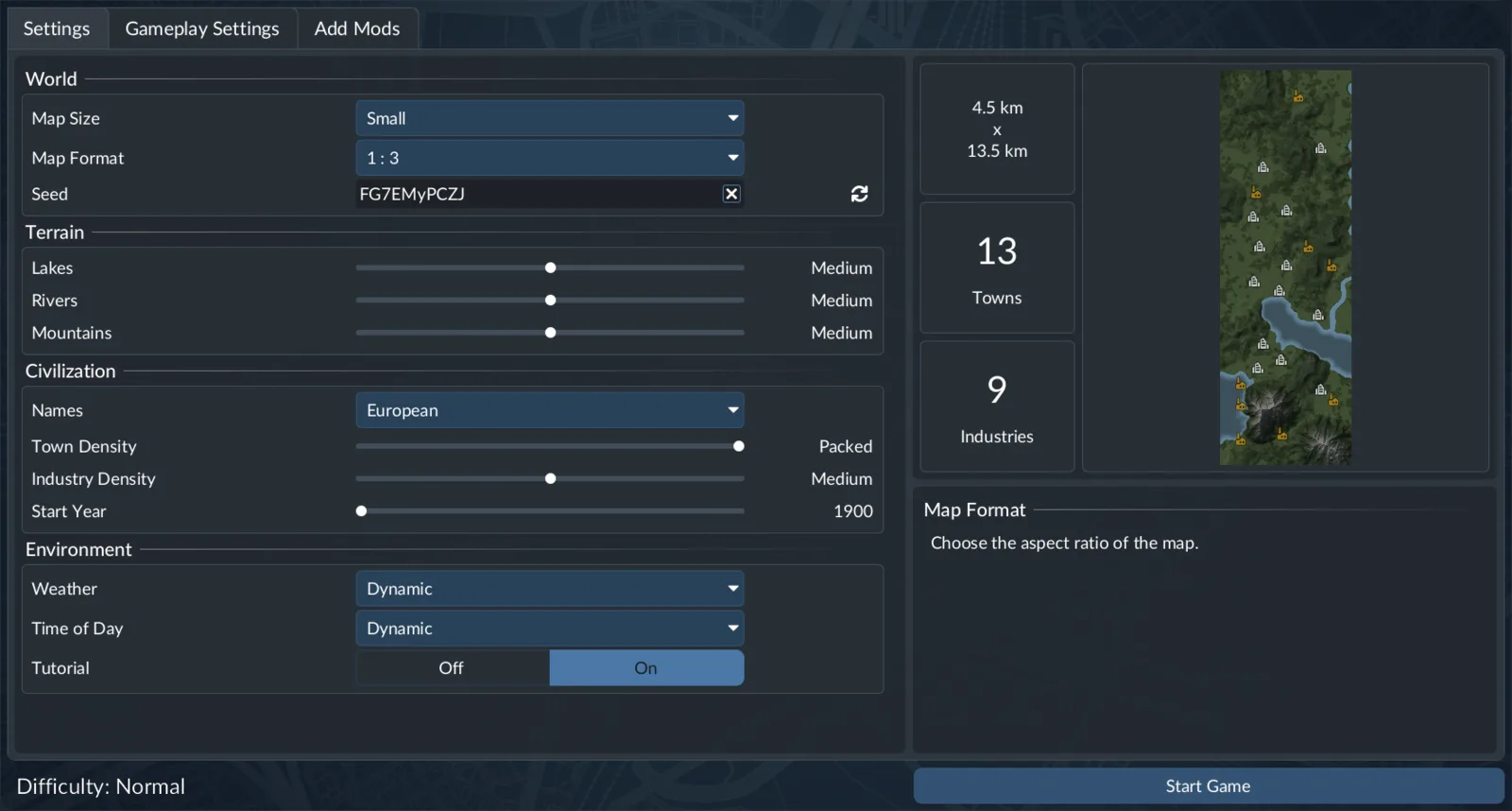
Interface illustration: the sample values shown here are not the skyestorme1 recipe.
A seed is a key used by the generator, not a complete map file. The same seed and settings are the basis for repeating a generated world. Changing the dimensions, terrain options, or generator changes what you are asking the game to construct.
The name list matters when comparing settlements, and the density settings matter when comparing their distribution. Lower town density starts with fewer, slightly larger settlements; higher density creates more settlements with smaller initial sizes. Industry density also affects the starting distribution, while the exact amount depends on population and town demand.
Keep these distinctions visible when sharing your setup. “Dense rivers” describes a terrain choice; “Medium industry density” describes civilization placement. One does not establish the other, even if both appear on the same settings screen.
Compare Terrain Before Building a Network
Temperate terrain contains grasslands, forests, rivers, lakes, and higher mountains. The climate shapes the landscape and appearance, but it has no direct simulation effect by itself. The generated geography affects which transport modes are practical.
For the skyestorme1 example, inspect how the river systems join the lakes and where the surrounding slopes leave room for construction. The setup is useful to investigate if you want waterways and relief in the same world. It does not establish a profitable opening route or a guaranteed convenient industry chain.
Compare terrain separately from town and industry positions. A similar river outline with different settlements is a different diagnostic result from a completely different coastline or mountain pattern. That distinction helps you identify whether the mismatch concerns landscape generation or civilization settings.
Use the preview to decide whether the world fits the network you want to build. A long water connection can look attractive without establishing that every section is navigable or that suitable destinations lie at either end. Confirm the actual world before treating its appearance as a route plan.
If you prefer a different geometry, choose a generator designed for that shape rather than expecting a random seed to satisfy every condition. Keep that custom-generator recipe separate from a default-generator seed. For other climates, use the general map seeds guide.
Diagnose a Map That Does Not Match
Check generation settings before repeatedly trying another spelling. Start with the climate, then the generator, map size, aspect ratio, seed, and terrain controls. Compare town and industry settings after establishing whether the terrain itself matches.
| Difference you observe | Setting or requirement to compare |
|---|---|
| A completely different climate | Temperate selection |
| A different overall terrain style | Generator choice and active generator mods |
| A square world becomes a long rectangle | Map Format |
| Rivers or lakes differ substantially | Rivers and Lakes controls |
| Relief differs | Mountains control and generator options |
| Settlements differ on similar terrain | Names and Town Density |
| Initial industries differ | Industry Density and relevant civilization settings |
| The example still differs after visible settings match | Unknown mod identities and game-build differences remain unresolved |
Do not solve an unexplained mismatch by declaring the example universally broken. Equally, do not claim an exact reproduction because one river bend looks similar. The community example has two known gaps, so matching the listed controls cannot resolve every possible difference.
When you find a world you want to reuse, record its complete settings and mod selection. A useful shared recipe includes the generator, game version where known, dimensions, seed, terrain values, and civilization values. Keep the original configuration available before changing any of these fields.
Use Mapzilla for a Specific Temperate Layout
Mapzilla adds Mapzilla - Mountains to delta, a generator for the Temperate climate. Its entry describes selection through the new-game Generator list after setting the climate to Temperate. It is not offered for the other climates in that selection.
Instead of hunting only by seed, choose a layout. The generator arranges the map around the relationship between mountains and the sea:
| Layout | Described arrangement |
|---|---|
| Single shore | Mountains on one side, sea on the other |
| Island | Mountains in the center, sea around them |
| Inland sea | Sea in the center, mountains around it |
| Isthmus | Mountain range in the middle, sea on both sides |
| Strait | Sea channel in the middle, mountains on both sides |
| Peninsula | Mountains at one end, sea on the other three sides |
| Bay | Bay at one end, mountains on the other three sides |
Select a layout directly, or use Random to let the seed choose among them. Coastline controls variation from Straight to Wild. Islands adjusts offshore islands. Orientation offers Default or Alternate, with Alternate rotating the arrangement by a quarter turn.
Its Rivers control sets the number of river systems and the density of tributaries; Lakes adjusts lakes along those rivers. Record these controls with the seed. A Mapzilla world using a particular layout is a custom-generator recipe, so a seed copied into the default generator does not establish the same world.
Mapzilla is the relevant alternative when you need a named coastal arrangement. The skyestorme1 example remains a separate candidate, with its own unresolved mod and build information.
Use Ultimate Terrain Generator in the Map Editor
Ultimate Terrain Generator's described first release supports Temperate maps in the map editor. Its button is hidden in normal games. Use this route when you want to preview and apply a generated landscape before placing towns and industries.
Open a new Temperate editor map, or a map whose existing terrain you are prepared to replace. Select UTG from the mod button strip, then choose a map type, relief, water, ship-river setting, and seed. Its terrain parameters use 100 percent as the designed baseline.
The named map types include Great River Valley, Delta Lowlands, Mountain Range with Passes, Rolling Plains, Lake District, Large Bays, Peninsulas, Island Chain, Coastal Region, and Highland Plateau. These are generator options, not ten independently tested seed recommendations.
Relief ranges from Gentle through Moderate, Hilly, Rugged, and Mountainous. Water offers Dry, Normal, or Wet, while Ship rivers can use the map type's default, None, One, or Several. Preserve all those values if you want to repeat the generated result.
Generate the terrain, inspect the Report tab, and use Preview before Apply to map. The report describes buildable land, rivers, ship rivers, lakes, and passes. Applying replaces the whole terrain and its trees. Place towns and industries afterwards.
Undo restores terrain shape for the last Apply in the current session, but does not restore the trees. That limit matters when deciding which editor map to open. Use a fresh map for an experiment rather than treating Undo as a complete restoration of an established landscape.
Keep Terrain and Settlement Seeds Distinct in the Editor
The regular editor heightmap generator exposes its own seed and terrain settings. It also offers controls to keep the existing heightmap, assets, towns, and industries. Review those selections before generating over an existing editor map.
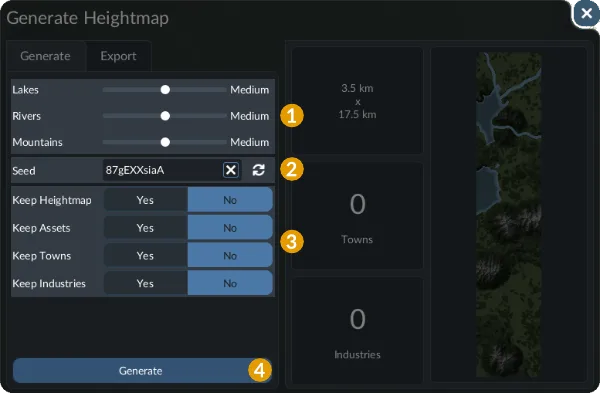
Terrain generation has its own seed and layer-preservation choices.
Town and industry distribution use another tool. Choose its Towns or Industries tab and configure the placement settings. The town generator has a separate seed, a count control, and Keep existing towns. Its maximum town count depends on map size.
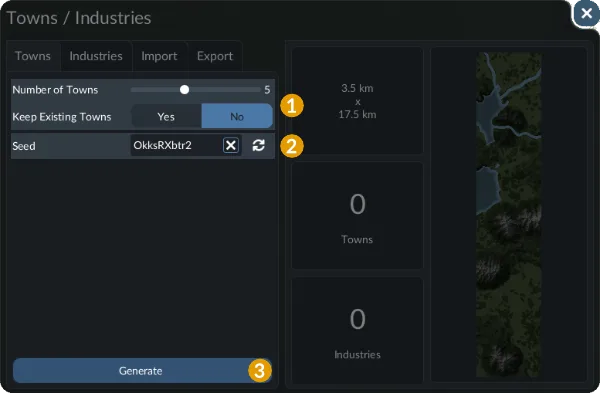
Record this placement seed separately from the terrain seed.
A terrain seed therefore does not document every editor operation. If you generate a heightmap, place towns with another seed, and then add industries, preserve those choices separately. Keeping an earlier layer also changes what remains on the map after a later generation step.
Save the resulting map once its terrain and placements fit your intended world. That gives you a reusable authored result as well as a record of the generation choices. For a different experiment, compare one set of controls at a time and keep the earlier configuration available.