
Transport Fever 3 has a native macOS version for Apple Silicon. Intel Macs are incompatible with the native version. The minimum names an Apple M2 Pro with 16 GB RAM; the recommended configuration names an Apple M4 Pro with 24 GB. Both require macOS Sequoia 15.7 or higher and 90 GB of available space on an SSD.
Check your exact chip, memory, operating system and free storage before buying for a Mac. An Apple Silicon label alone does not confirm that every M-series configuration meets the requirements. The published configurations also provide no measured Mac frame-rate target.
Compare the complete Mac requirements
| Component | Minimum | Recommended |
|---|---|---|
| Processor family | Apple processor; Apple Silicon only | Apple processor; Apple Silicon only |
| Processor | Apple M2 Pro | Apple M4 Pro |
| Reference model | MacBook Pro 14-inch, 2023 | Mac mini, 2024 |
| Graphics | Apple M2 Pro | Apple M4 Pro |
| Memory | 16 GB RAM | 24 GB RAM |
| Operating system | macOS Sequoia 15.7 or higher | macOS Sequoia 15.7 or higher |
| Storage | 90 GB available space | 90 GB available space |
| Drive | SSD required | SSD required |
Read each column as a configuration. Matching one row does not settle the others: enough memory cannot compensate for an operating system below the stated floor, and a named chip does not supply missing free storage.
The reference model identifies the machine associated with each processor specification. Use the chip and memory actually installed in your Mac rather than relying on its product-family name. The graphics row names the same Apple chip as the processor row; it does not introduce a separate, unspecified graphics card that you must choose.
Minimum and recommended are requirement tiers. They do not establish a particular resolution, graphics preset, city size or frame rate. Choose a Mac purchase or installation decision from the complete table rather than converting the recommended column into a performance promise.
Identify the chip and operating system
Open Apple menu → About This Mac. On an Apple Silicon Mac, Apple identifies the processor in a Chip field. On an Intel Mac, the corresponding field is Processor. Read the actual value shown there.
Use the chip name in full. M2 Pro is the minimum named chip; the requirements do not say that every processor containing “M2” is equivalent. The same principle applies to generation numbers and other chip suffixes. An unlisted Apple Silicon configuration needs exact compatibility confirmation rather than a guess based on being newer.
Check the memory and complete macOS version in the same system-information view. Keep these values together when comparing your machine with a requirement tier. For the operating system, the important detail is the numeric version as well as its name: an earlier Sequoia release is below the stated 15.7 floor.
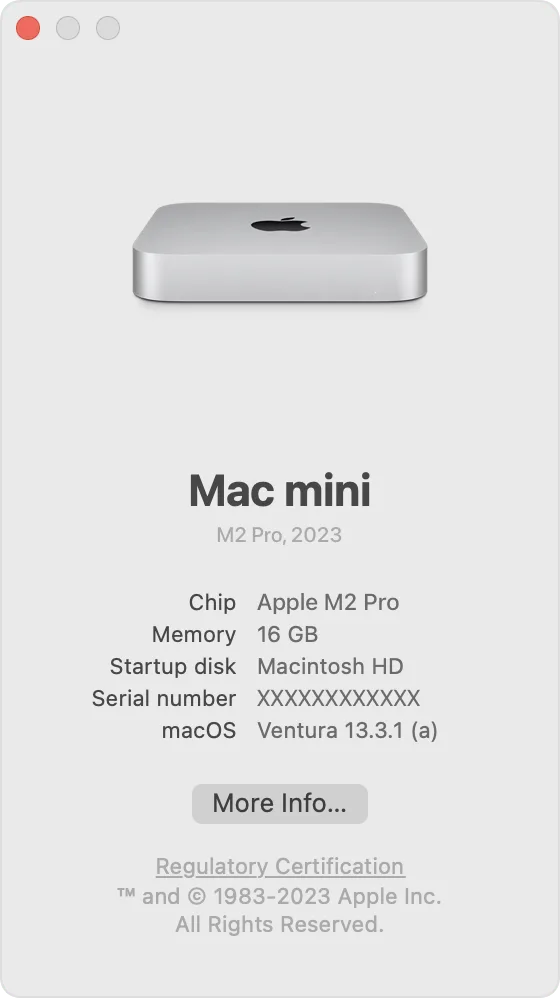
Apple interface example showing Chip, Memory and macOS fields. The pictured Ventura 13.3.1 is below the game’s Sequoia 15.7 requirement.
The illustrated About This Mac window is an Apple interface example showing where the fields appear. Its older operating-system version does not demonstrate Transport Fever 3 running on that system and does not replace the game's Sequoia requirement. Use the values on your own Mac for the actual comparison.
Once you have recorded the fields, distinguish a definite mismatch from an unresolved chip comparison. An Intel processor or too little RAM is a stated incompatibility or minimum-requirement failure. An unlisted Apple Silicon chip is a different case: the table alone does not supply its equivalence to the named configurations.
Check available SSD space
For macOS Ventura 13 or later, Apple's storage navigation is Apple menu → System Settings → General → Storage. This is a navigation path for checking storage; it does not mean Ventura meets Transport Fever 3's operating-system requirement.
Check available space rather than the advertised size of the drive. The game asks for 90 GB available on an SSD. A drive's total capacity and its currently available capacity are different values, so use the latter in your compatibility check.
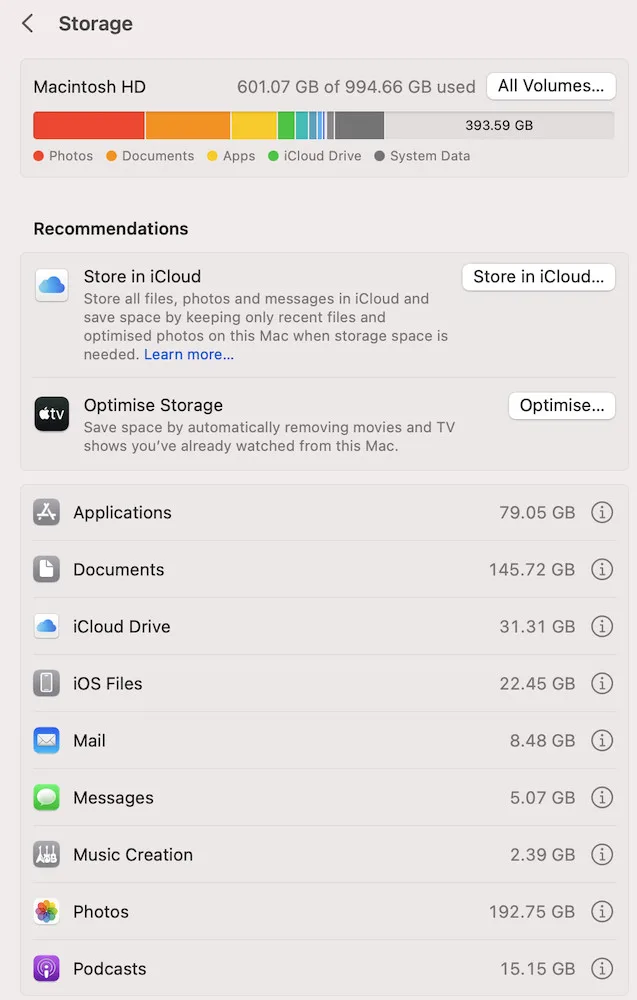
Storage interface example showing used and available capacity. These pictured values describe the example machine, not your Mac.
Keep the storage and memory checks separate. The memory requirement is RAM, while the available-space requirement concerns the drive. More free disk space does not satisfy a shortfall in RAM. Likewise, having the required RAM does not create installation space.
The 90 GB figure is the published available-space requirement. It is not an established download size or a measured final installation size. If installation is blocked by capacity, resolve the available-space condition before treating the result as a processor or graphics problem.
Classify a mismatch before installation
Use the following branches to decide what remains unresolved:
- Intel Mac: native compatibility is explicitly ruled out. Reinstalling the native game does not change the processor family.
- Named chip with a missing requirement: identify the specific failed row, such as operating-system version, memory or available SSD space. Do not mark the machine as matching the full tier because its processor matches.
- Complete named minimum or recommended configuration: the machine matches that published tier. This permits a requirements-based decision, without predicting performance in every transport network.
- Unlisted Apple Silicon chip: seek a statement for that exact configuration. The current table supplies reference chips, not a universal list of equivalent M-series processors.
Do not replace this native check with an assumed compatibility-layer result. CrossOver, emulator operation and other translation methods have not been verified for this game here. Cloud availability is also a separate title-and-store check; it cannot establish whether the native Mac application will run.
Check a launch failure before changing files
If the unmodified game does not start or crashes during loading, begin with the complete minimum requirements. Urban Games notes that a system below them may fail to start. Check the actual machine values, including the Intel versus Apple Silicon distinction, before pursuing a file repair.
If multiple displays are connected, inspect the other screen. The game may be running somewhere other than the display you expected. This is a different situation from a launch that terminates with an error, and it is worth identifying before deleting settings or reinstalling.
If the game can reach the main menu, its Settings → Advanced → Open User Data Folder control provides a way to locate the actual userdata directory. Use that opened directory as your reference for user files. Do not substitute a remembered Transport Fever 2 path or assume that the installation directory contains your settings and saves.
A requirements match does not identify the cause of every startup failure. Note whether the application never appears, opens on another display, closes during loading, or reports a specific error. These observations help determine which maintenance step is relevant instead of applying every possible reset at once.
Preserve user files before maintenance
The game's static installation files and its userdata have separate roles. The official maintenance instructions explain that userdata includes settings and save games, and is separate from the installation folder. Backing up only the installed application therefore does not cover those user files.
Steam's game backup and restore function also does not include the userdata folder. If you want to preserve settings and saves before maintenance, make a copy of the actual userdata folder separately. Where the game can open it through Advanced settings, use that location to identify what needs backing up.
This separation matters when deciding what to repair. A file-verification operation targets the installation, while resetting settings targets user configuration. Keep a user-file copy before changing configuration so that an attempt to repair startup does not become an unnecessary loss of your existing setup.
Reinstalling or uninstalling the game does not reset its settings, according to the maintenance documentation. If the same display or control configuration returns after reinstalling, a repeated installation alone is not a settings reset. Identify the affected file before assuming the store repair failed.
Repair installation files or settings selectively
Choose the repair path for the store through which you installed the native game:
- Steam: open the game's Properties from the library and use its game-file integrity verification control. Verification checks the installed game files and may take several minutes.
- GOG Galaxy: select the game in the library, then use Manage Installation → Verify / Repair.
- Epic Games: open the game library, select the three dots beside Transport Fever 3, then select Verify.
These actions are installation checks. They do not upgrade an incompatible Mac, supply additional RAM or clear the operating-system requirement. Recheck the original failure after the chosen operation before taking a separate configuration step.
The documented settings file is settings.lua. It stores user settings such as screen resolution and key bindings. To reset it, the official procedure is to delete that file while the game is not running. Preserve the userdata copy first and make sure you have identified the actual settings file; do not delete the entire userdata folder as a substitute.
The maintenance documentation also describes deleting the shader cache for broken rendering or startup crashes associated with shaders. The exact cache-folder location has not been established here, so there is no Mac path to copy from this guide. Avoid treating an unidentified folder as the shader cache or using a predecessor's location.
Prepare a useful support report
If the requirements, display check and relevant installation repair do not resolve startup, record what happened and what you already tried. A useful report includes:
- The exact Mac chip and RAM amount.
- The complete macOS version and available SSD space.
- The store used for the installation.
- The error message and a screenshot showing the problem.
- The actions immediately before the failure and any relevant last save.
- The repairs already attempted and whether each changed the symptom.
Urban Games also asks for stdout.txt, settings.lua, and the most recent dump file when a crash occurs. The general stdout log is overwritten after each game start; individual crash logs also exist. Preserve the relevant log before repeatedly launching the game and losing the context of the original failure.
The documented log location is within userdata's crash_dump area, but its complete Mac path is not confirmed here. Use the actual userdata directory when available, and keep the configuration file and crash information with your hardware details when contacting support. A specific report gives support something reproducible to investigate without turning an unexplained failure into an unsupported compatibility verdict.
If the native game launches but runs slowly, use the performance diagnosis. If you are investigating cloud access instead, check the unverified GeForce NOW eligibility before paying for a service plan.