

TransportFever.net is a fan community with forums, a download filebase, a lexicon, and galleries. Its TF3 ModManager, published by Stepke, is a separate community application for managing Transport Fever 3 mods. It is not the base game installer or the in-game Mod Hub.
Start with the author's TransportFever.net - TF3 ModManager thread and its linked filebase entry 8094. Check the current download and instructions, set the correct game and mod folders, and verify one installed mod before applying a large set of updates. The author's October 2026 discussion still describes a native Linux edition as in development; Windows-tool availability does not establish Linux, Mac, or console support.
Find the manager rather than an unrelated download
Read the author's TF3 ModManager thread and its linked filebase entry 8094 for the current program and instructions.
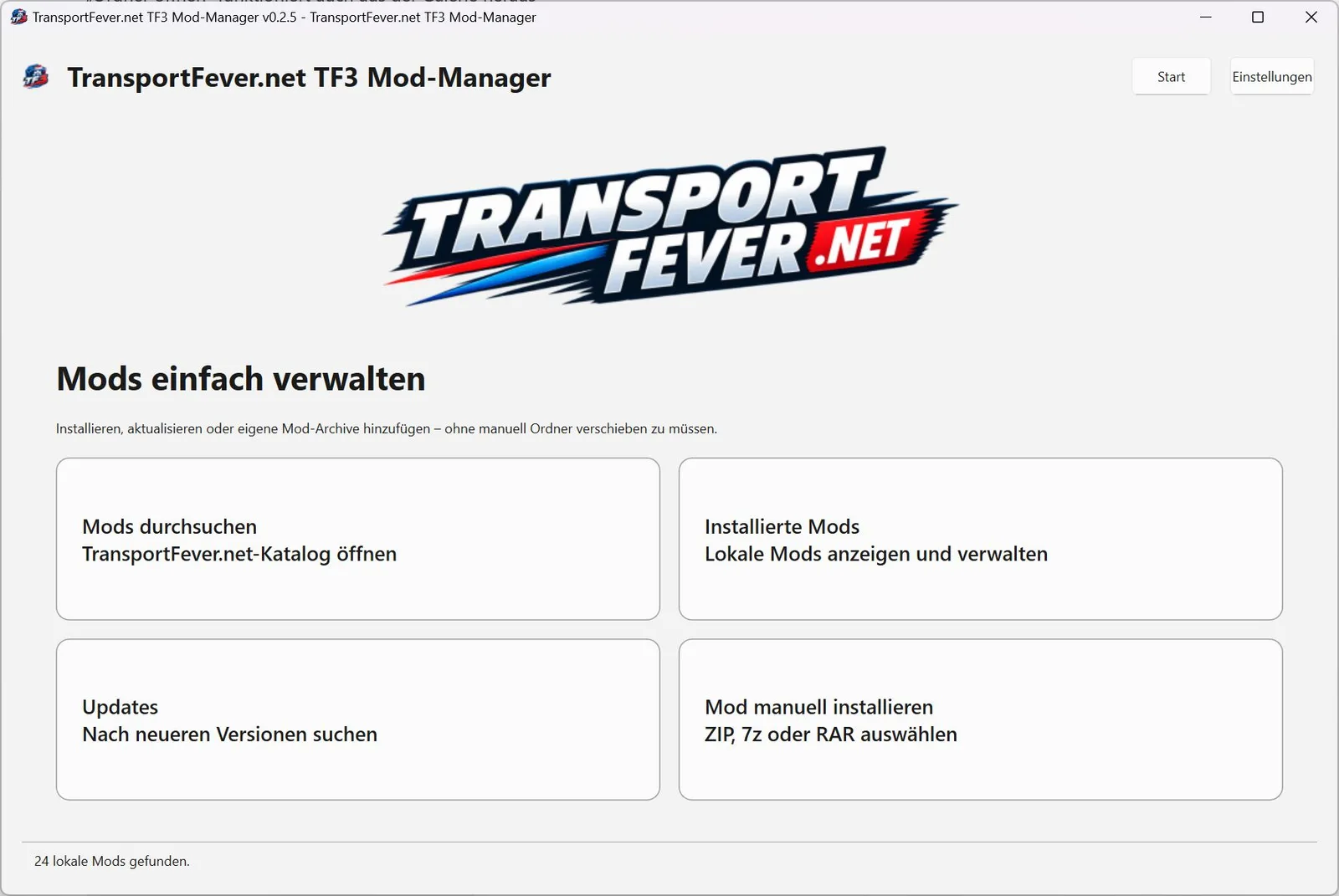
The author's published v0.2.5 manager interface. Read the current release instructions because controls and matching behavior have changed between versions.
The community contains files and discussions for multiple games in the series. Search for the exact TF3 ModManager title and verify that the author is Stepke. The corresponding support thread is numbered 22807, and the linked download entry is 8094.
The forum, filebase, and manager perform different jobs. The thread contains release notes and support discussion. The filebase provides the program download and documentation. The manager works with installed mod files and repository information on your computer. A filebase page opening in your browser does not mean that the manager has been installed or that a mod has been enabled in your save.
Use the author's thread to reach the download instead of choosing an executable from an unrelated mirror. If the community presents a registration or terms screen, follow that site's normal access requirements. A browser access issue is separate from the manager's ability to discover your installed mods.
For a broad overview of where game mods come from, use the existing Mods guide. This page focuses on the TransportFever.net manager's folder setup, imports, updates, and support workflow.
Check platform and version evidence
The published thread documents a Windows application and its self-update process, including an executable and a PowerShell updater. It also contains repeated author statements that a native Linux version is being developed. Those statements are development updates, not a downloadable Linux release announcement.
One Linux user reports running the Windows manager with Proton-GE, including a workaround for the executable-path check and an archive-extraction problem. That report is useful troubleshooting context, but it does not establish a supported native installation or a reliable method for every Linux system. If you need a native Linux manager, check the current author's download and announcement rather than converting that individual experiment into a guarantee.
The inspected thread also does not establish a Mac or console release of this external desktop application. The game's platform support and the manager's platform support are different questions. Console access to the game's Mod Hub is not a way to run a Windows executable.
Release notes advance rapidly. Posts mention several earlier versions, including 0.2.9, 0.3.0–0.3.1, 0.5.11, and a later 0.5.12 to 0.5.13 update problem. These identify historical reports; none is presented here as the current latest download. Read the filebase's current version and then compare your local version with the relevant release notes.
Configure the correct game and mod locations
Treat the game installation and the user mod directory as separate locations. In the initial support discussion, the manager checks for the Transport Fever 3 executable, and a Steam example places local mods under Steam userdata, app 3493540, local/mods. That example belongs to the user's Steam layout; it is not a universal path for every storefront, operating system, or account.
First find the actual game installation used by the copy you launch. Then find the user mod directory used by that same installation and account. Choosing a similarly named folder from Transport Fever 2, an old drive, or another Steam account can create a believable-looking setup that manages the wrong files.
The thread also discusses a separately configured mod.io storage location. A user who changed the location in globalsettings.json reported that an early manager version expected a particular mod.io path instead. The author published an update, and that user subsequently reported successful path detection and archive import.
This is a reason to check the current manager before manually restructuring your folders. A path-validation error can belong to an old version or an unexpected custom location. Record the selected locations and the exact validation message, then compare them with the current instructions. Do not move an entire working mod collection just to make an older error disappear.
Verify one mod before importing a collection
Start with a single mod whose game, author, version, and dependencies you can identify. The manager's published feature description includes repository downloads, installation, updates, dependency information, and importing ZIP, 7Z, and RAR archives.
An archive name and the folder it contains can differ. The author explains a later improvement in recognition using the Filebase ID, mod.io ID, mod name, folder name, and repository archive name. A release note gives an example in which a versioned archive is associated with a differently named local mod folder.
After an import, inspect the manager's installed-mod view and then the game's own mod availability. Those are separate confirmations. The manager recognizing a local folder does not automatically establish that your chosen save has the item enabled, or that every dependency needed by that save is present.
Choose a test that is easy to identify in the game. A vehicle can be checked in its appropriate purchase list; a station or other construction item can be checked in its own construction context. Availability can depend on the individual mod's conditions, so a missing item should be compared with that mod's description before treating installation as failed.
Keep the original downloaded archive and a record of the installed version while testing. That makes it easier to describe the exact file involved if the manager reports an extraction or recognition error. Do not import dozens of archives at once before you know that the selected paths are correct.
Understand installed status and duplicate detection
Early users reported a mod appearing installed in one view but not installed in the repository list. The author's 0.3.0–0.3.1 notes describe improved matching and adding a .tf3modmanager.json file with a Filebase ID for future manager installations. They also describe enriching local entries with official titles and previews while preserving local version numbers for update recognition.
These notes explain why matching can involve more than the visible mod title. Two folders can contain the same mod, while an archive's filename can differ from its internal folder. Conversely, similar display names do not prove identical files or versions.
A later author reply says the manager checks for duplicate installations and generally prefers mod.io, reflecting the in-game subscription's role. Treat this as the behavior described for that release discussion. Verify what your installed version reports before deleting a local copy or changing a subscription.
For a duplicate, identify the mod's source, version, local location, and whether your save depends on it. Decide which installation you intend to maintain, then confirm that the remaining copy is available to the game. Deleting both copies because both look redundant can leave the save with neither.
The same rule applies when changing providers. Switching from a subscribed item to a manual archive is a mod-specific maintenance decision, not a guarantee that the files are interchangeable. Read the author's compatibility and dependency information for the item itself.
Distinguish mod updates from manager updates
A manager update replaces the management application. A mod update replaces a mod's installed files. A repository refresh updates the catalog information used to identify available files. A failure in one operation does not mean the other two have failed.
The author's 0.5.11 notes describe cleaning temporary self-update files, keeping failure logs for diagnosis, and preventing parallel update operations. A user had reported starting a single update and then selecting an all-update action for the same item. The change was intended to avoid duplicate downloads and installations during that overlap.
Follow one update operation through to its result. If the application says an update is already active, let that operation finish rather than clicking additional update controls. Check the resulting local version after the manager restarts, or check the installed mod version after a mod update completes.
The later 0.5.12 to 0.5.13 report describes repository loading followed by an unresponsive application. The author acknowledged finding the fault, and subsequent users reported that the update worked. This is a documented incident and response, not proof that every repository delay has the same cause or that the current manager cannot hang.
If repository loading is slow, note whether the catalog eventually finishes, which version is running, and whether controls become available afterward. A later user's suggestion to defer loading until a button is clicked was still a request in the inspected discussion; do not assume that deferred loading is already implemented.
Keep mod.io credentials separate from in-game login codes
The manager's mod.io integration is separate from the game's email-code login. In a support reply, the author distinguishes a Private Key from a plain Access Token and directs the user to the PDF instructions in the download area.
Follow the documentation for the manager version you installed. Do not paste a five-digit email verification code into a field meant for a manager credential, and do not assume that a token copied from another interface is the credential requested by this application.
When reporting an authentication problem, describe the field label, manager version, and error text while keeping the actual credential private. The Mod.io Auth Code guide covers the separate email verification flow. It should not be used as a substitute for the manager's PDF setup instructions.
This distinction also narrows troubleshooting. If the game can log in but the manager cannot connect, inspect the manager's credential and setup requirements. If both fail, record both failures separately instead of treating success or failure in one program as automatic evidence about the other.
Use support evidence without treating requests as releases
The author states in an October reply that the manager's source code is not currently being published publicly on GitHub. The community nature of the project does not itself establish an open-source repository. Check the author's current statement before looking for a supposed official repository or a fork claiming to be the same application.
The thread also contains requests for additional integrations, exports, and backup features. A request or a promise to work on a feature is different from a released function. For example, an author reply describes a backup function as work in progress. Keep your own existing backups rather than assuming a requested built-in backup is already available.
For a useful support report, provide the manager version, game storefront and platform, operation being attempted, mod name and source, and the exact error. Explain whether the game was closed and whether the problem occurred during archive extraction, repository refresh, a mod update, or a manager update.
Reproduce the smallest failing operation where practical. One archive that fails to extract is easier to investigate than a large collection with several unrelated changes. Preserve the relevant failure log when the application provides one. An author's fix for one named mod or one older version is a starting point for comparison, not a universal instruction to replace every installation.
Related guides
Use Mods for the broader installation choices, Mod.io for the game's mod service, and Modwerkstatt for the separate vehicle-mod provider.