
When a Transport Fever 3 save game is not loading, copy the original save before changing its mods or settings. Compare the failing world with a new game, then follow the loading-specific checks: disable mods for a diagnostic attempt, sign out of the Mod Hub and restart, and consider rebuilding the shader cache. Preserve the load error and crash files before another launch replaces the active log.
A save that fails to load is not automatically lost forever. The problem may concern its dependencies, the current loading environment or the renderer. Equally, no general checklist can guarantee recovery of every damaged file. The aim is to identify which condition prevents loading while keeping the original world available for further investigation.
Separate a missing entry from a loading failure
First check whether the saved world appears in the load menu. If it is absent, verify the active user-data directory and the presence of the .sav file. A thumbnail or a copy placed in the installation folder is not enough. Use Settings, Advanced, Open User Data Folder when the menu works to confirm the running installation's location.
If the entry appears and loading then fails, write down the exact error and the last visible loading stage. Record whether the game closes, stays running on a black screen or displays a missing-resource message. These are different observations; a generic description that the save “does not work” leaves important evidence out.
A lost campaign unlock is also different from a missing saved world. Campaign profile information is held in profile.lua. If only the campaign selection changed, investigate that profile separately rather than deleting or relocating every .sav in the save directory.
| Observation | First check | What to preserve |
|---|---|---|
| Save absent from the menu | Active directory and actual .sav contents | Source files and their folder structure |
| Save visible, then game closes | Loading log and crash report | Original world and newest crash set |
| Missing-resource dialog | Resource names and mod configuration | Message text and dependency list |
| Only one world fails | Compare with a new game or another save | Failing file and working test conditions |
| Every new world also fails | Loading environment and renderer | Map setup, device log and settings |
Use this distinction to choose the next test. Moving an already visible save between random folders is unlikely to explain a failure after loading has begun. Likewise, changing graphics settings does not make an absent file appear in the correct account's load list.
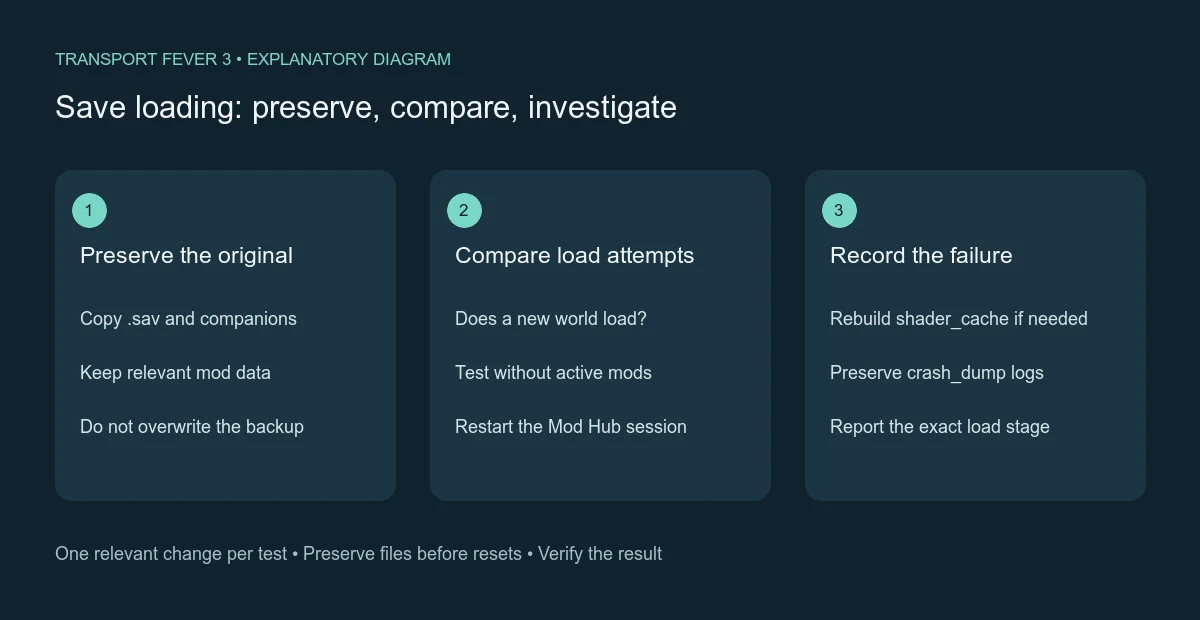
Diagnostic diagram: a successful loading test is checked before replacing the original world.
Make a backup before the first diagnostic change
Open the active user-data folder and copy the saved world's .sav plus its matching accompanying files to a separate location. Keep the source names intact. If you can, preserve the wider user-data folder as well, including manually installed mods and mod presets relevant to this world.
Close the game before copying its data. Give the backup a recognizable name and keep it separate from the active directory. The backup should let you return to the original failure state; it should not be a second copy that you accidentally modify while testing the active one.
Do not overwrite the original immediately after a diagnostic load succeeds. A world loaded with content disabled may no longer have the same available resources as its original configuration. First confirm what changed and inspect the result. If you decide to retain that test state, use a separate save rather than replacing the only untouched copy.
Copying the installed game directory is not a substitute for this backup. Stores keep static application data apart from user-created worlds. Verification or reinstallation can repair installed files while leaving the same saved world and configuration in place, which is why those operations should not be assumed to erase or restore the save.
Establish a working comparison
Try a new game under a clearly recorded configuration. If it loads while the original save fails, the investigation becomes more focused on the existing world and its dependencies. If creating a new game also crashes, the issue extends beyond the single save and may involve the current game environment or rendering state.
When another saved world is available, it can provide an additional comparison. Record whether it uses the same mods as the failing world. A successful unmodded map and a failing heavily modified map are useful observations, but they do not identify a particular mod by themselves.
Keep the comparisons consistent. Use the same store installation and avoid changing several unrelated settings between attempts. Record the exact sequence, such as menu opens, new map loads, original world closes the application during loading. That sequence gives the next test a defined target.
Do not declare the original file corrupted simply because the comparison succeeds. A save-specific failure can still involve missing resources or a mod conflict. The original file remains important evidence until its requirements and the loading error have been investigated.
Test the saved world without mods
Disable mods when loading the save for a diagnostic attempt. This is a documented loading-crash check, but it is not a promise that every modded world remains intact without its content. Preserve the untouched copy and treat the first result as evidence about loading, not a finished recovery.
Inspect any missing-resource information rather than assuming an empty load result is expected. Advanced settings include Show Missing Resources Dialog, which can expose missing resources after loading a world. Record the named resources and the configuration that produced the message so you can investigate the correct content.
If the world loads with mods disabled, review its original dependencies before restoring them. Reintroduce relevant content in controlled comparisons instead of changing the entire configuration at once. The practical question is which content or combination makes the failure return, rather than whether all mods are inherently unsafe.
If disabling content makes no difference, record that result and continue. Do not keep deleting unrelated downloaded content just because one diagnostic attempt failed. A negative test is useful when it was performed against the preserved original and with a known configuration.
Restart the Mod Hub session
Sign out of the Mod Hub and restart the game before repeating the loading attempt. This changes the service session while keeping the saved-world file available. Record whether the content list or load result changes after the restart.
Distinguish a downloaded mod from an active mod configuration. A world may depend on content that is present locally but not enabled for the attempt. Conversely, seeing an item in a subscription list does not by itself show that the required version is available and usable when the save loads.
Avoid manual changes inside the managed Mod Hub download directory. The game manages that content. Manually installed mods belong in the mods directory under user data, and those two locations should not be confused during recovery.
If a service or session problem appears to affect content availability, preserve the error and the time of the attempt. Repeat after the game has restarted and confirm the actual dependency state. Do not convert a temporary session failure into a claim that the saved world is permanently incompatible.
Rebuild only the shader cache
Clearing shader_cache is a documented check for save-loading crashes, new-game crashes and broken rendering. Close the game, locate that directory inside the active user-data root and remove the cache so it can be recreated. Keep the saved-world directories intact.
Target the named cache rather than deleting the entire user-data folder. The latter also contains saves, profile progress, settings, key mappings and manually installed content. Those are not disposable equivalents of shader cache data.
After the reset, launch with the same intended mod and display conditions and repeat the loading attempt. Record whether the failure point changed. A successful attempt after rebuilding the cache is a useful comparison, but the original backup should remain available until the recovered world has been inspected and saved separately.
If rebuilding the cache does not help, do not repeat the same cleanup indefinitely. Move to installation or device checks when the comparisons support them, or preserve the evidence for support. The next action should answer an unresolved question rather than simply reproduce a failed test.
Check installation and rendering when several worlds fail
Verify the installed game files through your store when the failure affects multiple worlds or new-game creation. Steam has its verification option in the game's Properties; Epic offers Verify from the library options; GOG Galaxy offers Manage Installation, Verify / Repair.
Update the appropriate graphics driver and, on machines with multiple GPUs, inspect the selected device in stdout.txt. Find “Selected device” and compare its number with the device list above it. This helps determine whether the game used the intended dedicated renderer.
If a recent configuration change preceded the failures, back up settings.lua and reset it with the game closed. Reinstalling the application does not automatically reset this user-specific file. Test the default configuration before restoring every old preference.
Keep these checks proportional to the evidence. If every unmodified new map loads and only one world fails with a missing-resource error, a broad reinstall is less informative than resolving that world's resource requirements. If every world crashes before rendering, the installation and graphics branches become more relevant.
Preserve the latest logs before another launch
The user-data crash_dump directory contains logs about save loading, map generation and crashes. stdout.txt is reset whenever the game starts, so copy the relevant log immediately after a failed attempt. A timestamped copy is generated when a crash occurs.
Crash evidence can include .dmp, .json and .txt files. Preserve the latest available set with the same name; not every failure produces every type. Avoid sending files from unrelated attempts as if they describe one crash.
Add the original save when requesting help, along with the active mod configuration, hardware details, exact error and reproduction steps. Include the result of the new-map comparison and each targeted change already tested. That gives support a way to distinguish a saved-world dependency from a wider system problem.
Validate any recovered world before replacing your backup
After loading succeeds, inspect the world for the resources and content you expected. A successful loading screen only proves that the game reached the world; it does not demonstrate that all disabled content is present or every service remains configured as before.
Keep the first recovered version under a separate save name and retain the original backup. Confirm that the new version can be loaded again with the intended configuration before treating it as the working replacement. This provides a clear fallback if a later check reveals missing content.
If loading remains impossible, preserve the original and the strongest reproducible evidence rather than repeatedly altering the only copy. A precise report of what loads, what fails and which dependency or stage is involved provides a practical next step without inventing a guaranteed repair for a failure that has not yet been diagnosed.