

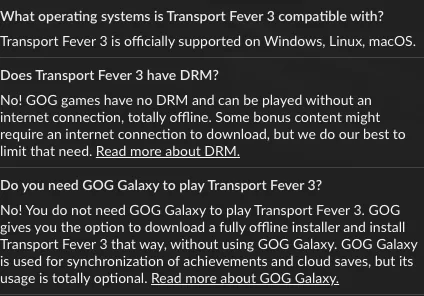
The Transport Fever 3 GOG edition supports a fully offline installer, and GOG GALAXY is optional. To install without a client, open the game in your GOG account, expand DOWNLOAD OFFLINE BACKUP GAME INSTALLERS, download every necessary setup file, and run the installer. You need internet access to obtain those files first; the installed GOG game does not require an online connection to play.
Use GALAXY if you want the client to manage downloads and keep the game updated. Use the browser installer if your priority is keeping a local installation copy and launching the game without GALAXY. Both routes start with the game in your GOG library. DLC ownership and downloading the correct operating-system files still matter whichever route you choose.
Choose the installation route
The GOG edition supports Windows, Linux, and macOS. The GALAXY downloads described here are available for Windows and macOS; use the browser route for Linux. A supported operating system also needs compatible hardware. In particular, the Mac version requires Apple Silicon, so a GOG listing for macOS does not make an Intel Mac compatible.
| Task | GOG GALAXY | Offline installer |
|---|---|---|
| Obtain the game | Select it in the client library and choose INSTALL | Open the game in the browser library and download the necessary setup files |
| Manage downloads | Client supports pausing and resuming | Browser downloads; a download manager can help with interrupted transfers |
| Keep the game updated | Client manages updates | Check the library for newly available offline installation files |
| Install owned DLC | Available account DLC installs by default with the game | Download and run the separate DLC setup files |
| Launch without GALAXY | The client is optional for playing the GOG edition | Install locally and launch the installed game |
| Synchronize account features | GALAXY provides achievement and cloud-save synchronization | Do not assume a disconnected installation synchronizes those features |
The offline option concerns the game installation and launch. It does not remove the need to sign in to your account to download purchased files, or to connect again when you want new files. Likewise, keeping GALAXY installed does not mean you must use it every time you play. Choose the workflow that fits how you want to manage this copy of the game.
Find the game in your account
Start in the GOG account that owns Transport Fever 3. After an order is placed and paid, the game is added to that account and becomes available through the browser library or GALAXY. A public product page shows the game for sale; it is not the download area for your purchased installers.
If the game is missing immediately after payment, allow for order processing. GOG says processing can sometimes take up to two hours. Check the library again before treating this as a failed installation: there cannot be an installer problem if the game has not yet appeared in the account.
If it is still unavailable after two hours, open GOG's purchase support page and use its manual account-refresh link. If that does not restore the entry, contact GOG support about the missing purchase. This is an account or order issue, and reinstalling a game client is not the next documented step. Avoid placing another order just to make the missing entry appear; resolve the original paid order first.
Once the game is visible, open that entry and decide between client installation and the offline backup section. Keep the base game and any owned upgrade distinct when checking the library. Seeing a Deluxe Upgrade on the public store does not establish that the upgrade belongs to your account.
Install through GOG GALAXY
GALAXY is the shorter route when you want download management and updates in one application. Its installer is available for Windows and macOS. Install the client on a supported computer, then use the account containing your game.
- Open your game library in GALAXY.
- Select Transport Fever 3.
- Click INSTALL to begin the client's installation workflow.
- Allow the download and installation to finish before trying to launch the game.
- Open the installed game from its library entry.
The client supports pausing and resuming downloads, and GOG recommends it to help prevent download corruption. This makes it useful when a large transfer is interrupted. It also keeps games up to date, reducing the need to return to the browser library for installation files each time an update becomes available.
Installing through the client also installs available DLC from your account by default. That condition matters: it applies to content you own. It does not mean selecting the base game grants every add-on displayed in the store, and it does not establish a preorder bonus entitlement.
GALAXY's role in achievement and cloud-save synchronization is separate from starting the game. If you intend to play disconnected, do not assume that new progress has already synchronized to another computer. The GOG edition can be played without the client, while synchronization remains a client feature. This guide does not establish a particular save-folder path or a manual save-transfer procedure.
Install from offline backup files
The browser route gives you the actual installation files to keep locally. Start while you have an internet connection and download the full set offered for the installation you need. A partially downloaded set is not a ready-to-use backup.
- Sign in to your GOG account in a browser and open the game library.
- Select Transport Fever 3 to open its owned-game entry.
- Expand DOWNLOAD OFFLINE BACKUP GAME INSTALLERS.
- Download all necessary setup files for the target operating system.
- Wait until the required downloads have completed, then open the folder containing them.
- Run the installation application for that system.
- After installation finishes, launch the installed game from its directory or the shortcut created by the installer.
For Windows, GOG's offline installation instructions describe a self-executing .exe setup file. Larger games can also have accompanying binary files. Download the complete set listed with the setup application rather than assuming the executable is the entire installation. Keep the companion files with the downloaded setup files so that the installer can use them.
That Windows executable instruction does not apply to a macOS or Linux download. Select the appropriate system's files and use its supplied installation application. Do not rename a Windows executable or expect it to become a native installer for another system. This page does not assume a specific filename, number of parts, or compressed download size for the current Transport Fever 3 build.
After the game is installed, launch the installed copy. The setup application is for installation; running it again is not the normal way to begin playing. If you keep a backup for later, retain the complete installation set. Keeping only the first small file while discarding its companion files can leave you with an incomplete backup.
Install and manage owned DLC
The GOG store lists a Transport Fever 3: Deluxe Upgrade, but its store listing and your ownership are separate. Start by checking which content is actually available in your account. The installation instructions below concern owned DLC; they do not identify which edition you should buy or promise access to an unowned upgrade.
DLC through GALAXY
When GALAXY installs the base game, available DLC from your account installs by default. If you want to remove a particular DLC from that installation, use the client's DLC controls:
- Select the base game in the Installed view.
- Open the configuration icon beside PLAY.
- Choose Manage installation, then Configure.
- Open the DLC tab.
- Clear the checkbox for the DLC you want to remove and confirm with OK.
Use the base game's installation controls for this task. Looking at an add-on's shop page does not change what is installed locally. The checkbox workflow controls the installed content; it is not a refund request or an instruction to delete the purchase from your account.
DLC with offline installers
For an offline installation, obtain the DLC setup files separately from the owned base-game entry:
- Open Transport Fever 3 in your browser library.
- Expand DOWNLOAD OFFLINE BACKUP GAME INSTALLERS.
- Scroll to DLC installers.
- Download the setup files for the owned DLC you want to install.
- Once those downloads finish, run the DLC setup application from your download folder.
Do not assume that downloading the base game's installer also downloaded every separate DLC installer. Check this section when building a local backup that needs to include your add-ons. If an expected DLC is missing from the account, resolve its ownership or order status before treating the absence as an in-game content bug.
Update an offline installation
GALAXY keeps the game updated through the client. If you use browser installers, return to the owned-game entry to check for newly available files when you need an updated local installation. Your saved installer set is a copy of what you downloaded at that time; it does not change automatically when a later build is published.
Offline installers can appear later than a post-launch client update. GOG's installer pipeline generates backup installers after a build is published, and its generation queue can introduce a delay of several hours before those files appear in the library. This explains a possible timing difference between update channels. It does not establish that a particular Transport Fever 3 update is currently delayed, or that every delay has the same duration.
If a new client build appears before a refreshed browser installer, check the library again later rather than assuming that the existing offline files are corrupt. Keep your installation route in mind when comparing update availability. A Steam build number or another store's depot listing does not identify the version of your GOG installer.
Do not rely on this guide for a current installer filename, a verified game build, or a patch's compatibility with a specific save. Those details need to be checked against the files and update information actually offered for your account. Where the library provides installation or update choices, follow the instructions attached to the relevant files instead of guessing from another game's installer.
Recover an incomplete browser download
If a setup file fails to download or appears corrupted, return to the library and check that every required transfer completed. Distinguish a missing companion file from a damaged transfer: both can stop an offline installation, but neither proves the purchased game itself is broken.
GOG recommends a download manager for browser-download corruption problems because it adds queuing, pausing, and resuming. GALAXY is another documented option if you prefer the client to manage the transfer. Choose one route and obtain a complete installation set before trying again; mixing an unfinished browser backup with a client installation does not make the backup complete.
If the problem continues, contact GOG support with the route you used, the operating system, the affected file, and the actual error message. For a missing library entry, describe the order problem instead. For missing owned DLC, describe the add-on availability. Giving the specific failure helps keep an account issue, an incomplete download, and an installation error from being treated as the same problem.