
The Transport Fever 3 timetable mod lets you control service at individual stops with scheduled arrival and departure slots, minimum departure gaps, minimum waiting times, or no timetable rule. It can also generate a repeating schedule from a desired frequency, coordinate multiple services at one station, and display upcoming services on realistic departure boards.
Start by deciding what you need to control. Use arrival and departure slots when vehicles must follow named times, Unbunch when the main problem is vehicles leaving too close together, and Minimum wait when every vehicle should remain at a stop for at least a specified period. These modes solve different problems and should not be treated as interchangeable.
Activate the mod for the correct save
Keep activation brief and confirm it before building a schedule. The Add Mods tab in the game setup allows mods and other content to be activated. For an existing game, select its save card and open the available settings or active-mod list. Editing these settings depends on whether that save permits changes.
If the Load Game button is disabled, a missing mod is a likely cause. Check the save's active-mod list before changing the timetable itself. Once the save loads with Timetables active, timetable controls are integrated into the normal line, station, and vehicle windows as well as the Line Manager.
The mod includes gamepad support and a quick-select wheel entry, so its scheduling functions are not limited to mouse-and-keyboard play. It is marked cosmetic, which means achievements remain enabled while it is active.
Choose the correct mode for each stop
Each stop can use one of four modes. Choose the mode according to the result you need at that specific stop rather than applying one rule to the entire network by habit.
| Mode | What it controls | Best use | Important distinction |
|---|---|---|---|
| Arrival/Departure slots | A plan of specific arrival and departure times | Coordinated services, clock-face schedules, or connections that depend on named times | This is the mode for a true timetable rather than a general spacing rule |
| Unbunch | The minimum gap since the previous departure | Restoring separation when vehicles on the same service have grouped together | The gap is departure-based and platform-aware; it is not a fixed arrival slot |
| Minimum wait | The minimum time a vehicle remains at the stop | Enforcing dwell time before a vehicle can leave | It does not create a full sequence of arrival and departure times |
| None | No timetable rule at that stop | Stops that do not need schedule enforcement | Removing the rule means the timetable mod does not hold the vehicle there under one of the other modes |
Arrival/Departure slots are claimed by one vehicle at a time. If several vehicles reach a stop together, they do not all occupy the same slot. A bunched vehicle takes the next free slot instead. This behavior prevents several vehicles from stacking onto one scheduled departure, but it also means a late or grouped service may move onto a later part of the timetable.
Unbunch is the more direct choice when exact clock times do not matter. It maintains a minimum gap after the preceding departure and accounts for platforms. Minimum wait addresses a different issue: how long each vehicle remains at the stop. Neither mode should be described as a complete timetable simply because it delays a departure.
Because modes are assigned per stop, one line can use precise slots at an important interchange while using a spacing or dwell rule elsewhere. Keep every rule tied to a concrete operating need. Extra holds at stops that do not need them make the schedule harder to interpret.
Use the Lines view to configure a stop
Open the Timetables card from the relevant line window or Line Manager and use Edit to reach the scheduling interface. The Lines view separates the line list, the selected line's stations, and the timetable or slot settings. This makes it the clearest view for moving from a service-level choice to the stop where the rule applies.
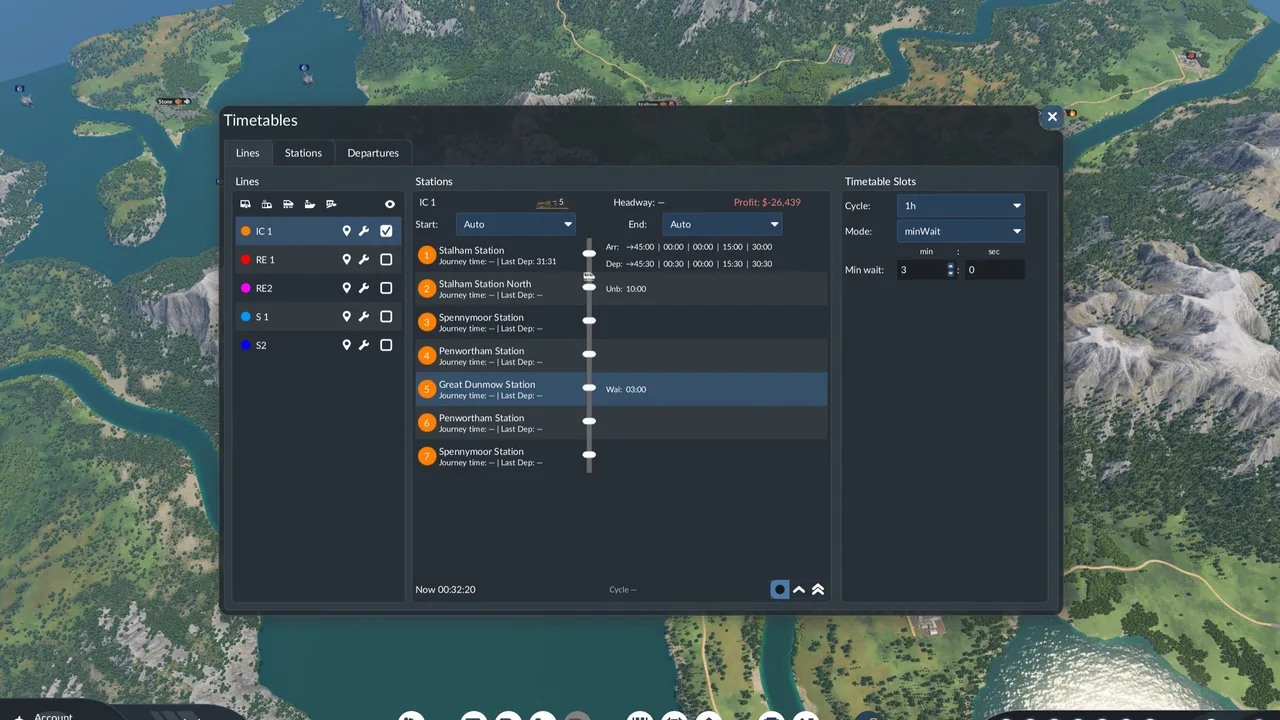
Use the Lines view to select a line and adjust its timetable settings.
- Select the line whose service pattern you want to control.
- Select the relevant stop from that line's station list.
- Choose Arrival/Departure slots, Unbunch, Minimum wait, or none according to the required outcome.
- If you chose slots, decide whether to enter individual times or generate a repeating set with Autofill.
- Review the resulting slot sequence before moving to another stop or line.
- Remember that edits apply instantly. Treat every change as active rather than waiting for a separate future activation step.
The cycle and minimum-wait values shown in the Lines view are examples. Choose settings for the service you want to run; the displayed values are not universal defaults or recommended settings for every route.
You can also reach a Timetables card from station and vehicle windows. Use whichever entry point starts closest to the thing you are examining, then confirm that the selected line and stop are the intended targets before changing a rule.
Build repeating slots with Autofill
Autofill creates a whole cycle of slots from three inputs: a desired frequency, a stop time, and a start time. It is useful when a service should repeat at a regular interval and entering every slot individually would add unnecessary work.
The start time anchors the cycle, while frequency and stop time define the repeating service. Autofill builds slots from those inputs. Cycle length is between 1 and 24 hours per save.
Autofill is a schedule generator, not a separate operating mode. The result is still a collection of slots enforced by the game engine. Vehicles wait for their claimed slots, and grouped vehicles move to the next free ones instead of sharing a departure.
Use individual arrival and departure times when a stop needs deliberate exceptions or when several services must meet at specifically chosen times. Use Autofill when regular repetition is the main objective. The two approaches offer different levels of control, but both belong to the slot-based timetable workflow.
Review the generated cycle against the services you are coordinating. For minimum departure spacing, select the explicit Unbunch mode. Choose slot times for the connection you intend to create rather than treating Autofill as a complete network-wide connection plan.
Coordinate services at a station
The mod supports coordinating several services at the same station. The practical objective is to place the feeder's arrival and the connecting service's departure in a deliberate order within their respective schedules.
Start with the interchange rather than trying to schedule every stop at once. Identify the arriving line, the connecting line, and the station they share. Use arrival and departure slots when the relationship depends on particular times. A spacing rule or minimum wait can regulate one service, but it does not define the full timed relationship between two lines.
After entering or generating the relevant slots, compare the station-level entries for both services. Confirm that you are reading the correct line, platform, arrival, and departure information. Repeat this review for every service that participates in the connection rather than assuming that a change to one line automatically rewrites the other line's timetable.
Use the station view and live departure information to observe how your planned connection works in the running game. Assigning times to both services is a scheduling plan; check the actual arrival and departure relationship rather than assuming that every transfer will succeed.
Review arrivals and departures in the Stations view
The Stations view lists stations on the left and shows lines, platforms, and arrival or departure entries in the right-hand area. It is the most useful overview when the task is to compare services sharing one interchange rather than inspect every stop along one line.
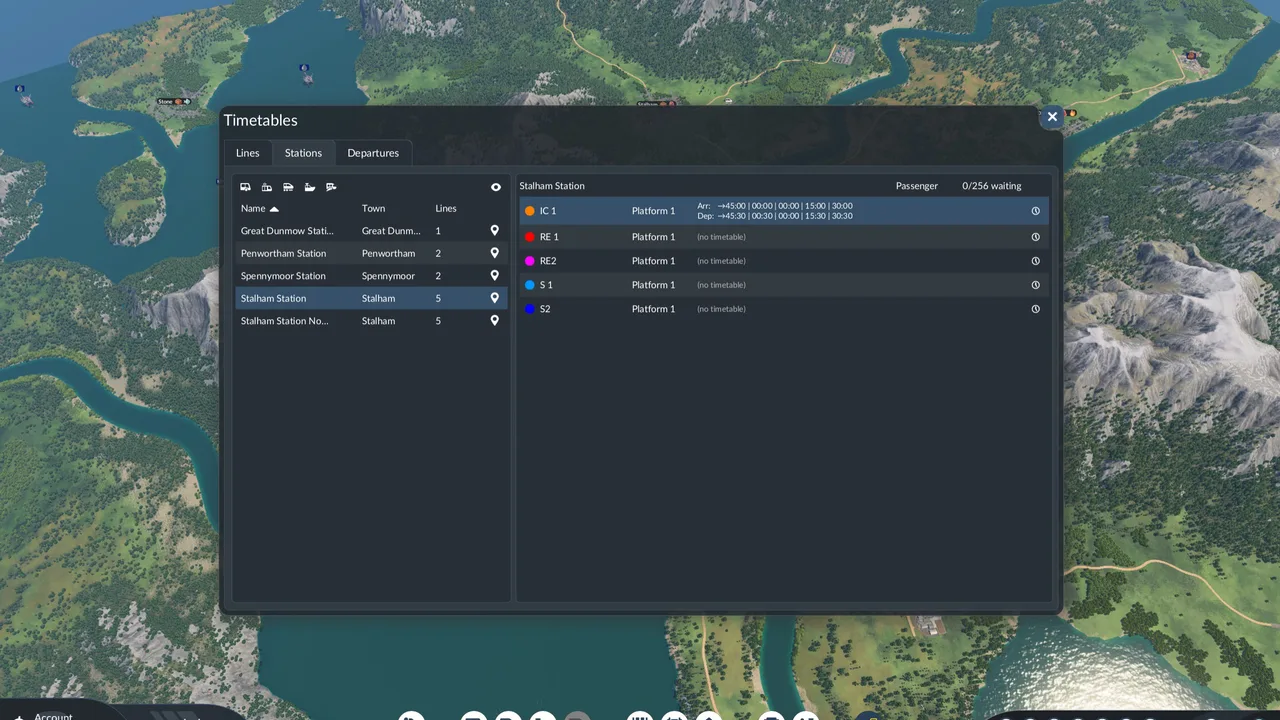
Review station-level arrivals, departures, and connecting lines here.
Use this view as a review surface:
- Select the interchange you are coordinating.
- Identify every relevant line and platform shown for that station.
- Compare the listed arrival and departure entries.
- Confirm that the timetable belongs to the intended service before making another edit.
- Return to the live game state to observe held vehicles and upcoming departures.
If a connection needs adjustment, return to the relevant timetable and edit its slots. Changes take effect immediately, so compare the affected services again after the edit.
Read the departure board
The Departures view turns timetable information into a passenger-style board for a selected station. It includes a Board selector, a station list, and the board itself. The board can display the time, line, route via, destination, and platform for upcoming services.
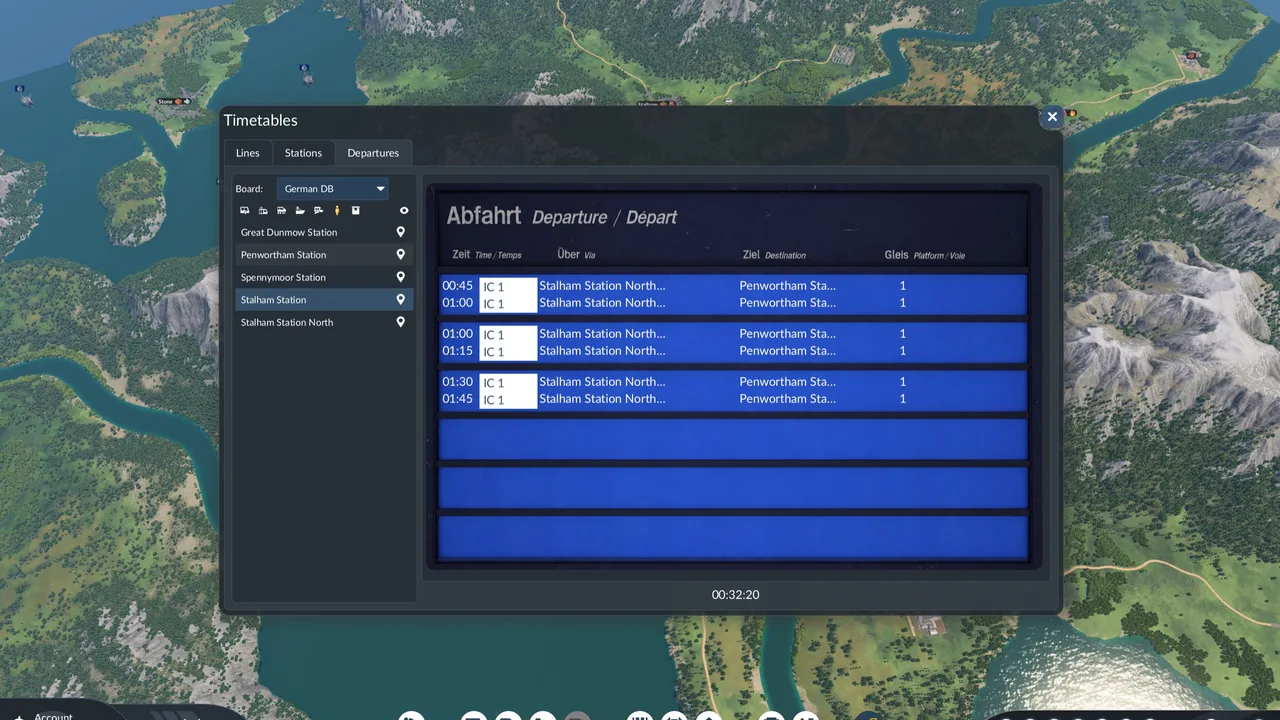
Select a station and read upcoming departures, destinations, lines, and platforms.
Three visual styles are supported: German DB, Swiss SBB, and UK National Rail. Changing the style affects presentation; it does not replace the underlying timetable. Choose the board format you find easiest to scan, then select the station whose departures you want to monitor.
The boards support countdowns and Boarding, Delayed, and Cancelled states. Read those labels alongside the selected station, service and departure time when monitoring the schedule.
A departure board is especially useful after coordinating multiple lines. It gives you one place to compare upcoming services by time, line, destination, and platform. It is a monitoring view, while the Lines and Stations views remain the better places to inspect or revise the underlying schedule.
Manage held vehicles in the live game
When the timetable holds a vehicle, its live departure time appears in the game interface. Compare that time with the game clock in the bottom bar to understand why the vehicle is waiting. This is more informative than treating every stationary vehicle as a routing or station problem.
The integrated Depart now control can release a held vehicle with one action. Use it as a deliberate override when you want that vehicle to leave immediately. It should not be confused with rewriting the timetable: the button releases the current vehicle, while schedule edits change the rules that the game engine enforces.
If vehicles repeatedly wait in a way you did not intend, return to the relevant stop and check its selected mode. Exact slots, minimum departure gaps, and minimum dwell times can all produce holds for different reasons. Correct the rule that does not match your objective rather than assuming every wait comes from the same setting.